1. Booting WinPE via ISO File on VMware ESXi
This is the simplest and most stable method to access the rescue environment on VMware ESXi without requiring complex Passthrough configuration for physical devices
With this method, you only need to download the NHV BOOT ISO file, upload it to the Datastore, and mount it to the virtual CD/DVD drive of the virtual machine
Below are the detailed steps to achieve a successful boot on the first attempt
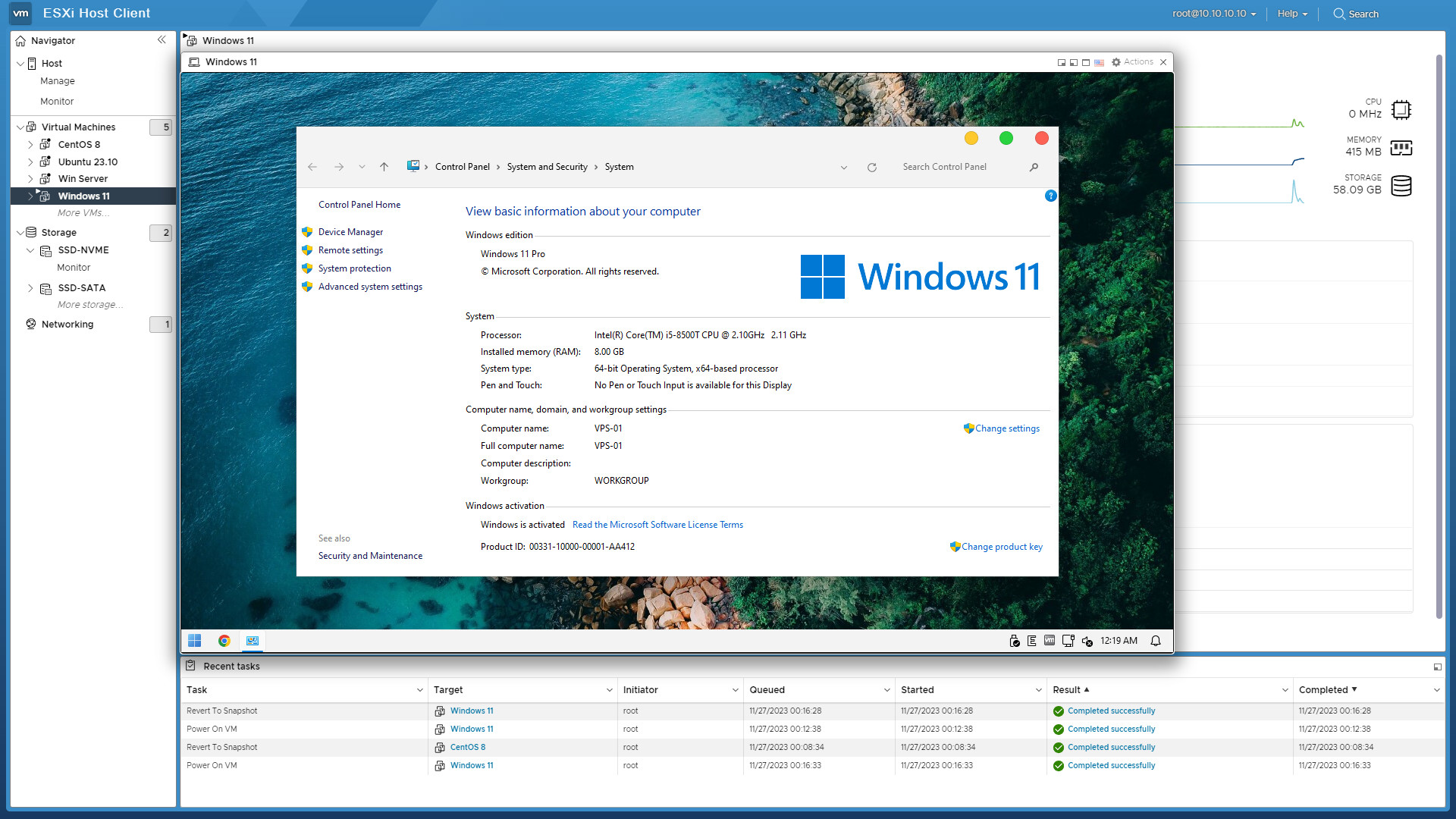
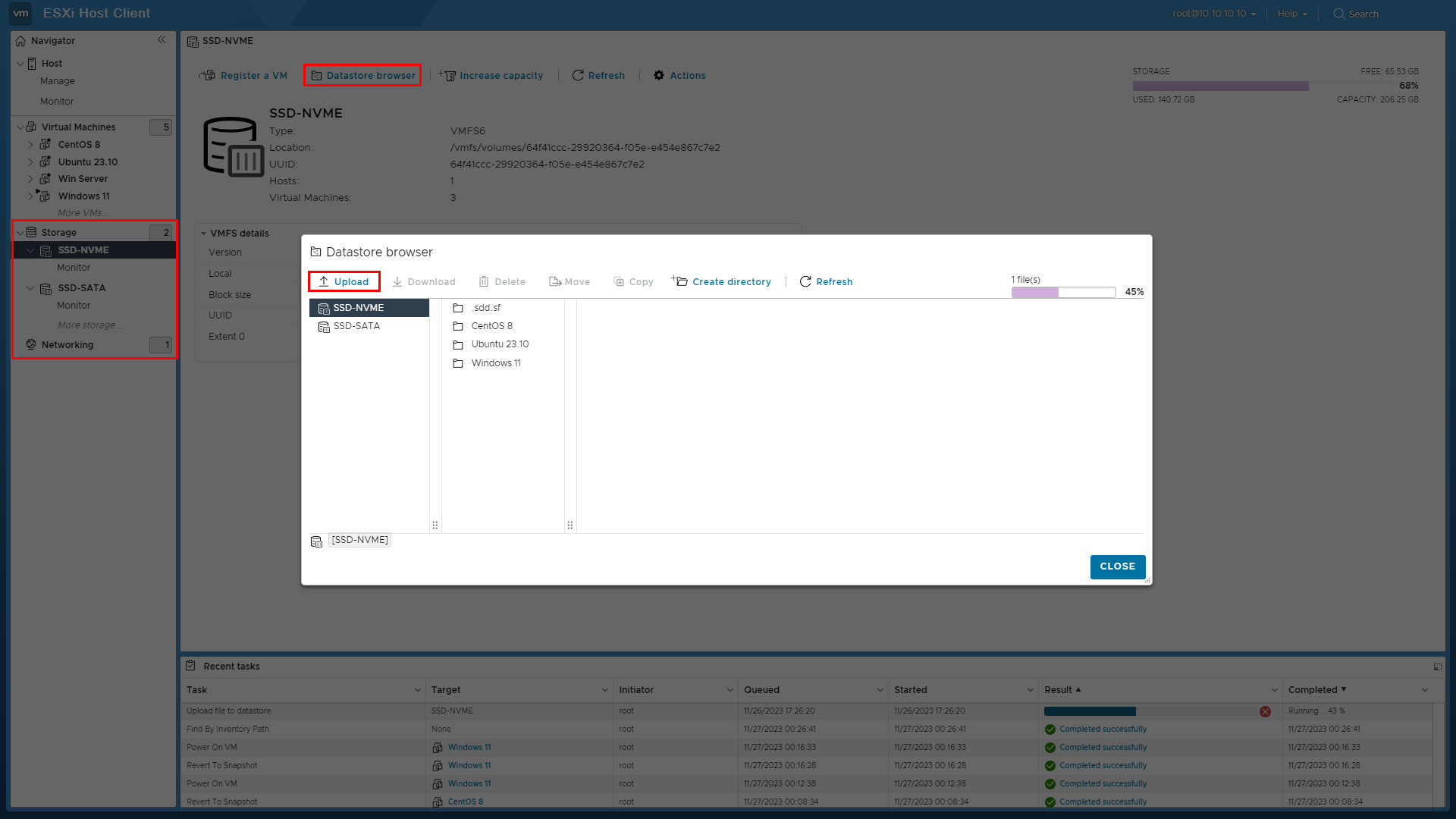
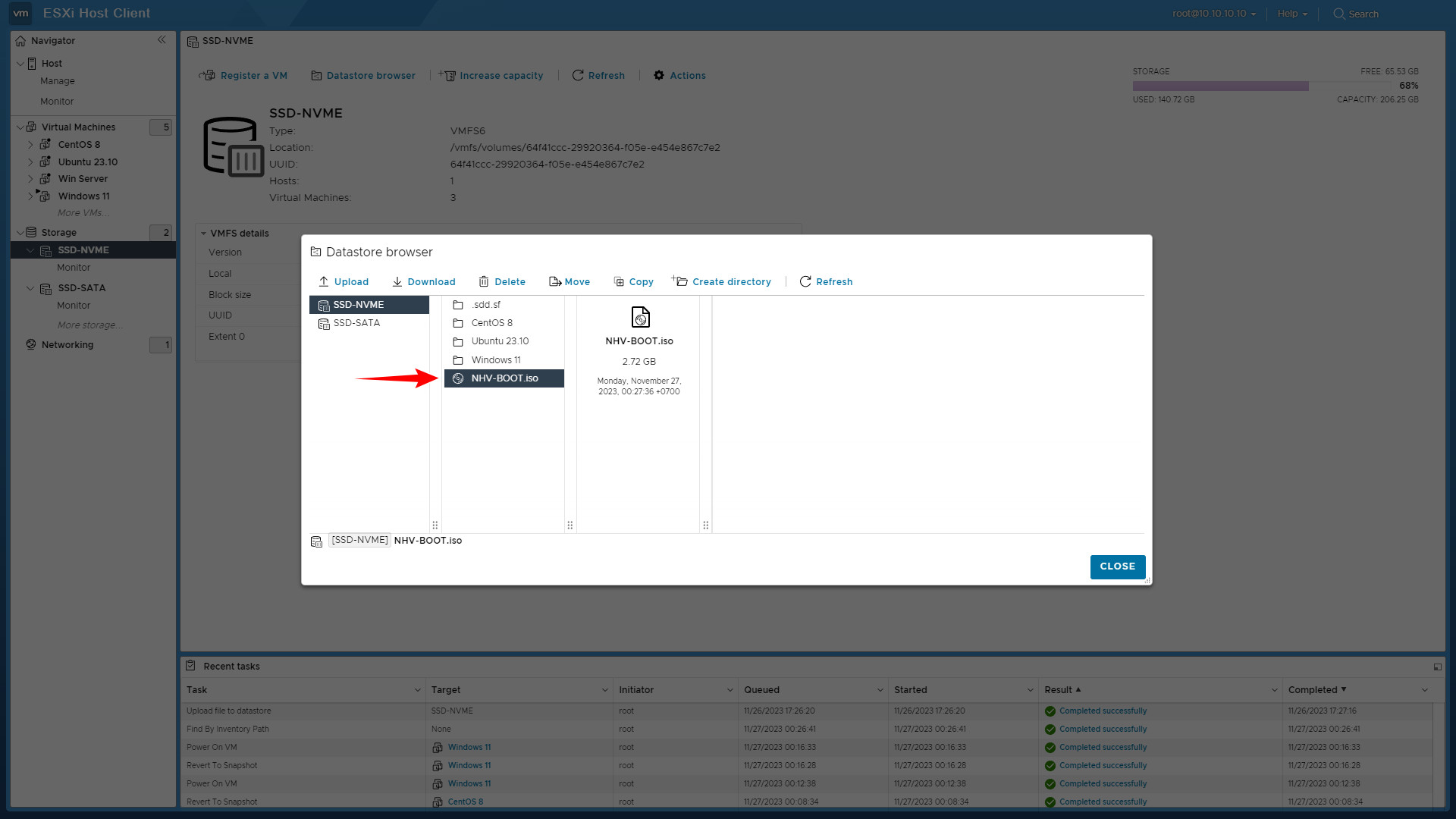
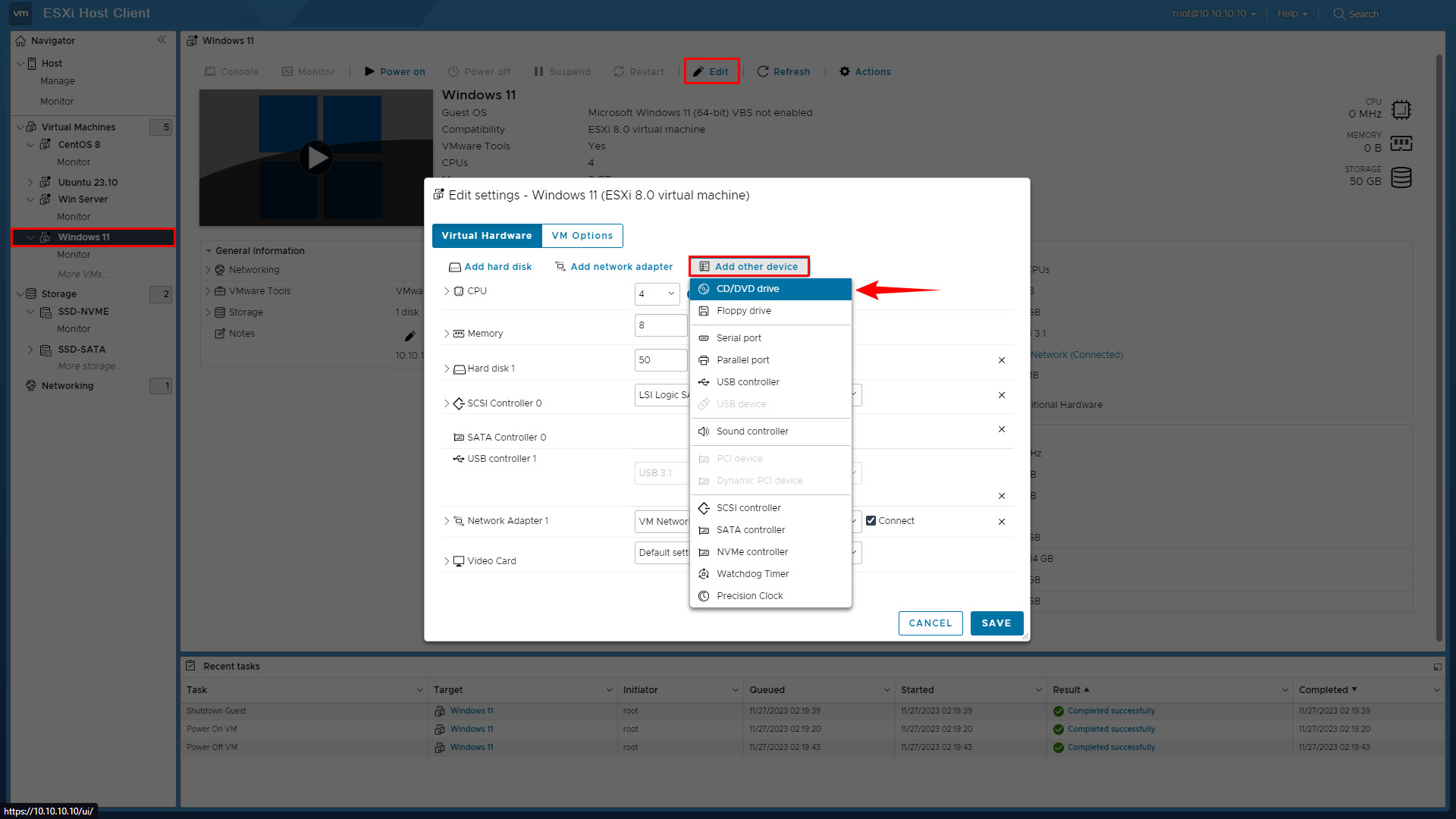
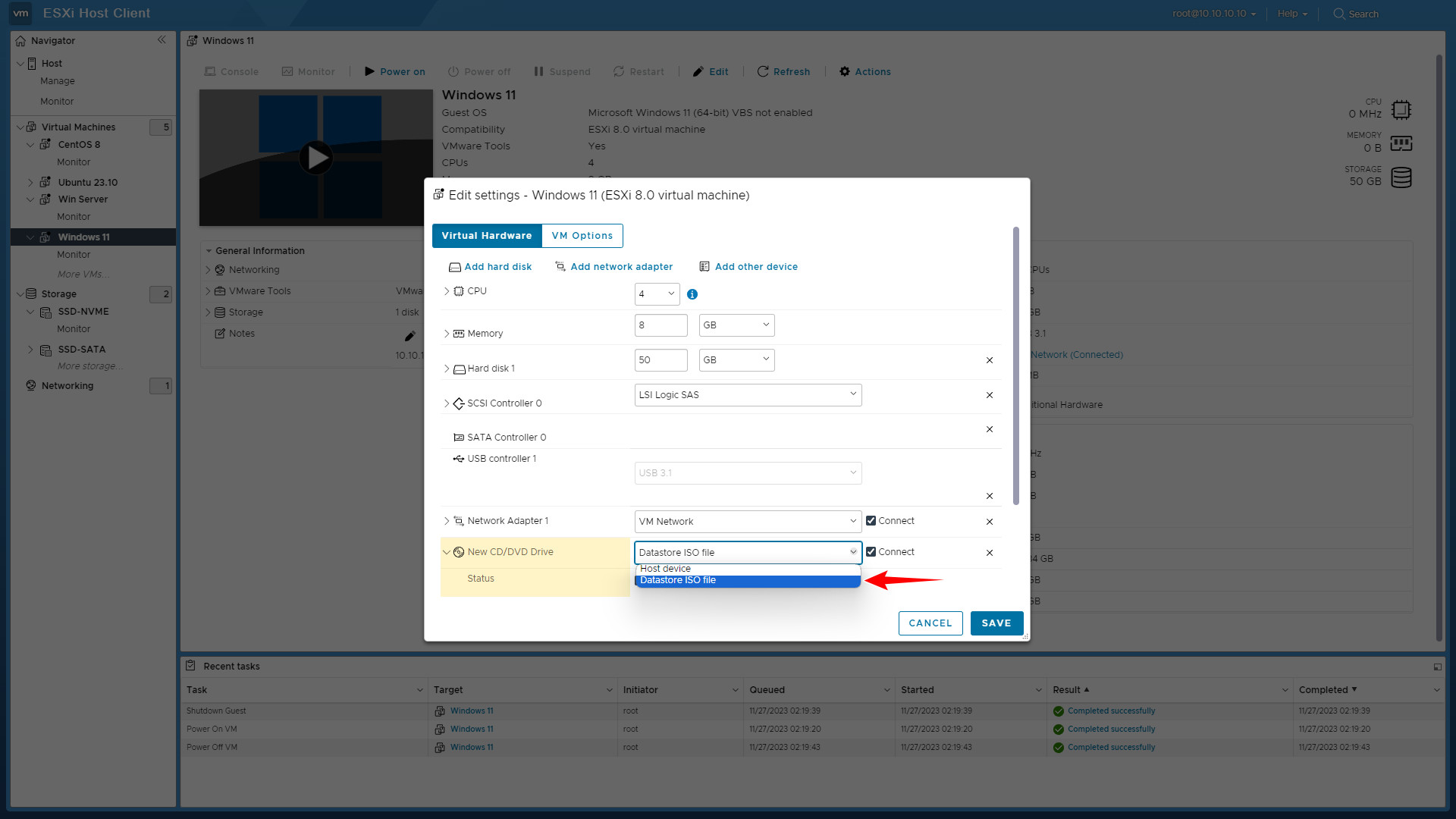
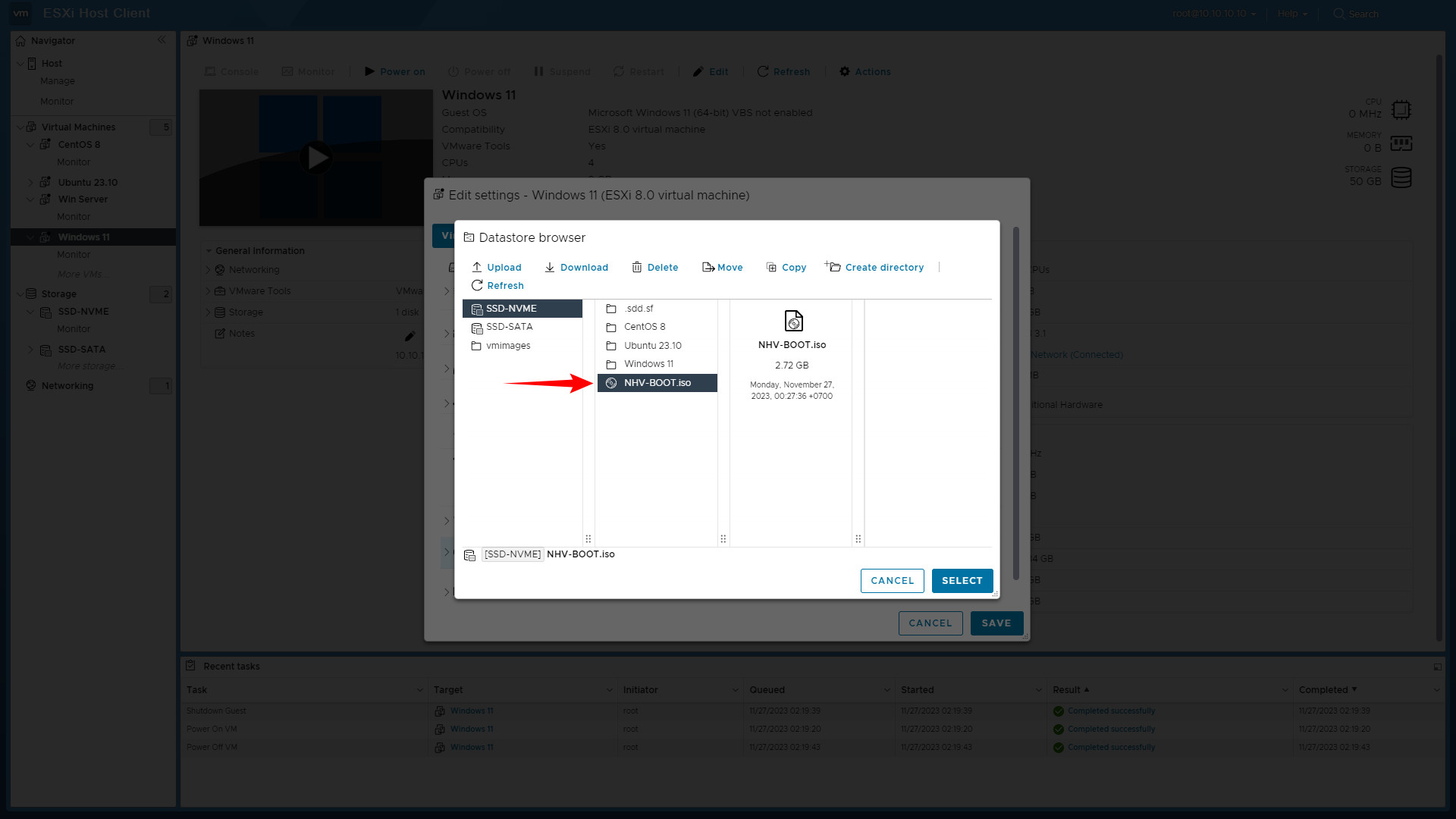
Before booting into WinPE NHV BOOT, you can optionally customize the virtual machine’s boot mode as follows:
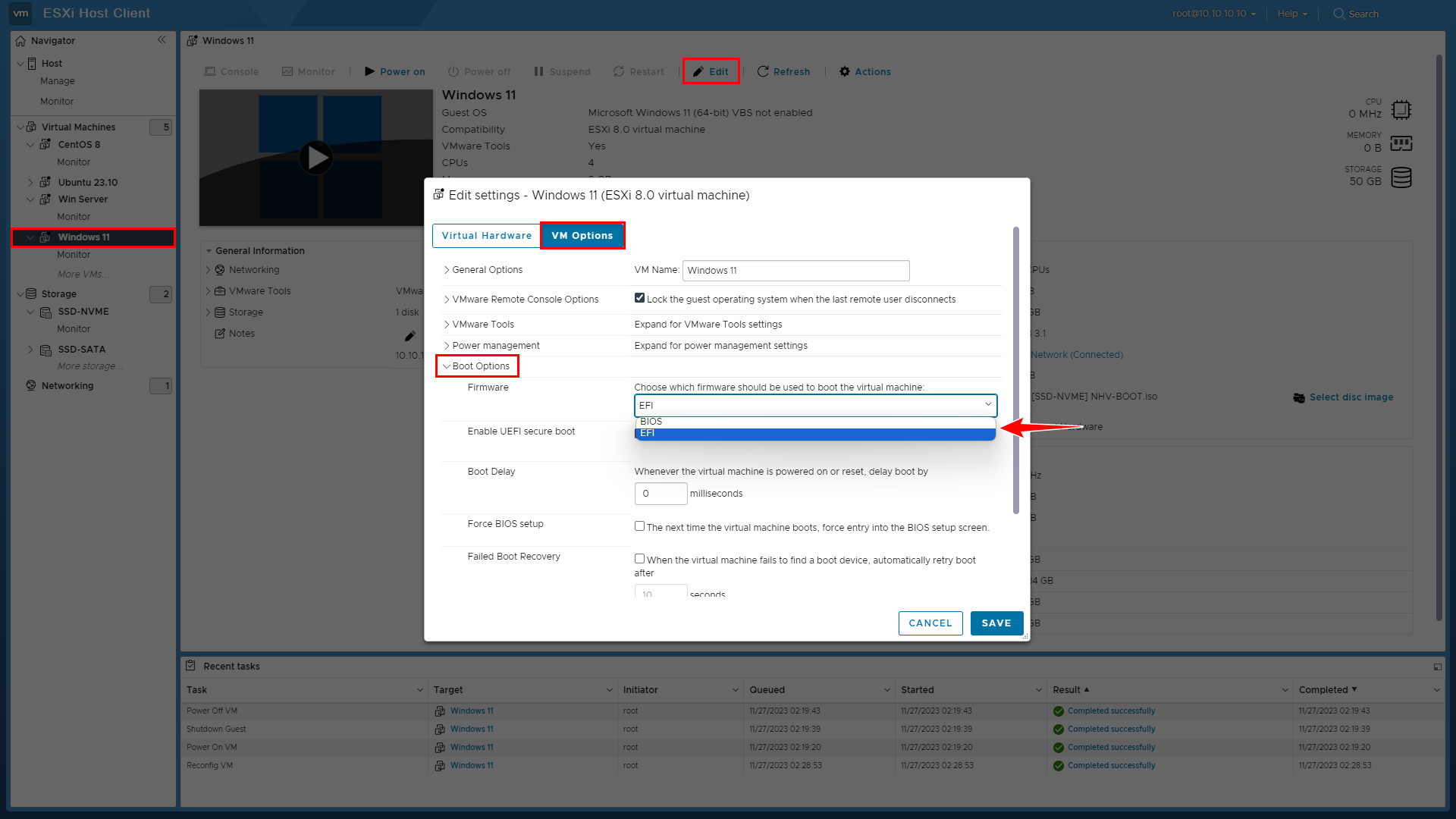
BIOS Mode: Also known as Legacy mode
EFI Mode: UEFI
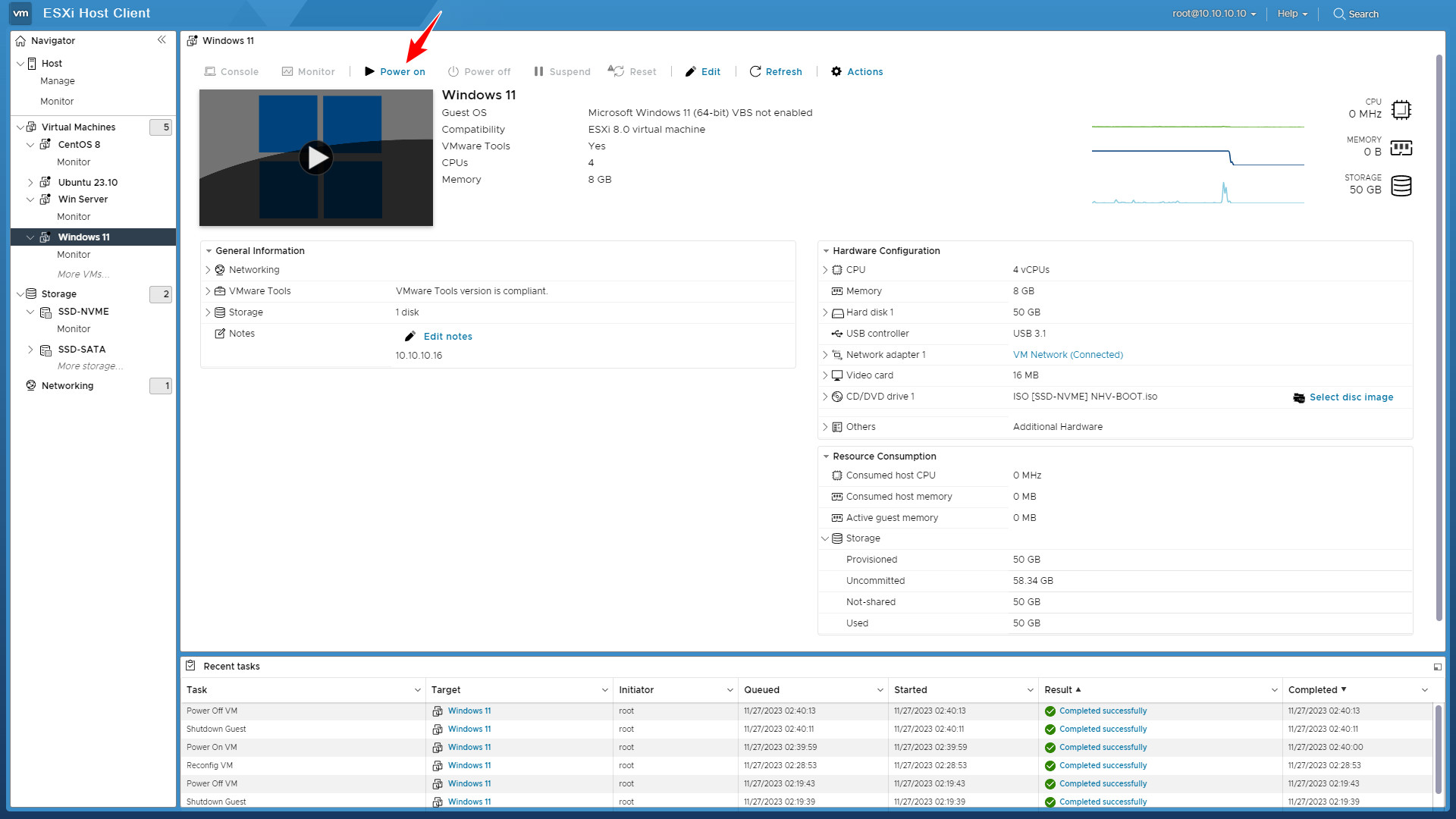
Once you have added the CD/DVD drive and selected the NHV BOOT .iso file, proceed to Power on the virtual machine
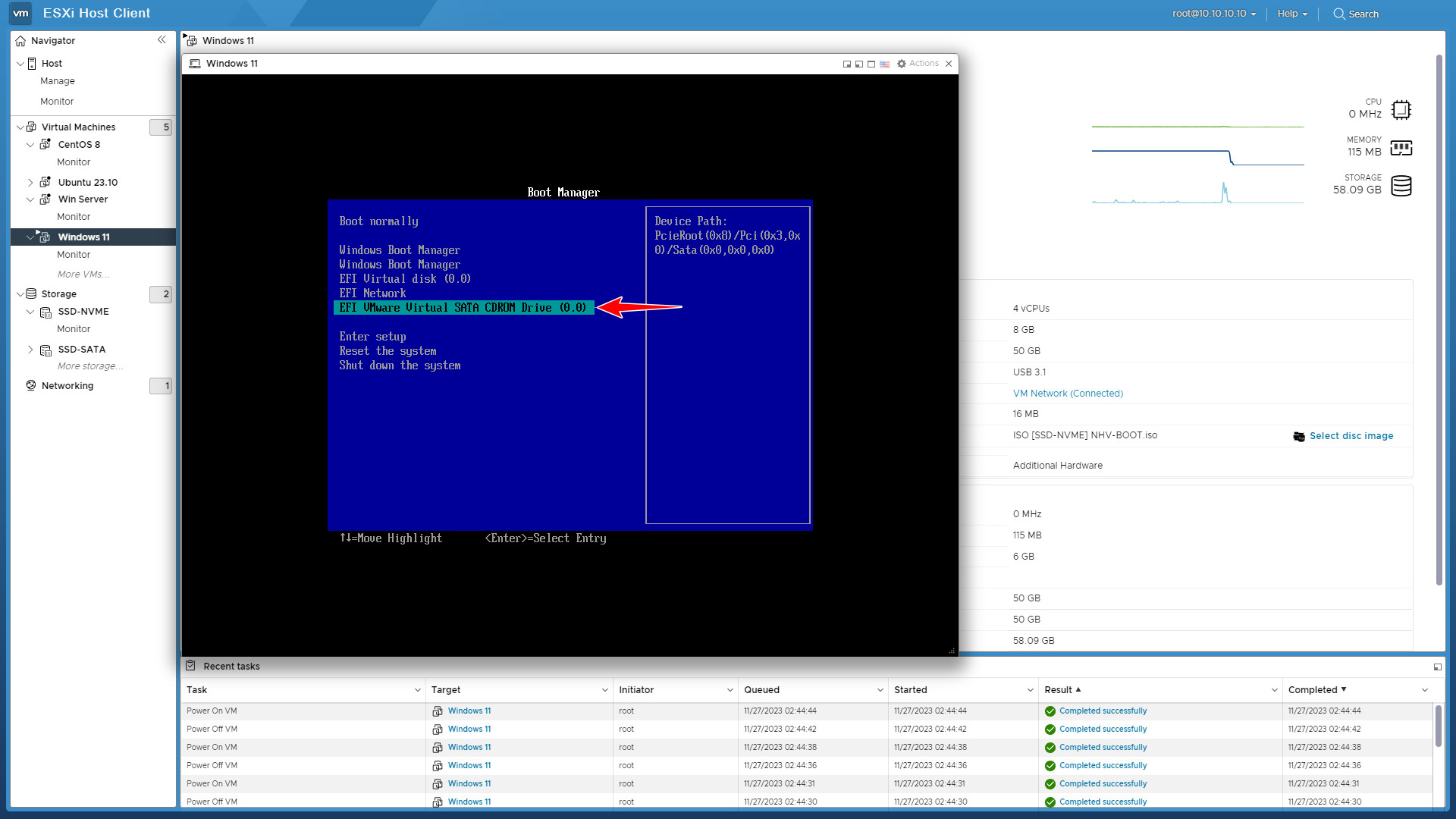
Immediately after clicking Power on, press the F2 key repeatedly to access the Boot Manager interface.
Note: The POST screen passes very quickly, so you must act immediately to avoid missing the boot menu
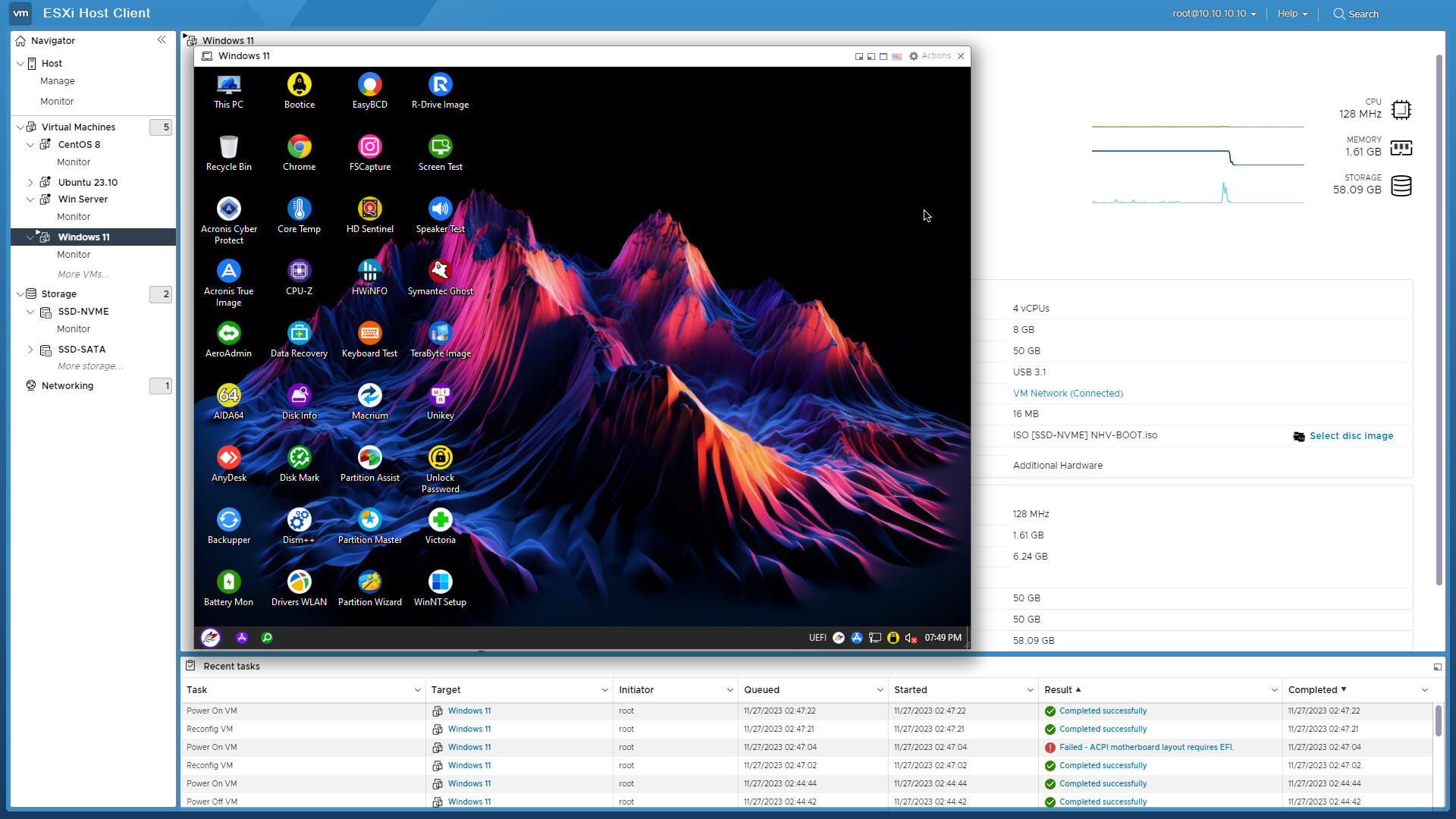
In the WinPE environment, you have full control to perform advanced tasks such as: System Backup/Restore, hard drive partition management… with a smooth experience just like on a physical machine
2. Boot WinPE via USB on VMware ESXi
In case you already have a physical rescue device or do not want to spend time uploading large ISO files to the Datastore, booting directly from a USB drive or HDD/SSD Box is the optimal solution. VMware ESXi supports the Passthrough feature, allowing you to redirect the connection from a USB port on the physical server (Host) directly to the virtual machine (VM). Follow the steps below to add the device (Add other device) and boot into NHV BOOT
Connect your USB device or HDD/SSD box to the computer running VMware ESXi
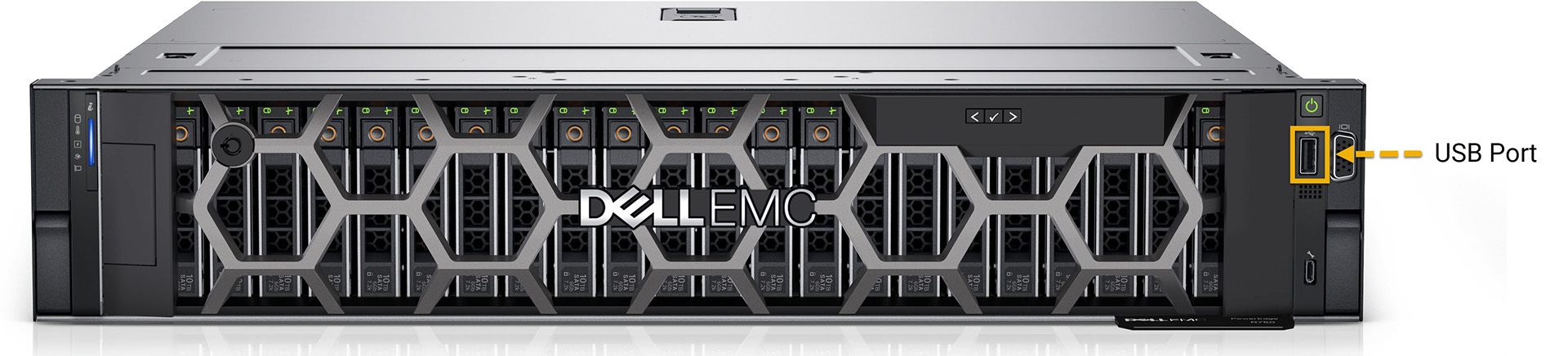
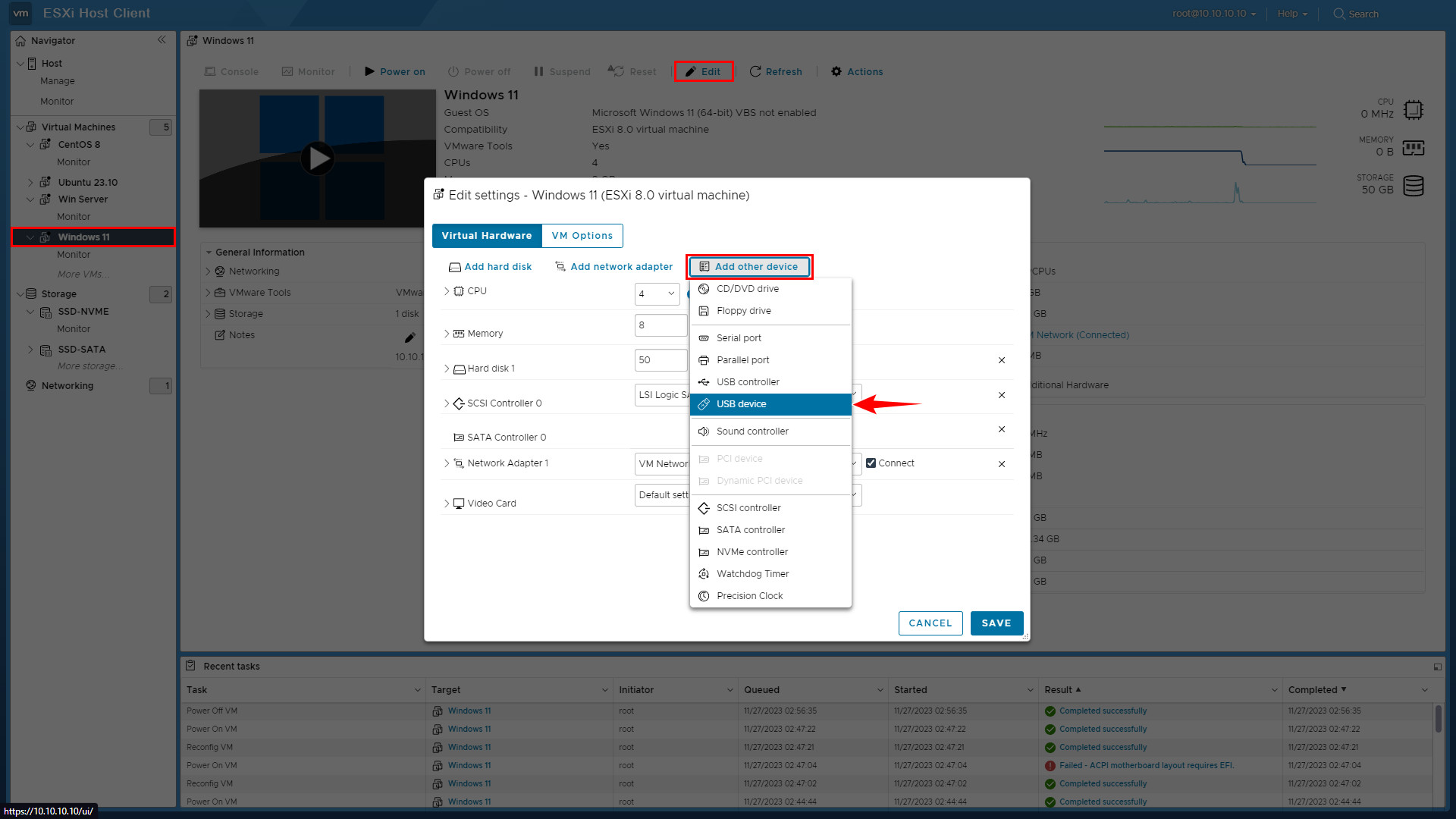
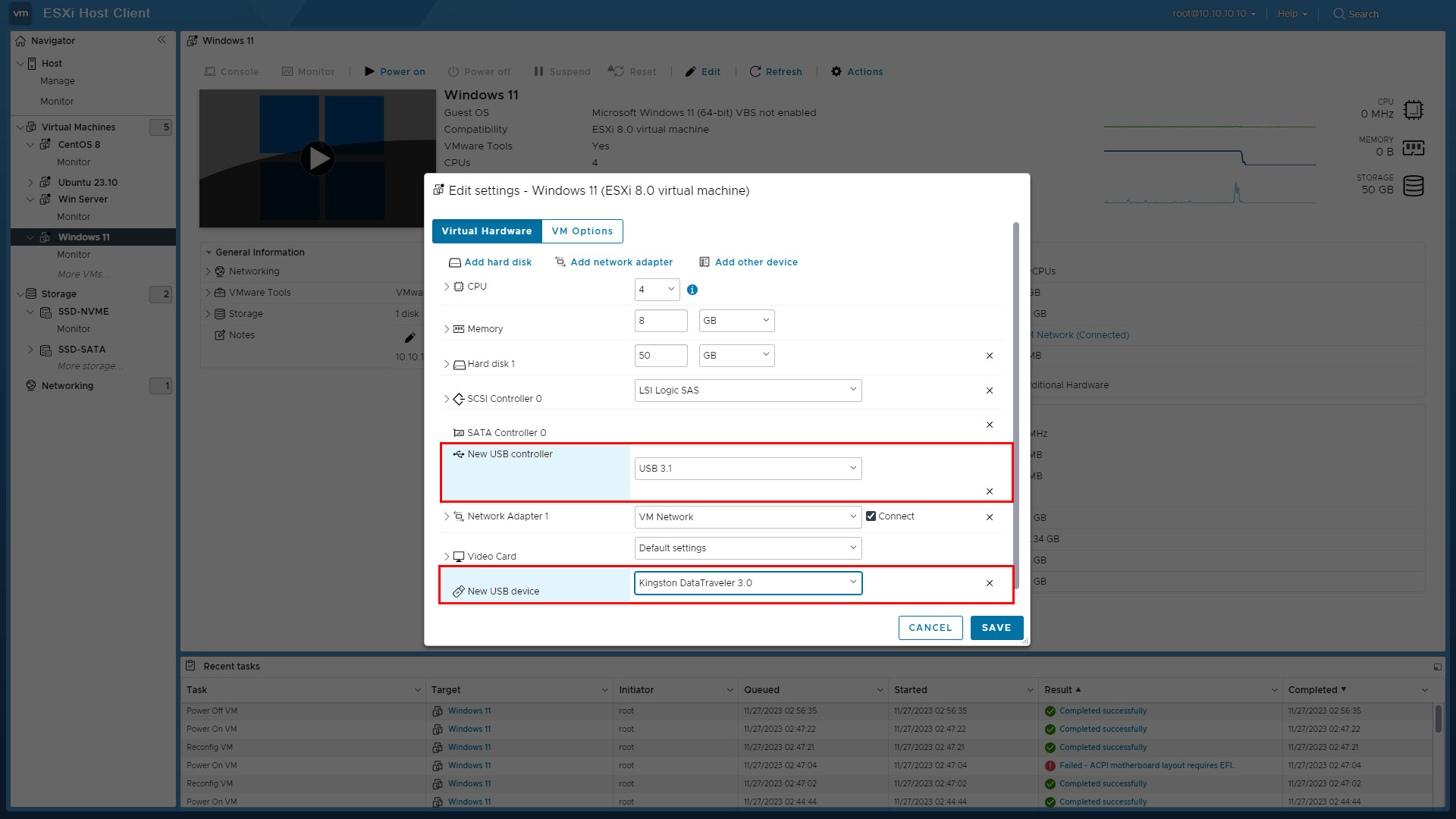
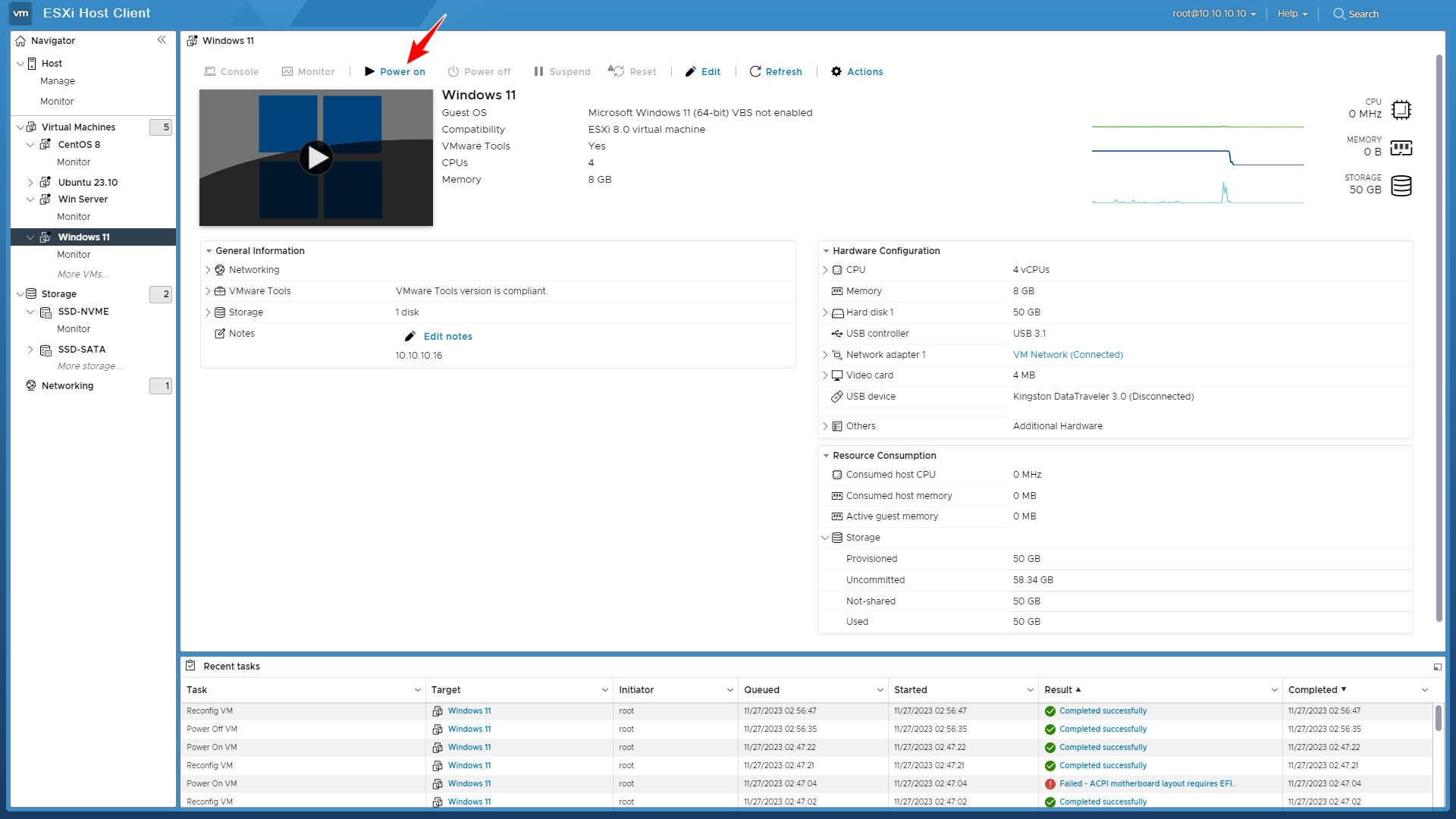
Immediately after clicking Power on, press the F2 key repeatedly to access the Boot Manager interface.
Note: The POST screen passes very quickly, so you must act immediately to avoid missing the boot menu
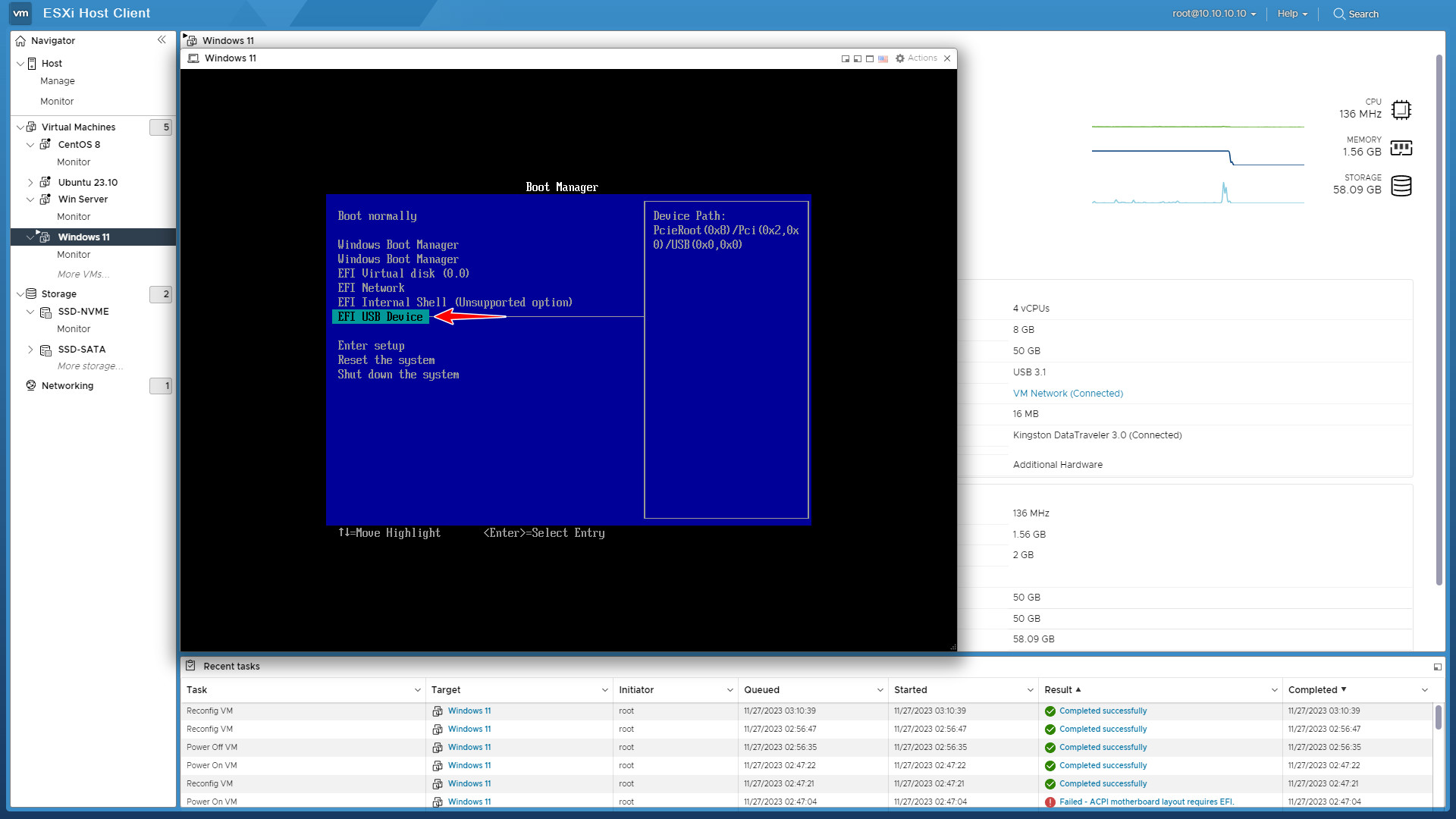
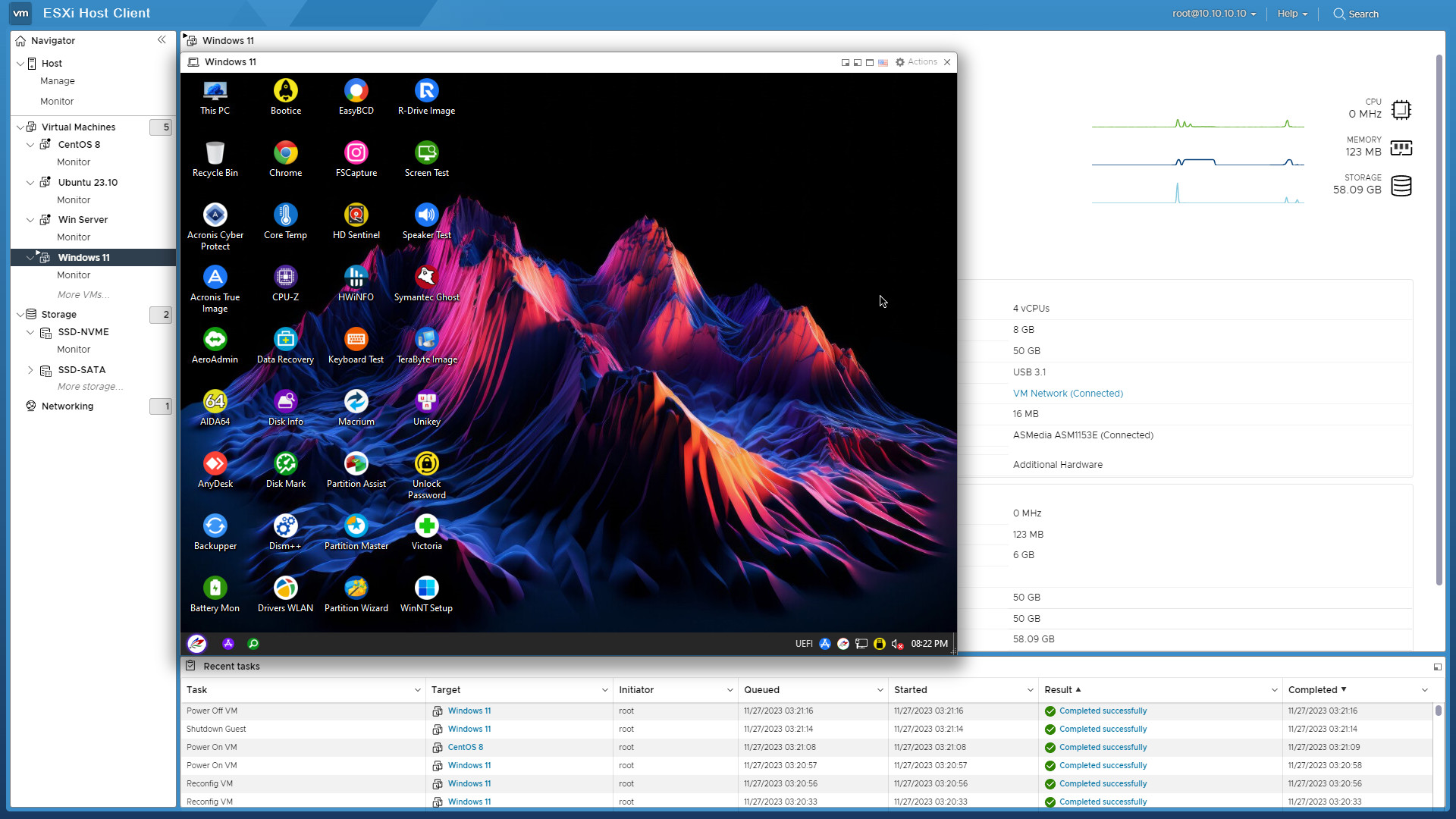
Thus, NHV BOOT has guided you through the process of successfully booting into the WinPE environment on VMware ESXi using two methods: via ISO File (for stability) and USB/HDD Box (for flexibility)
With an intuitive interface and a powerful suite of rescue tools, NHV BOOT helps you resolve any virtual machine issues quickly and professionally, delivering an experience comparable to working on a physical machine
We hope this guide serves as a useful reference for your system administration work.