
1. Backup Windows with Macrium Reflect
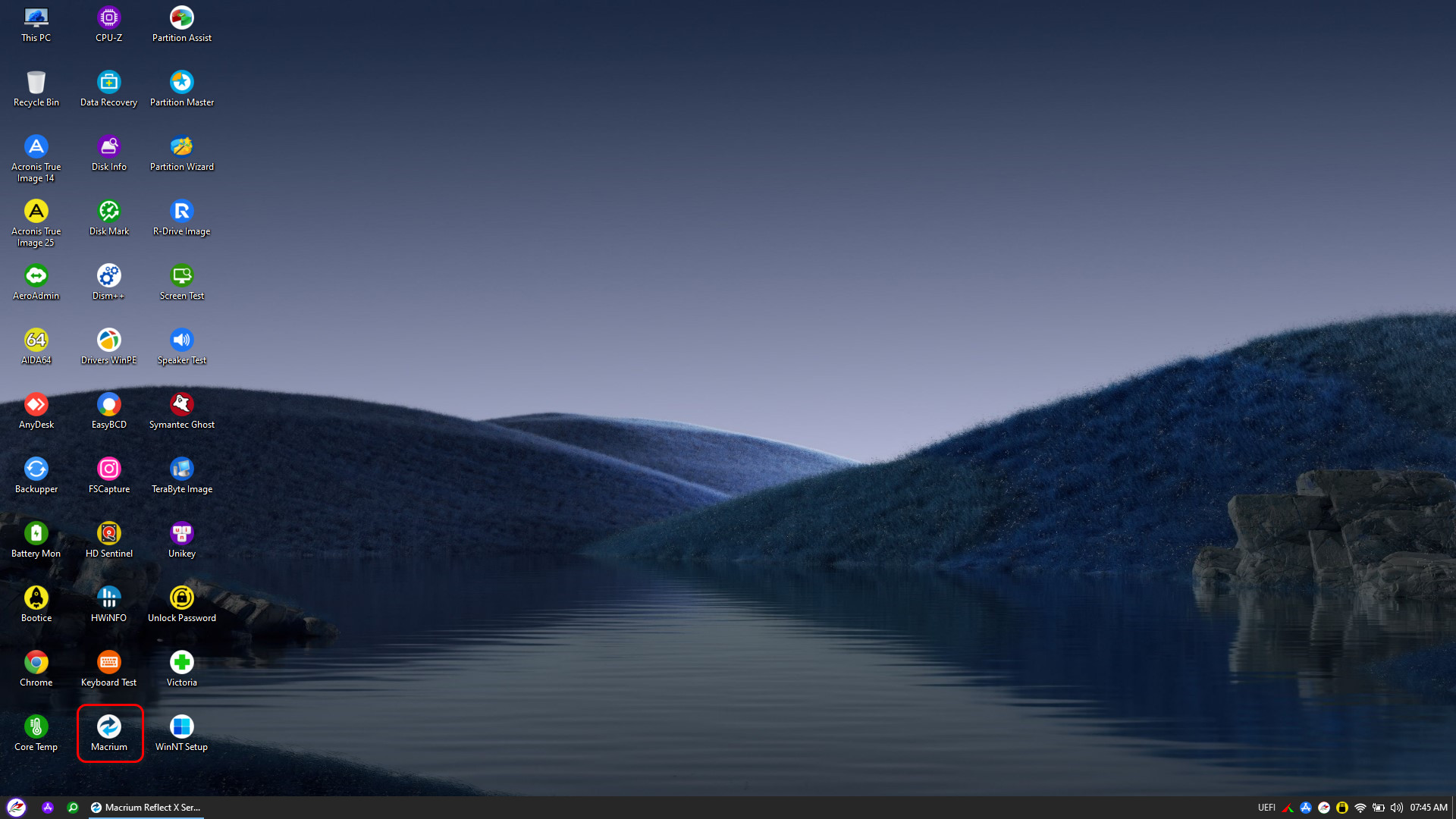
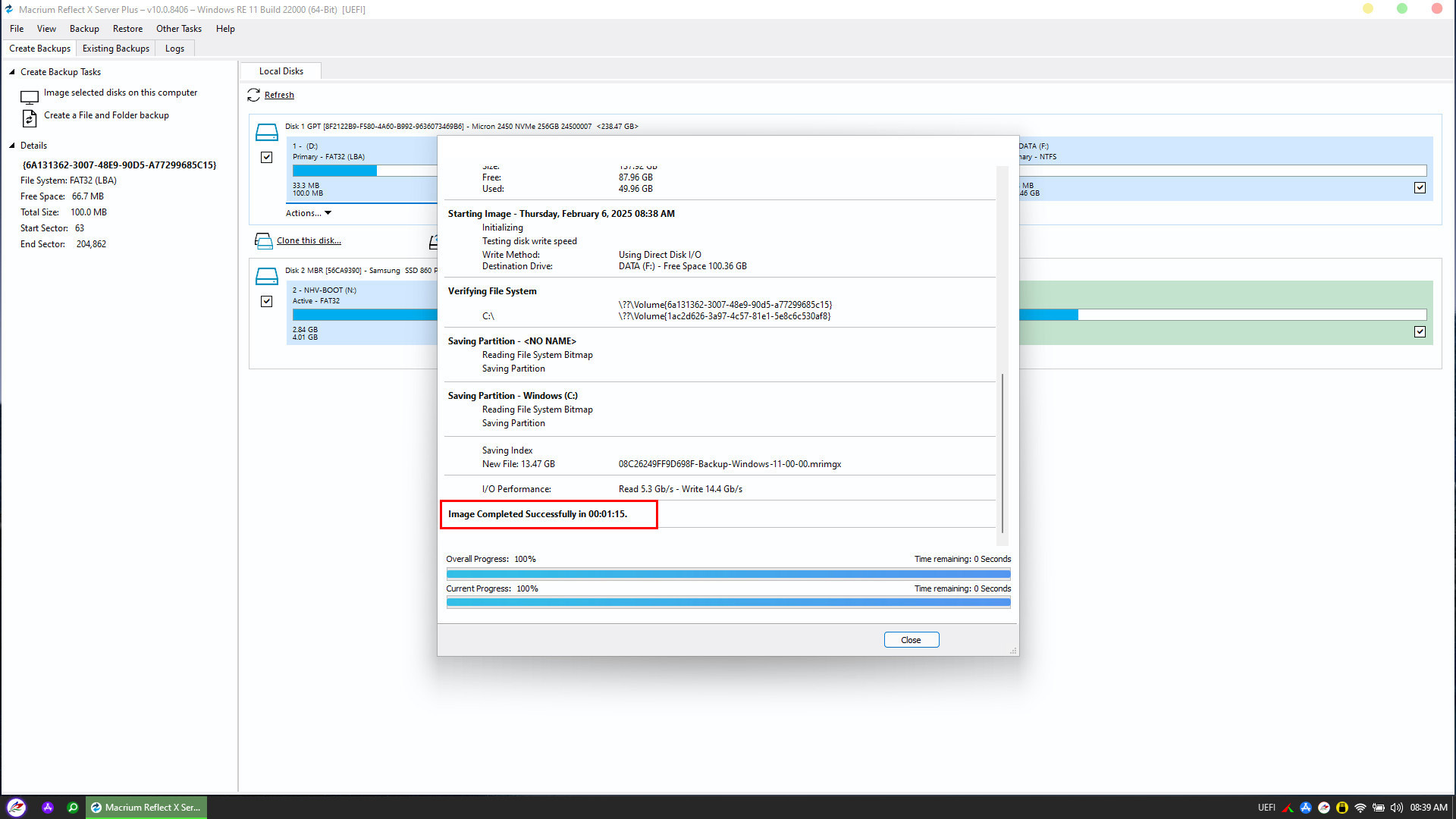
To begin the operating system backup process, you first need to boot into the NHV BOOT WinPE environment. On the main screen (Desktop) or within the PStart menu, locate and launch the Macrium Reflect software
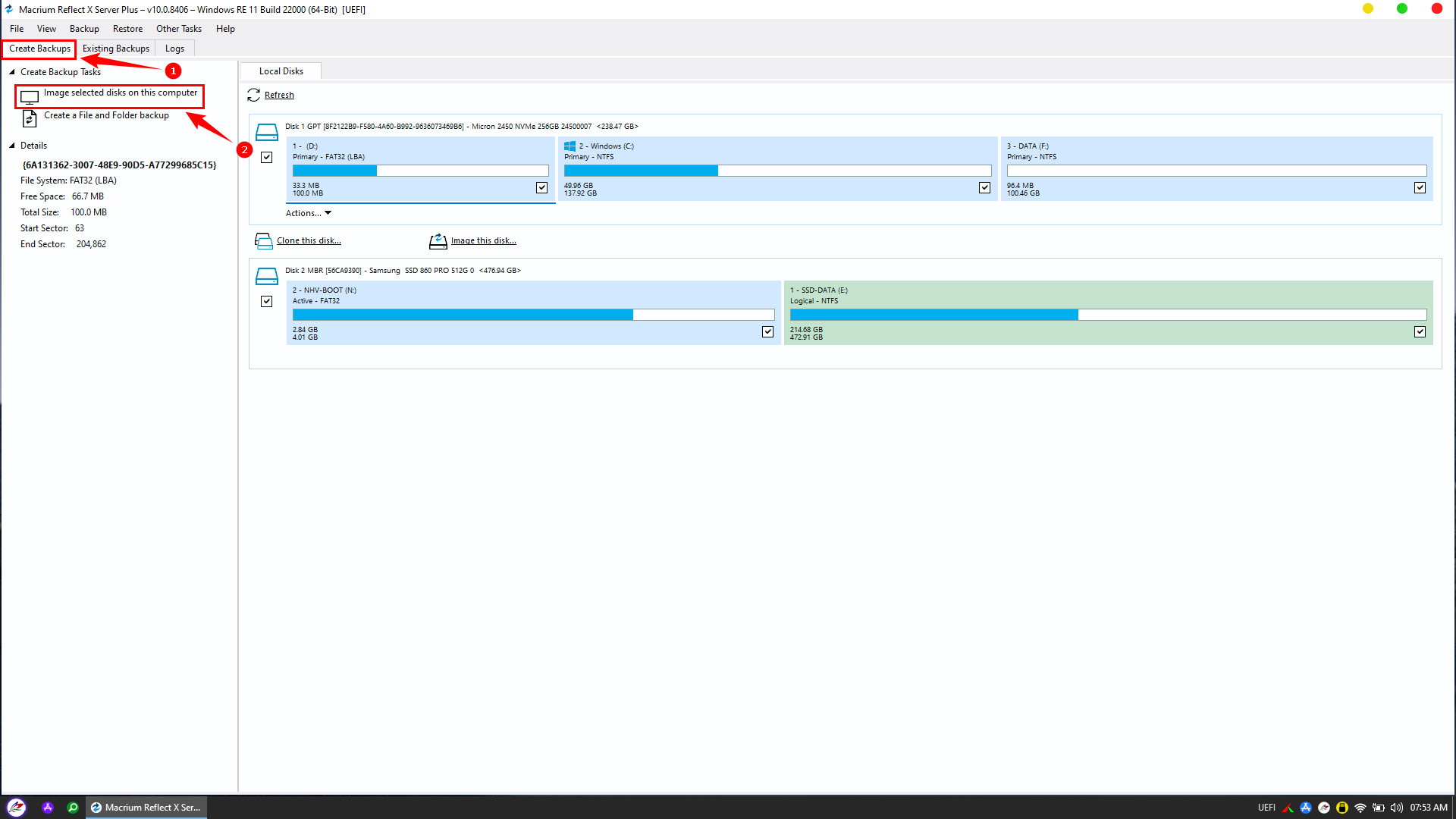
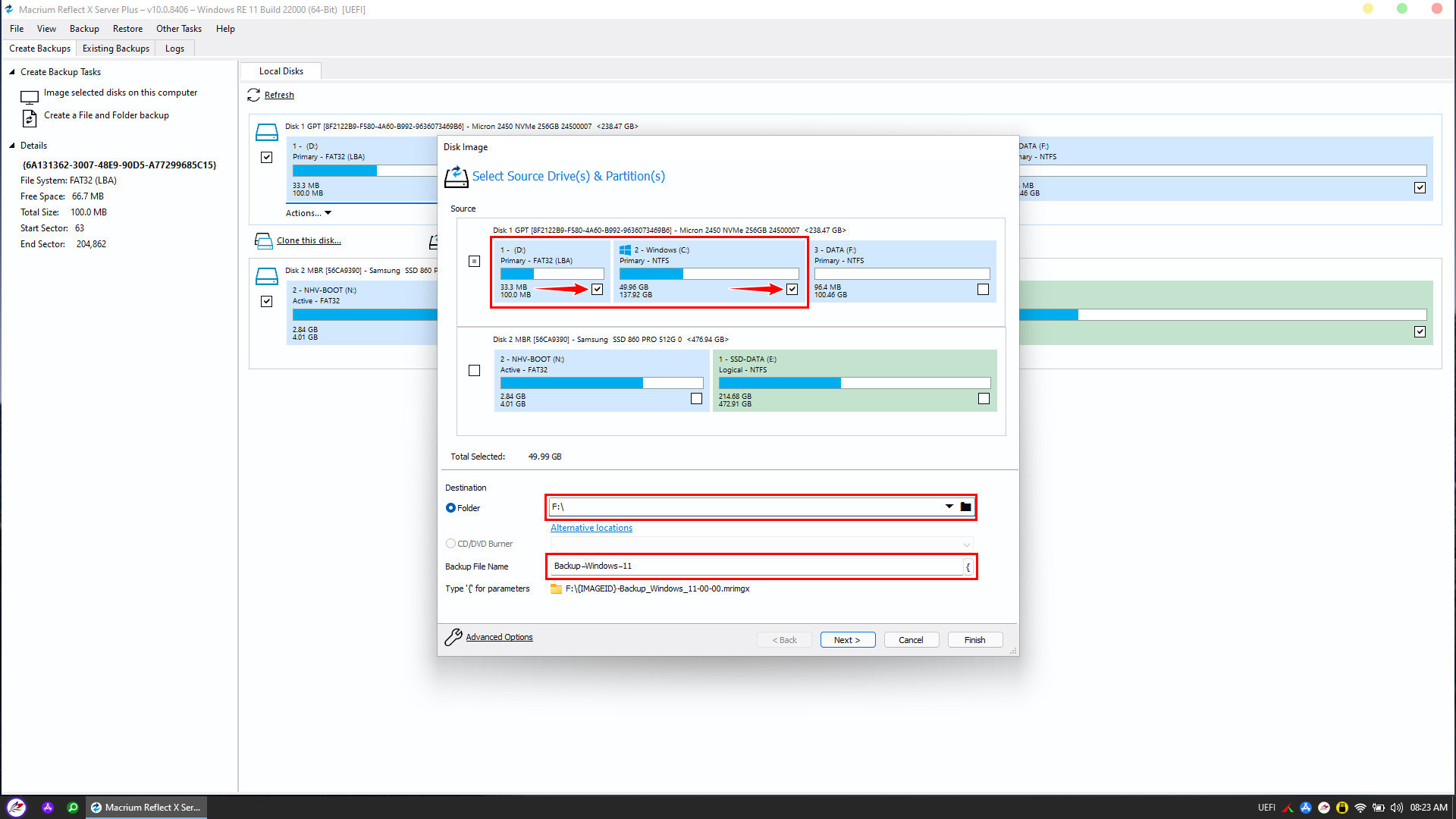
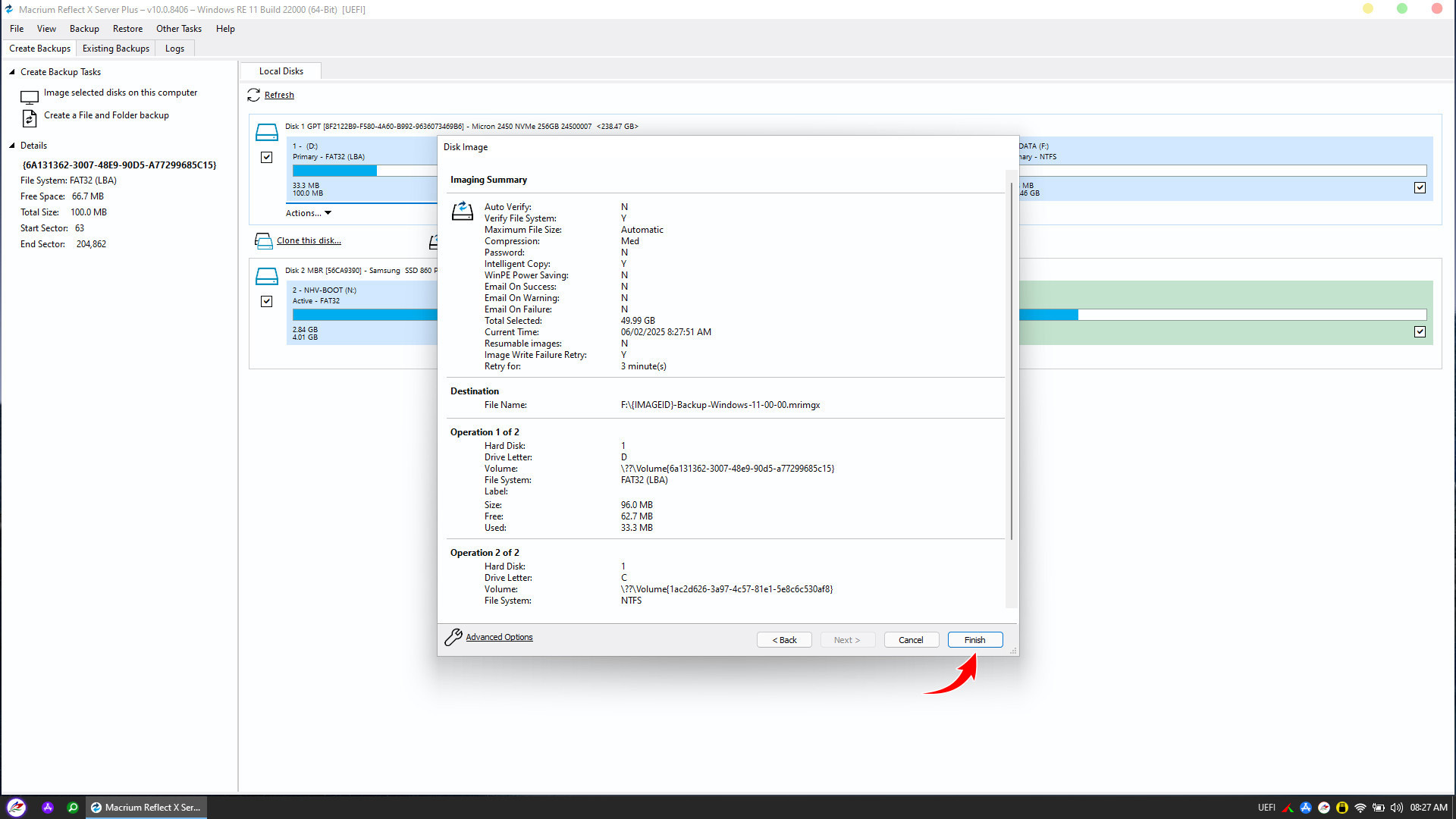
For UEFI boot mode, we need to back up two specific partitions: the EFI partition (usually 100MB) and the Windows (C:) partition.
Note: By default, Macrium Reflect will automatically select (check) all partitions on your computer. At this step, you must uncheck the partitions that do not need backing up, keeping selected only the EFI and Windows partitions.
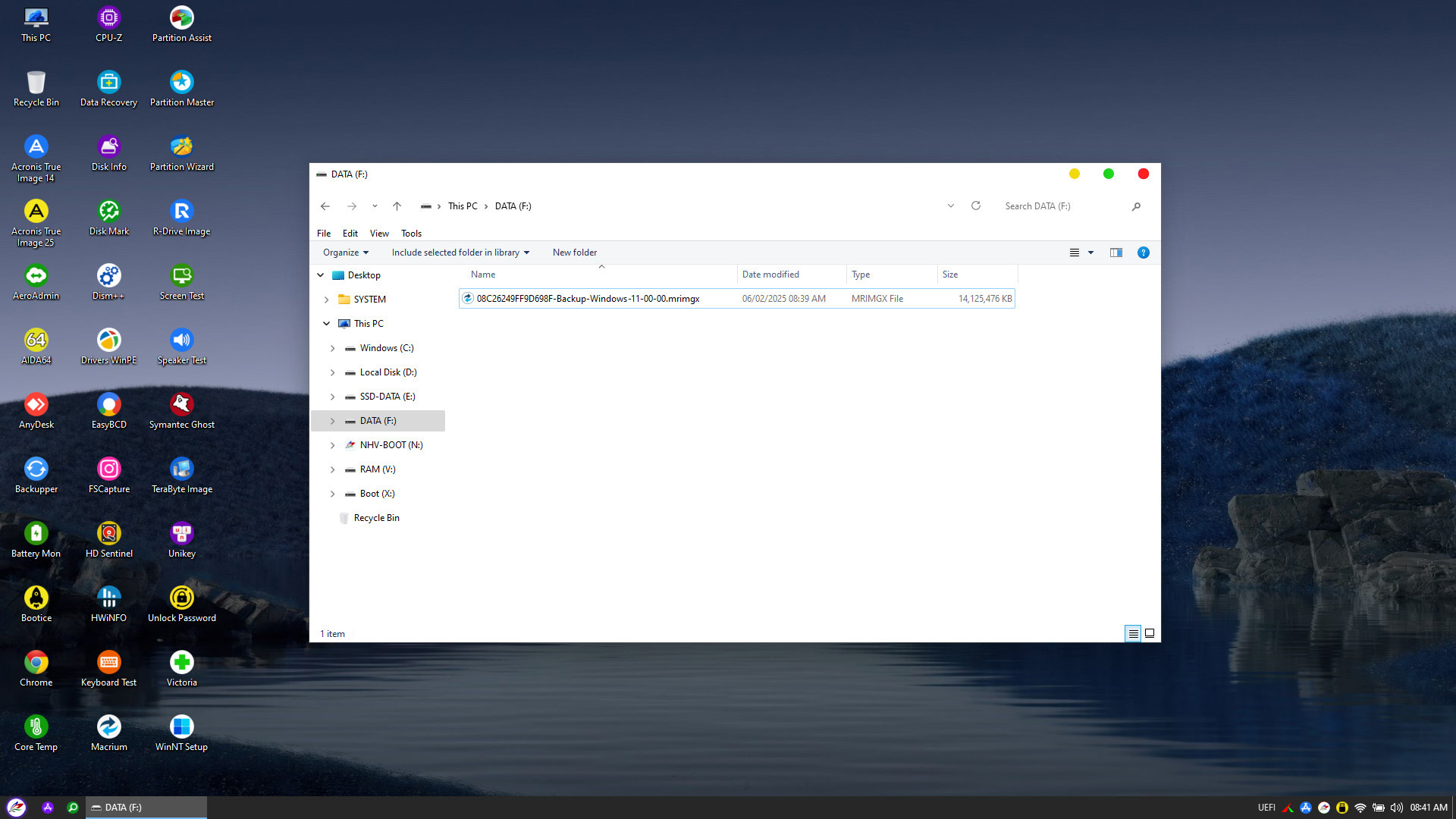
2. Restore Windows with Macrium Reflect
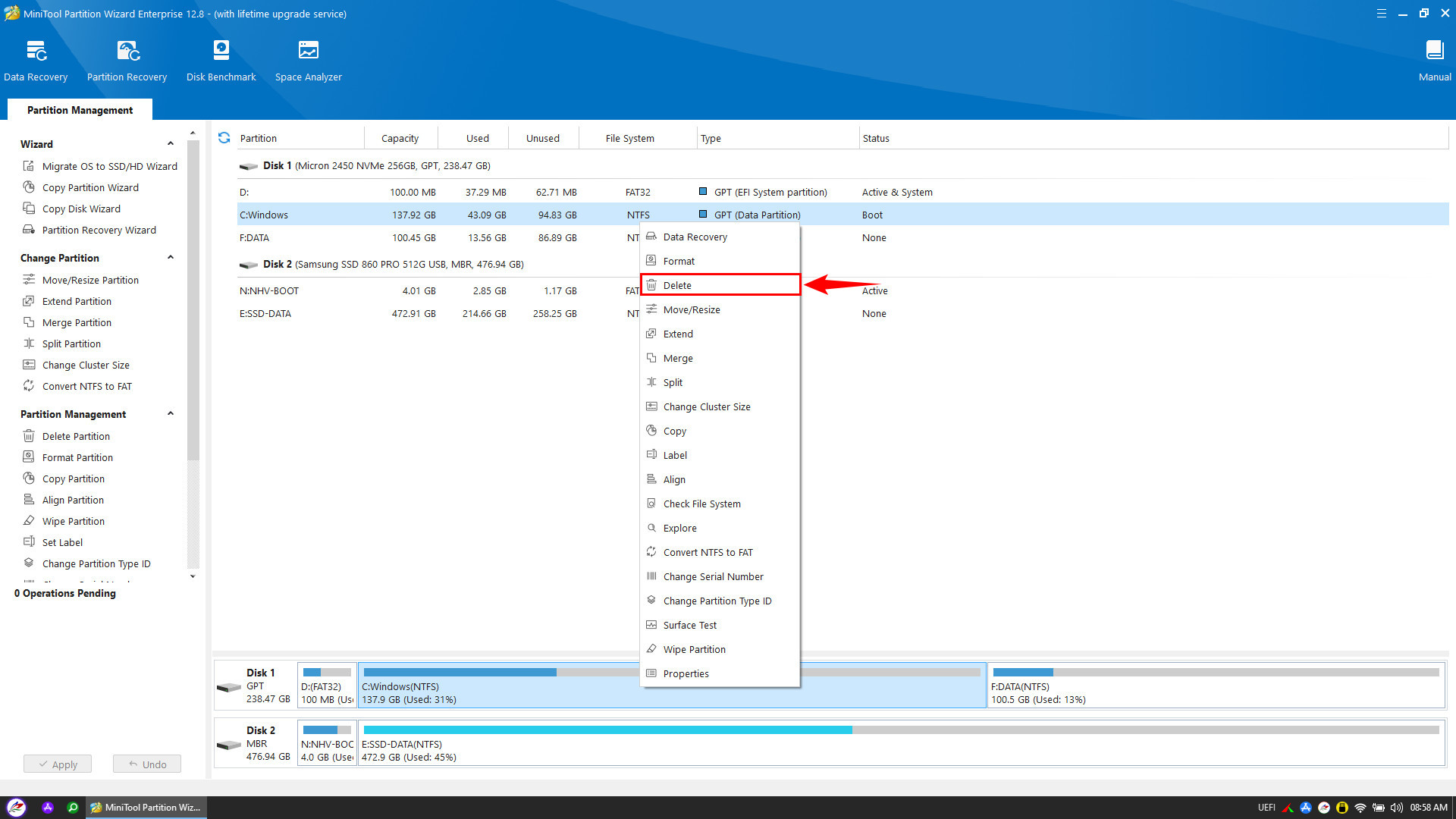
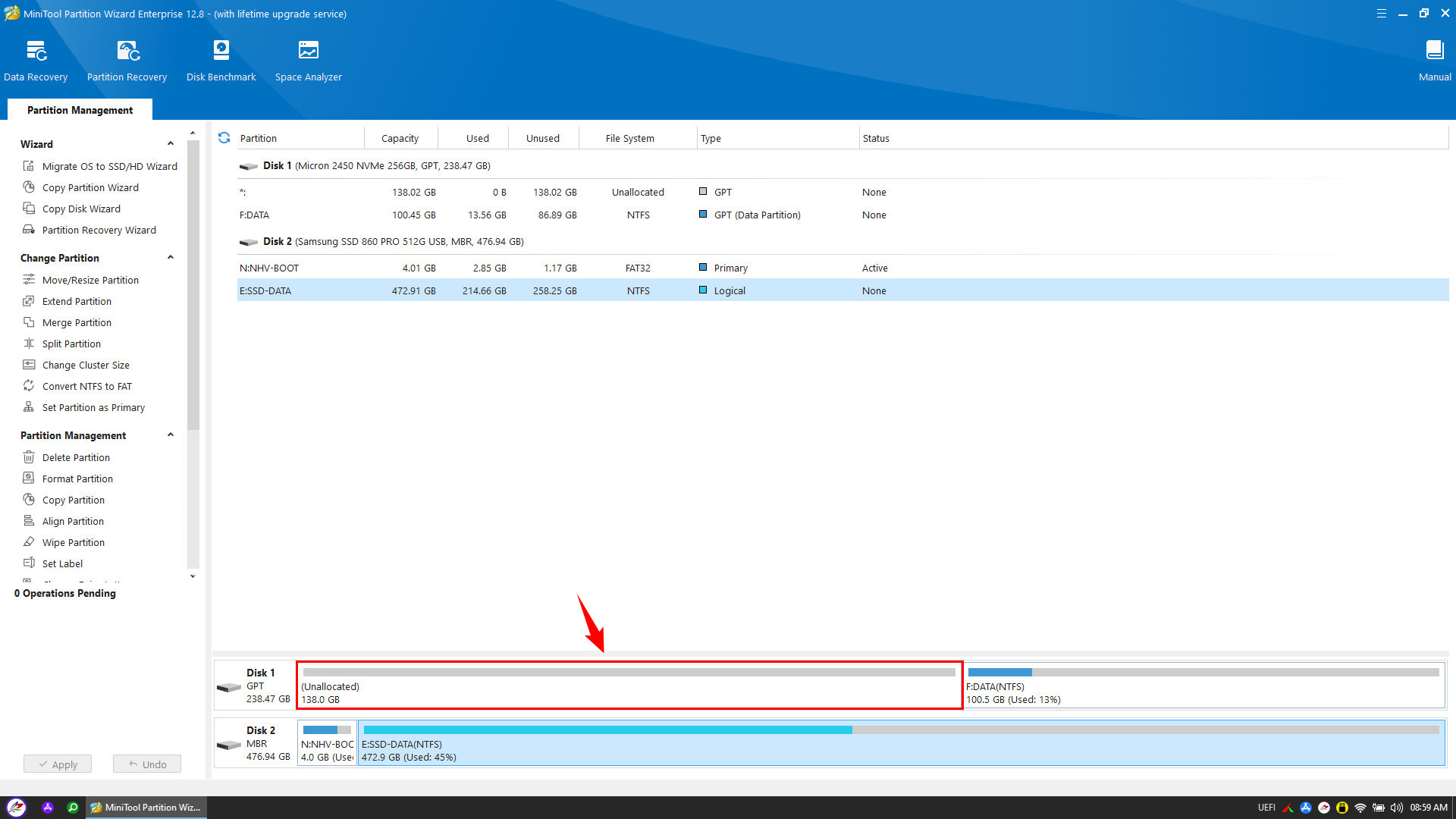
Before restoring the system image, we need to prepare a clean storage space on the hard drive. Launch the Partition Wizard partition management tool, right-click on the old system partitions (EFI and Windows), and select Delete to remove them
Next, open Macrium Reflect to begin the Windows restoration process from your backup
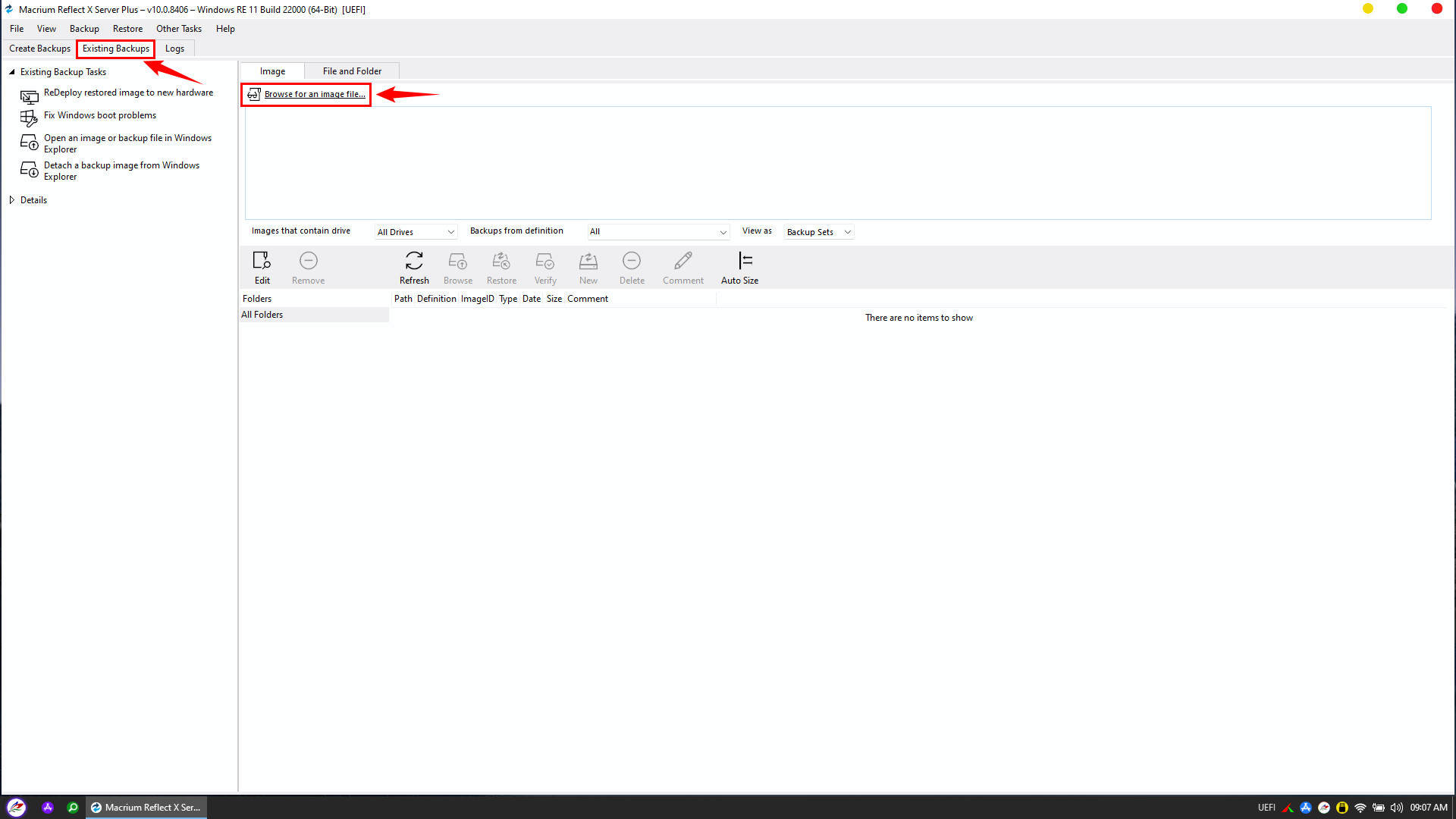
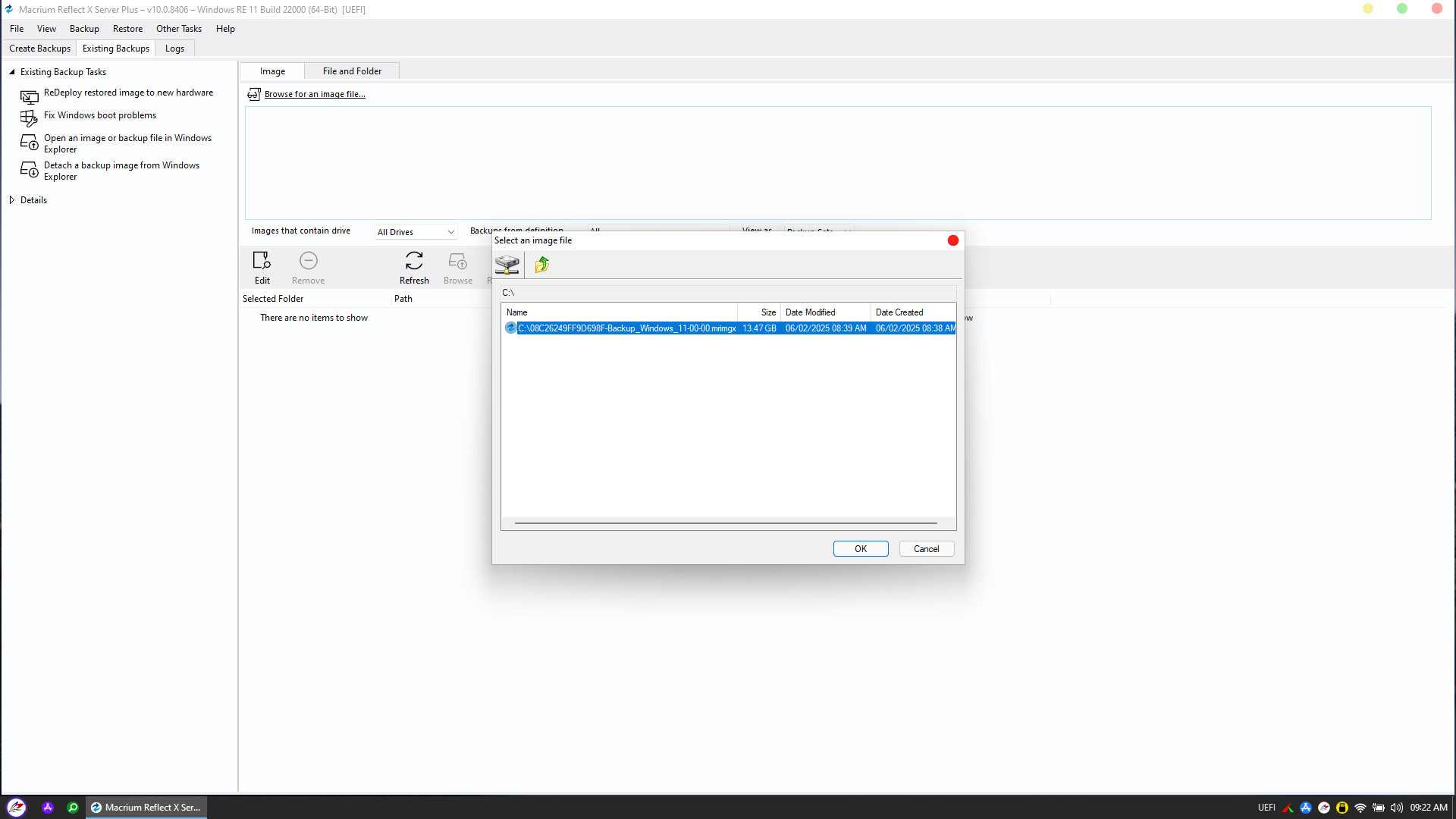
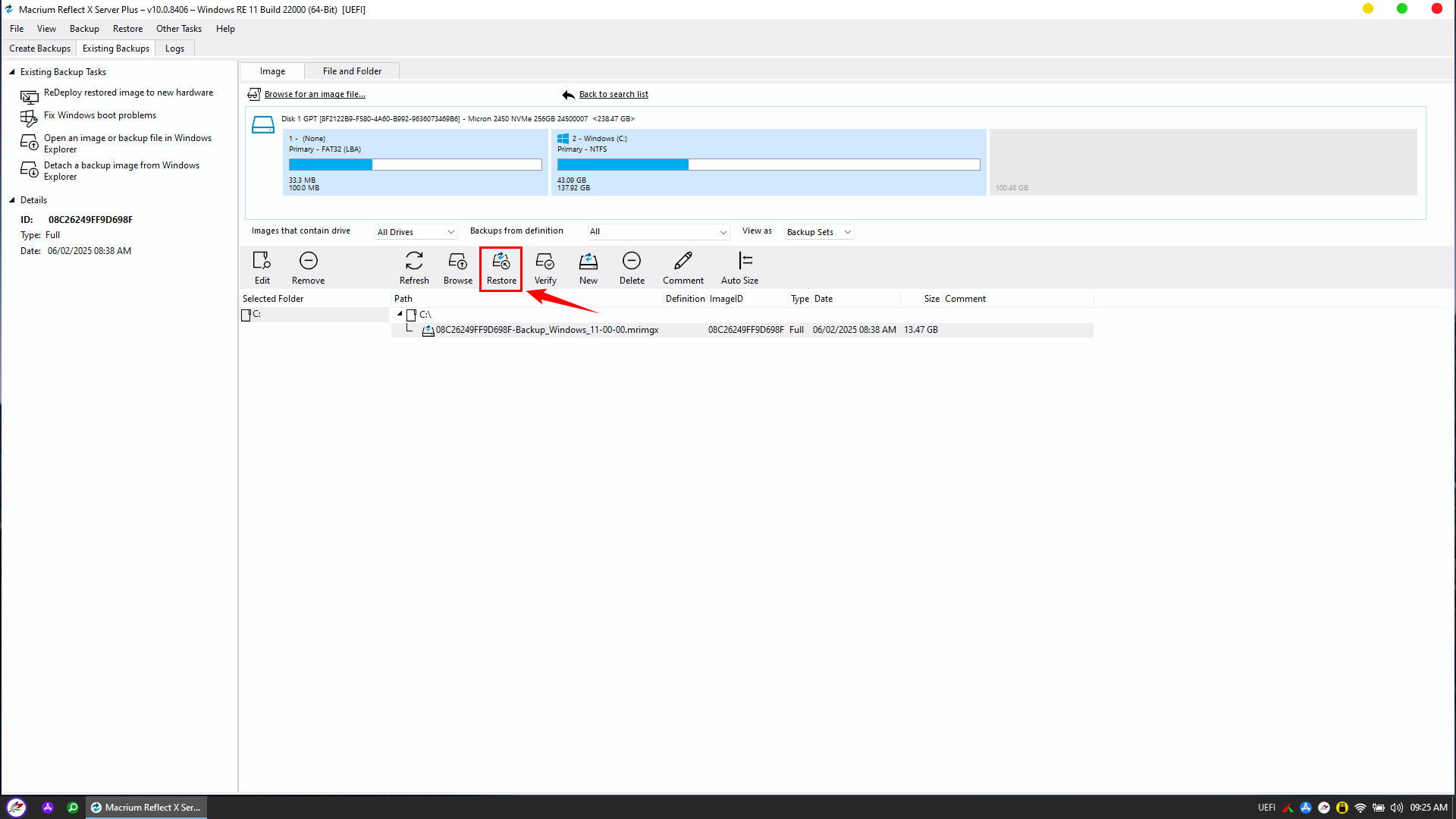
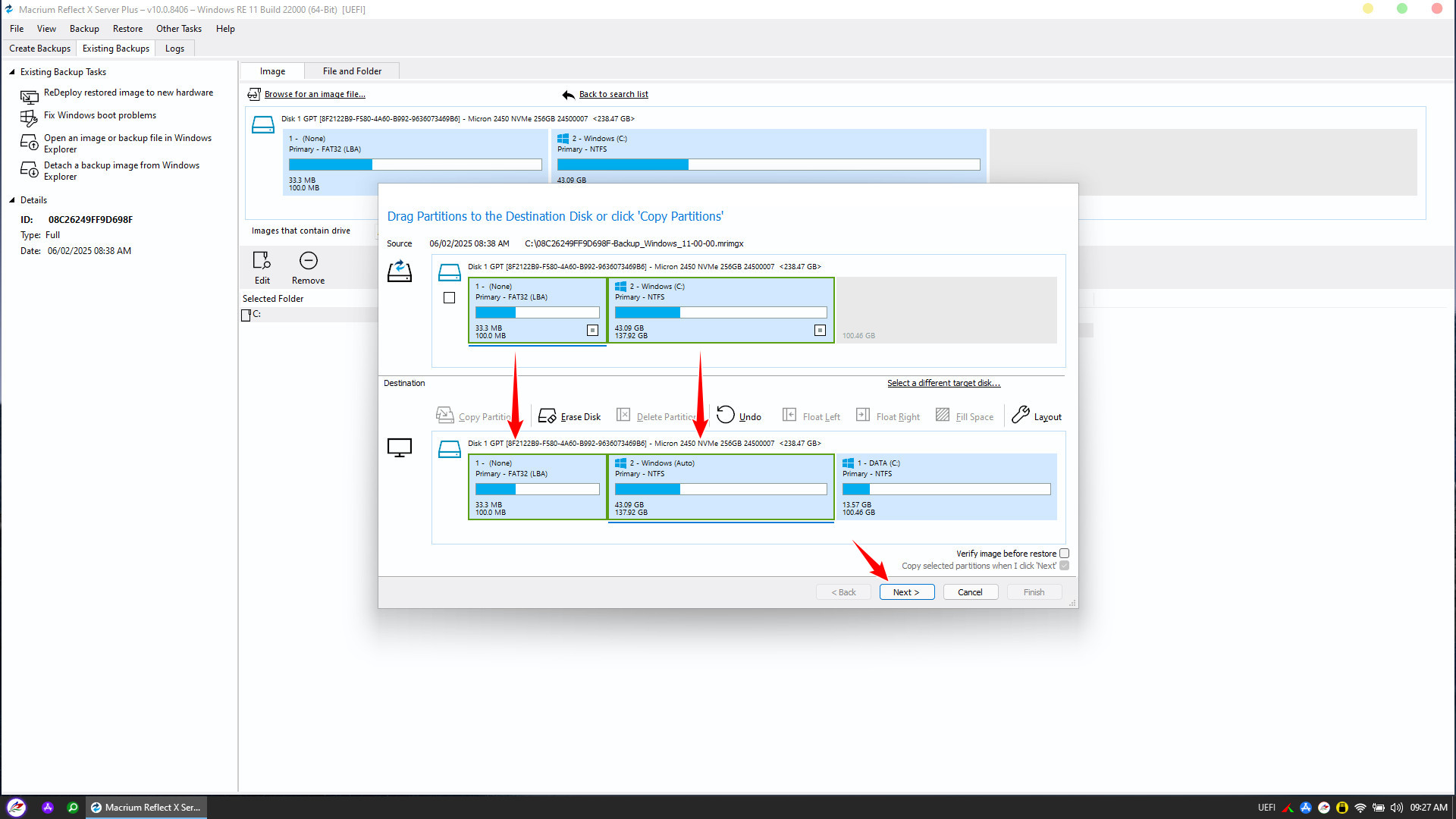
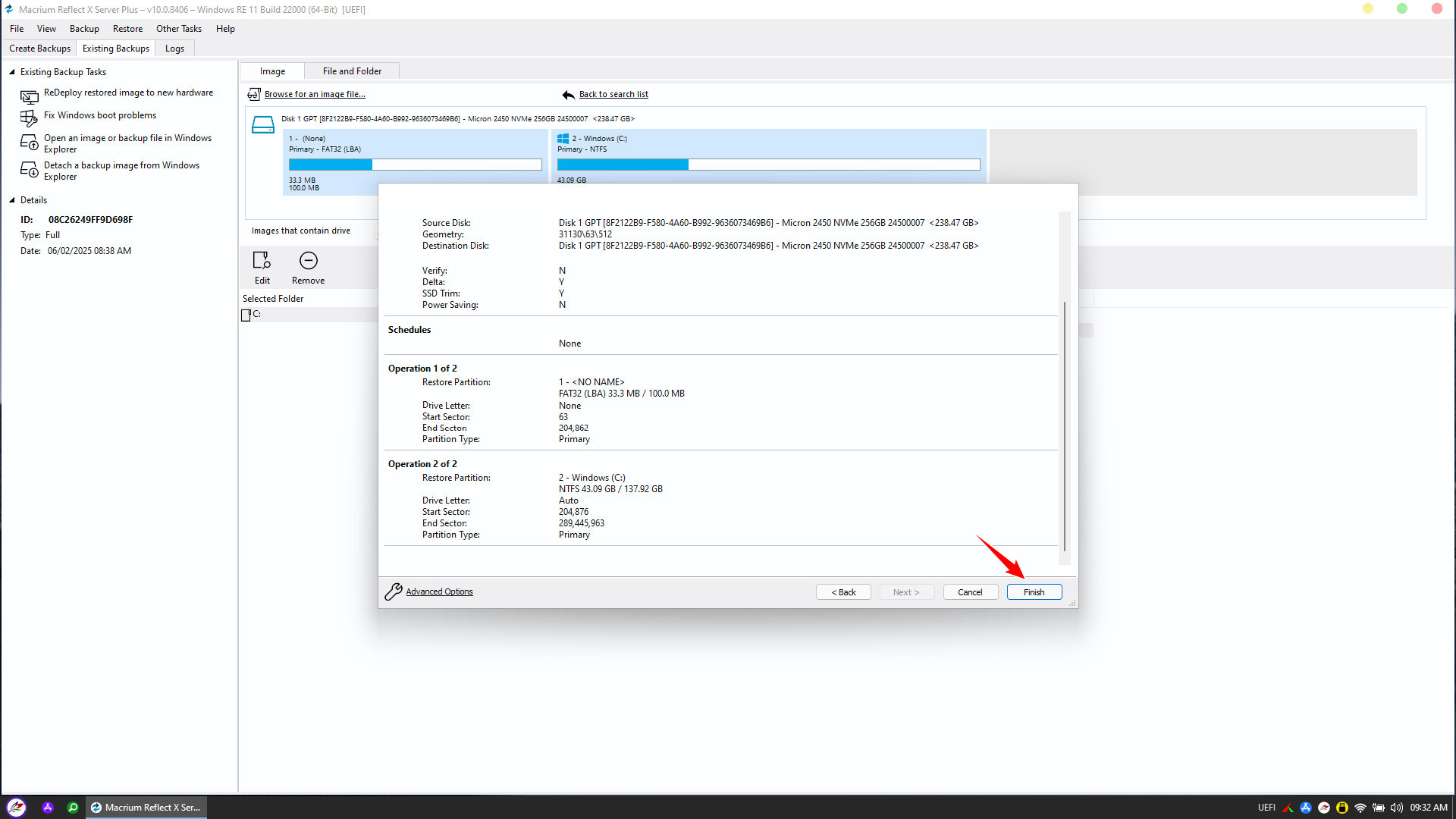
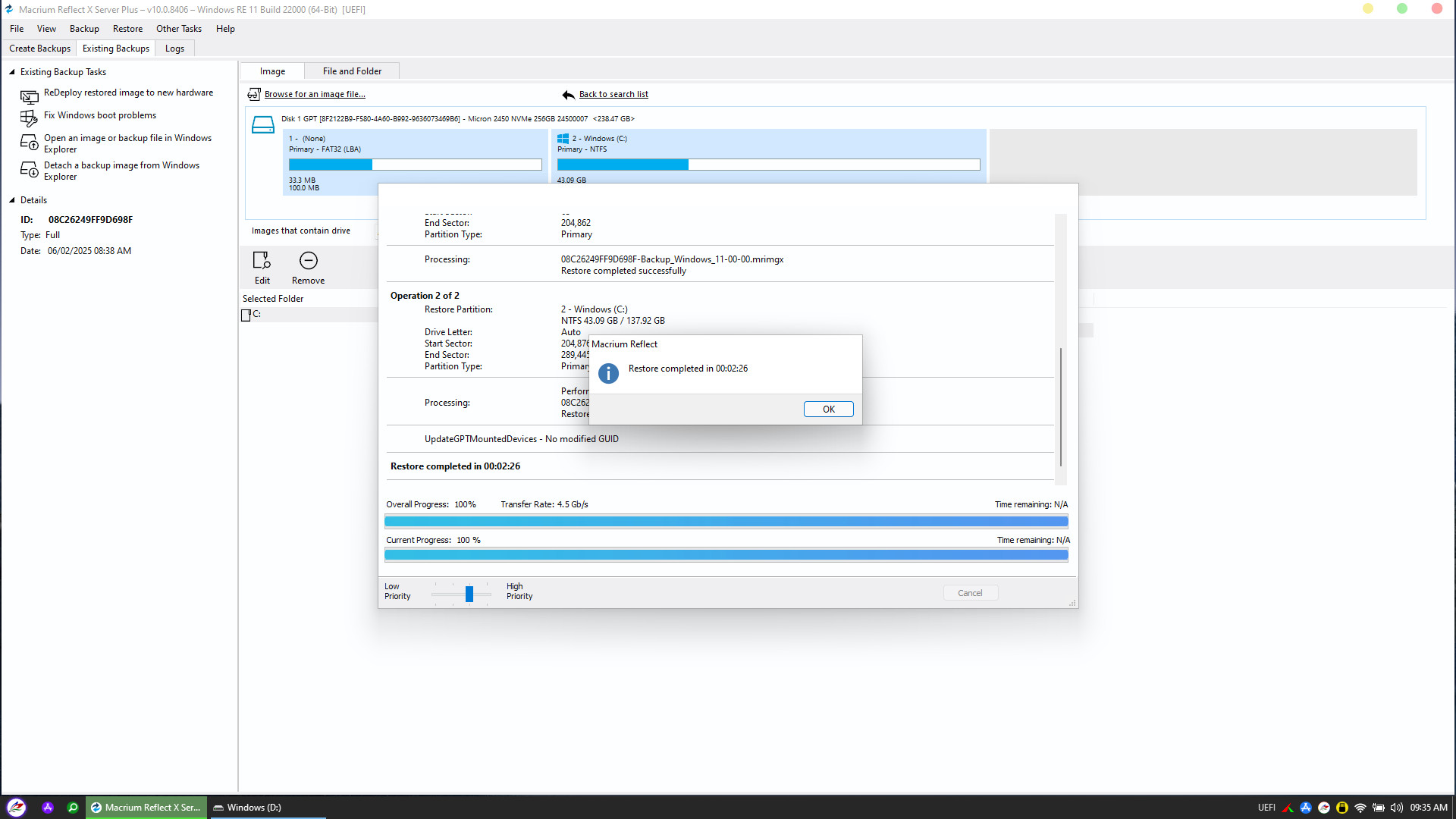
Thus, the Windows restoration process has been successfully completed. With the backup file created by Macrium Reflect, you can now use your computer with complete peace of mind, without worrying about Windows errors or virus attacks.
Whenever an issue arises, simply spend a few minutes booting into NHV BOOT, and your system will be instantly restored to its smoothest, original working state