1. Backup Windows with TeraByte Image
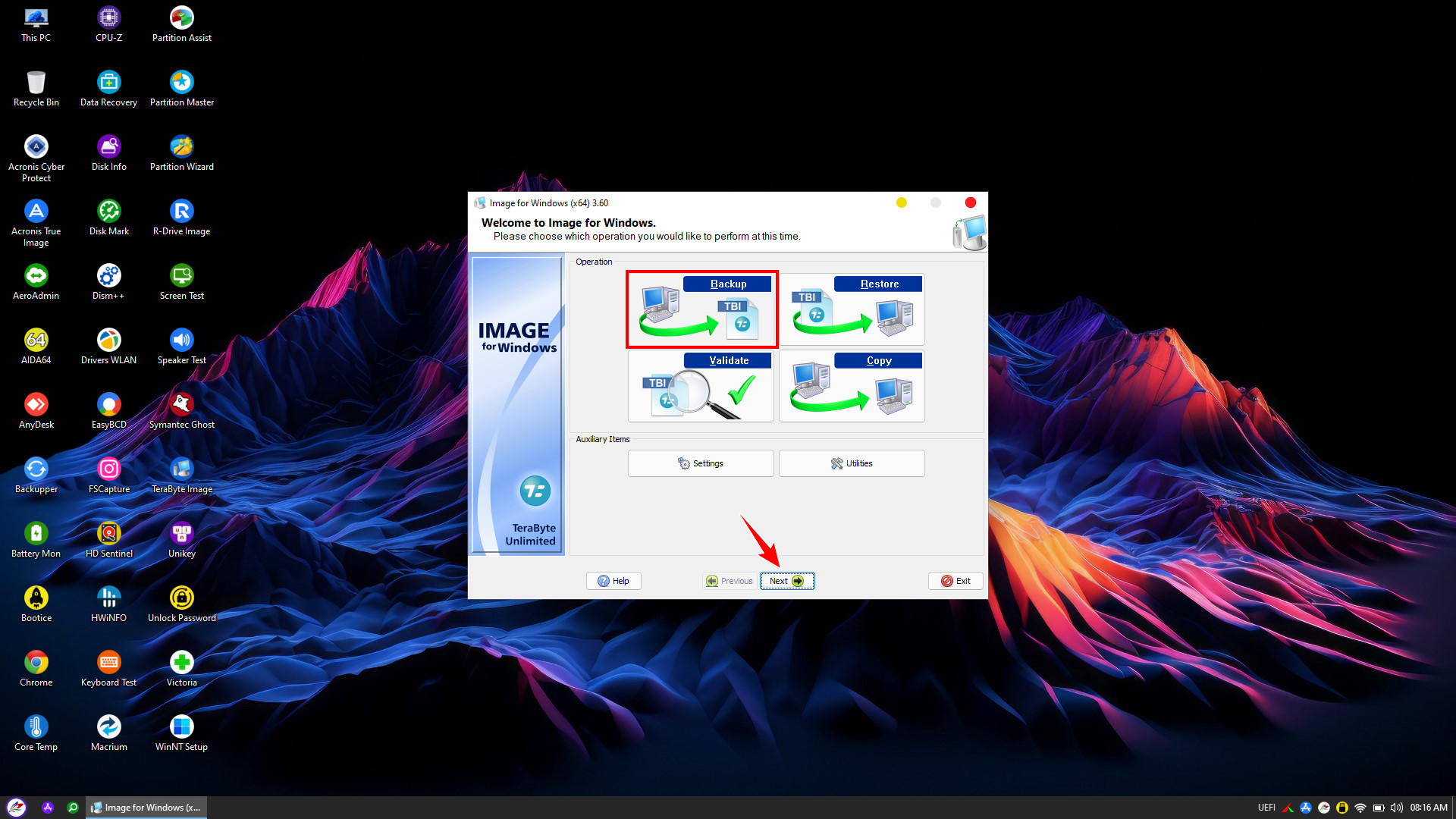
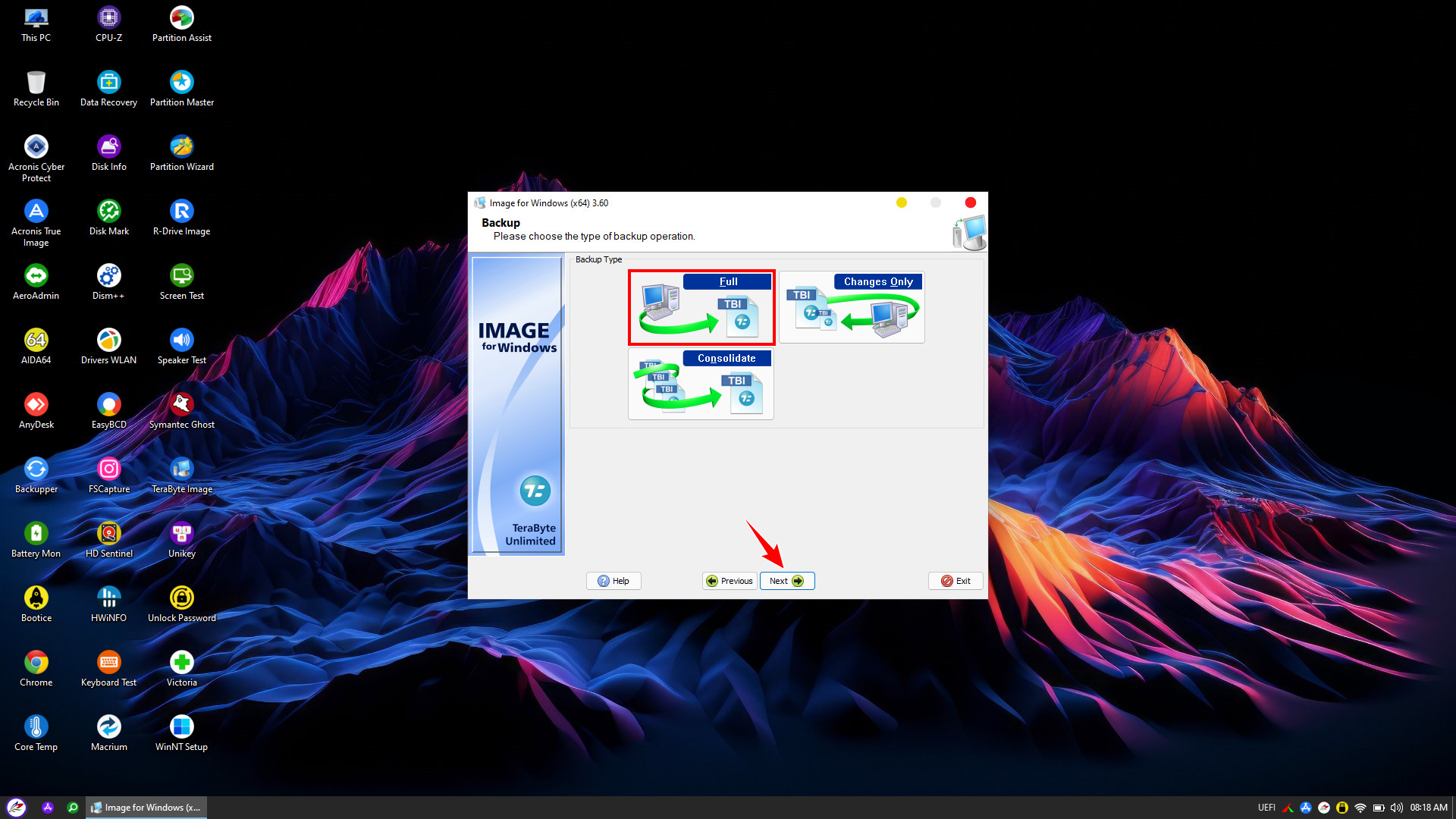
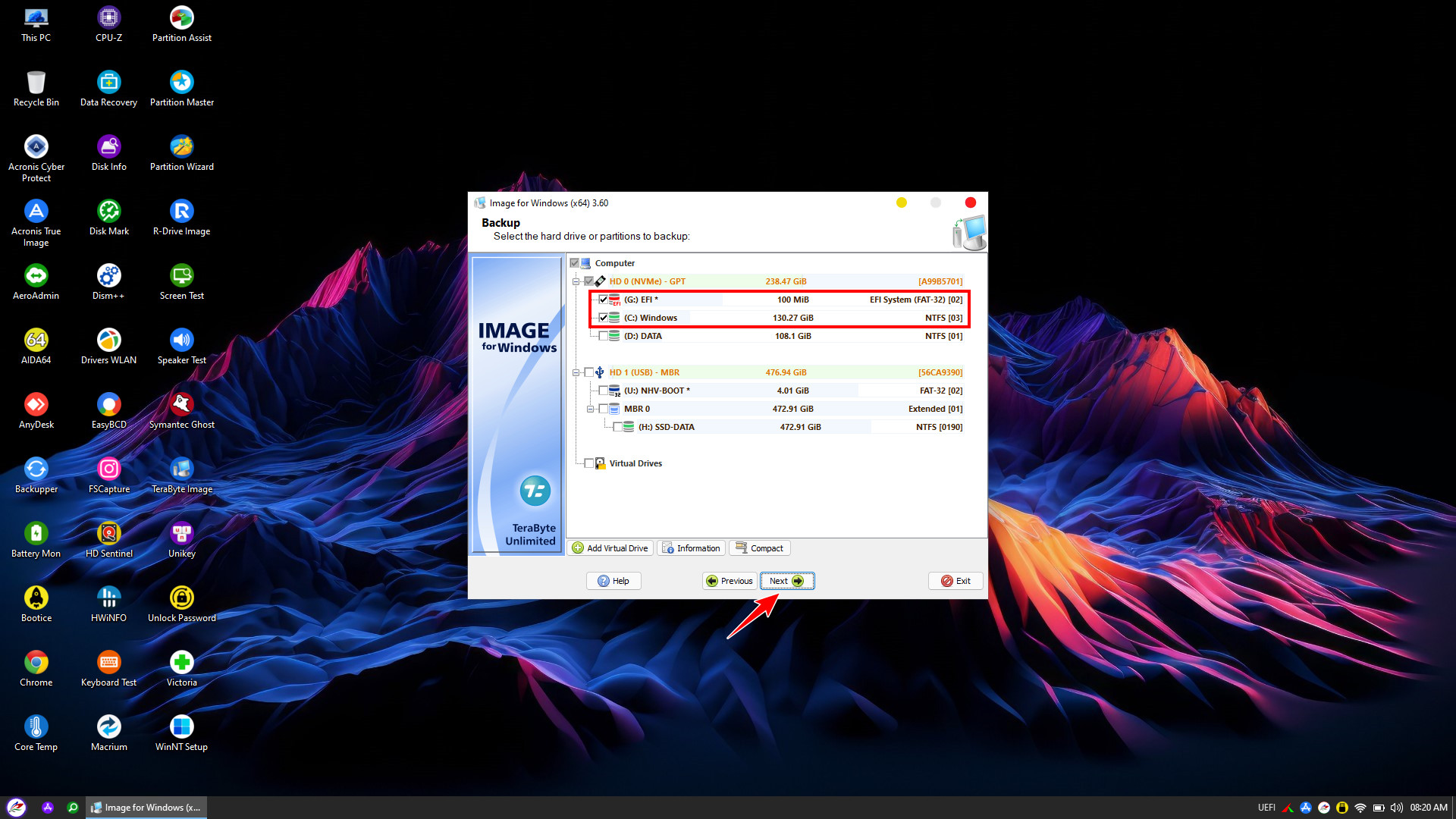
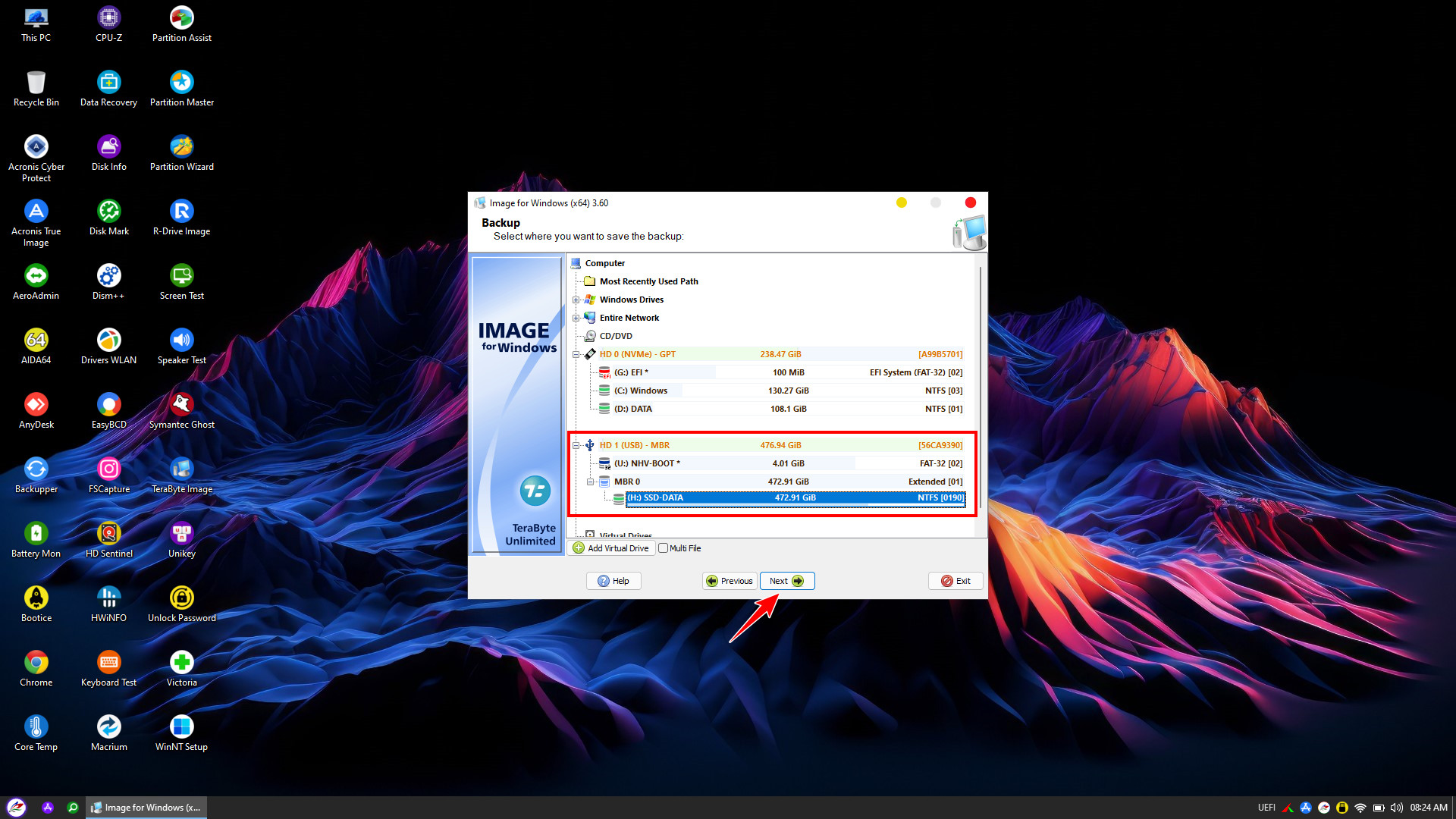
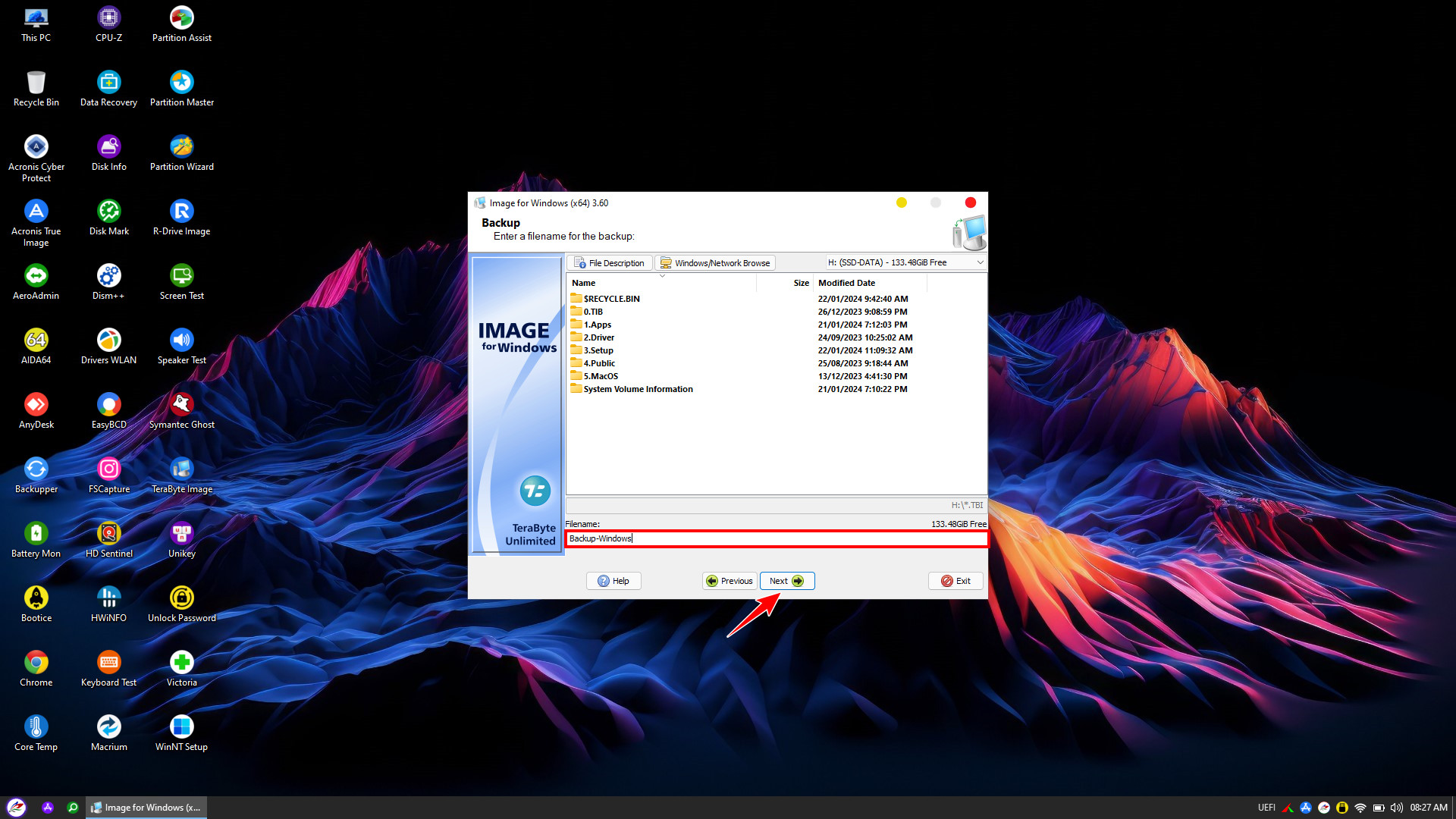
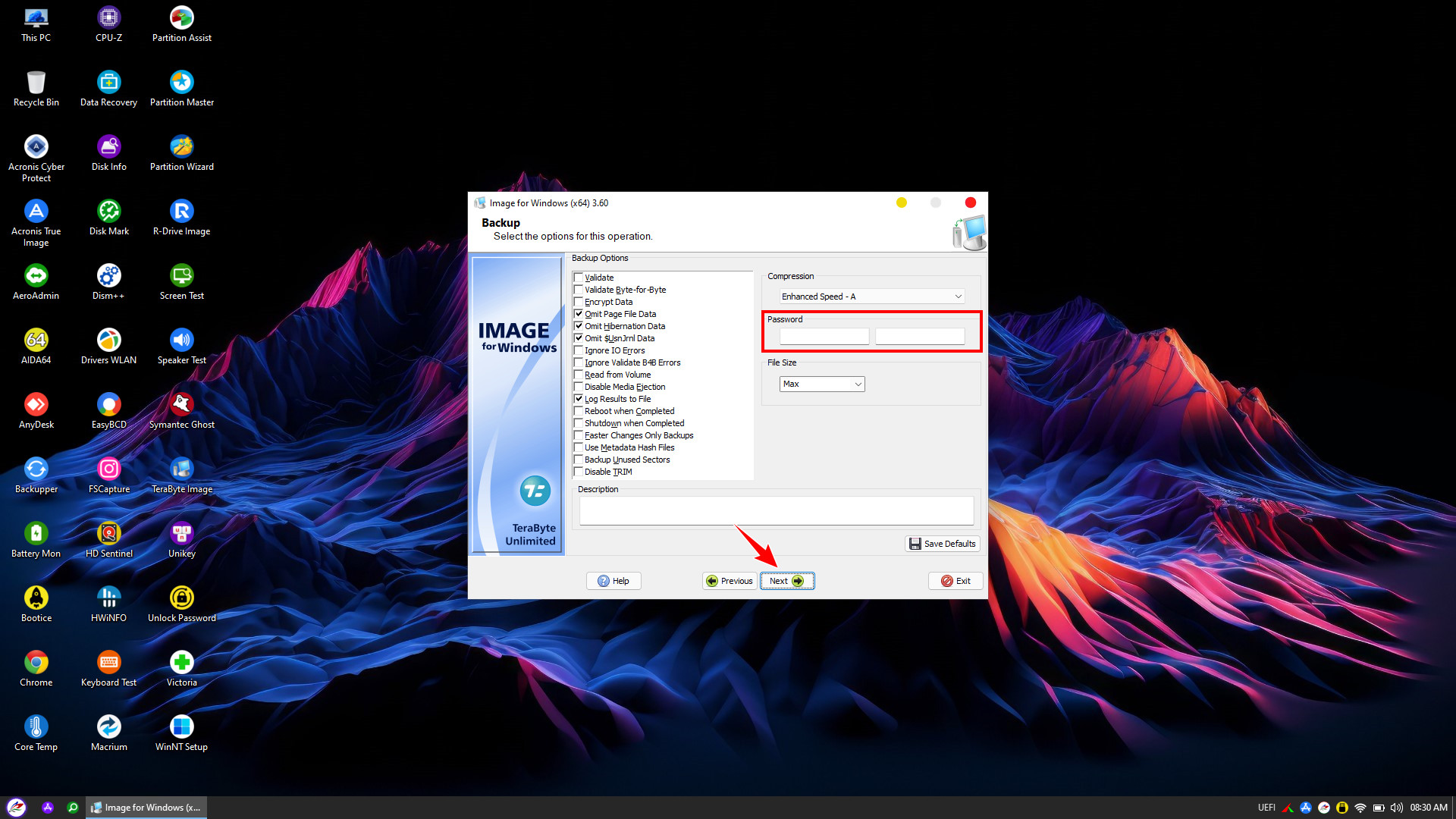
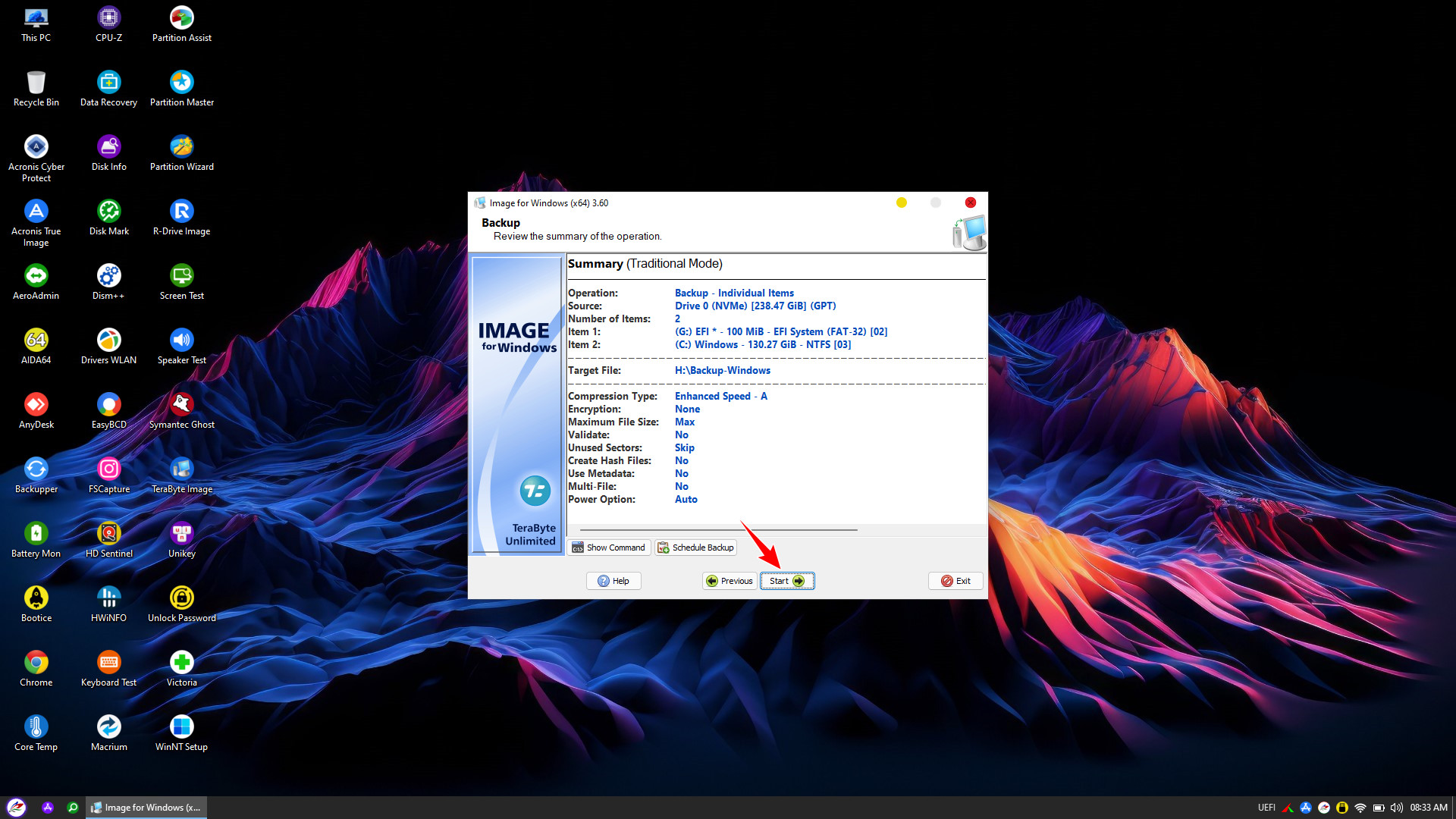
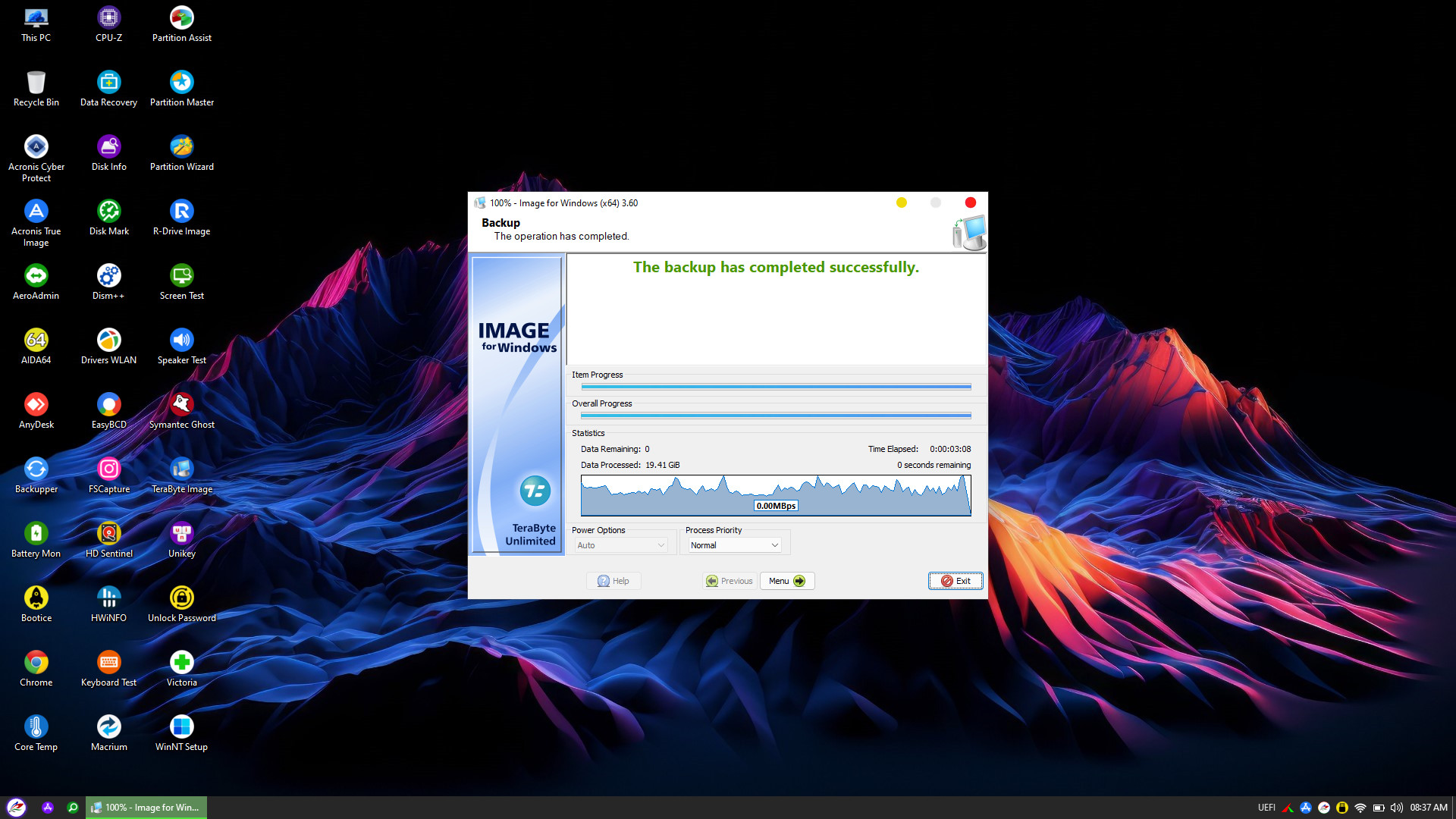
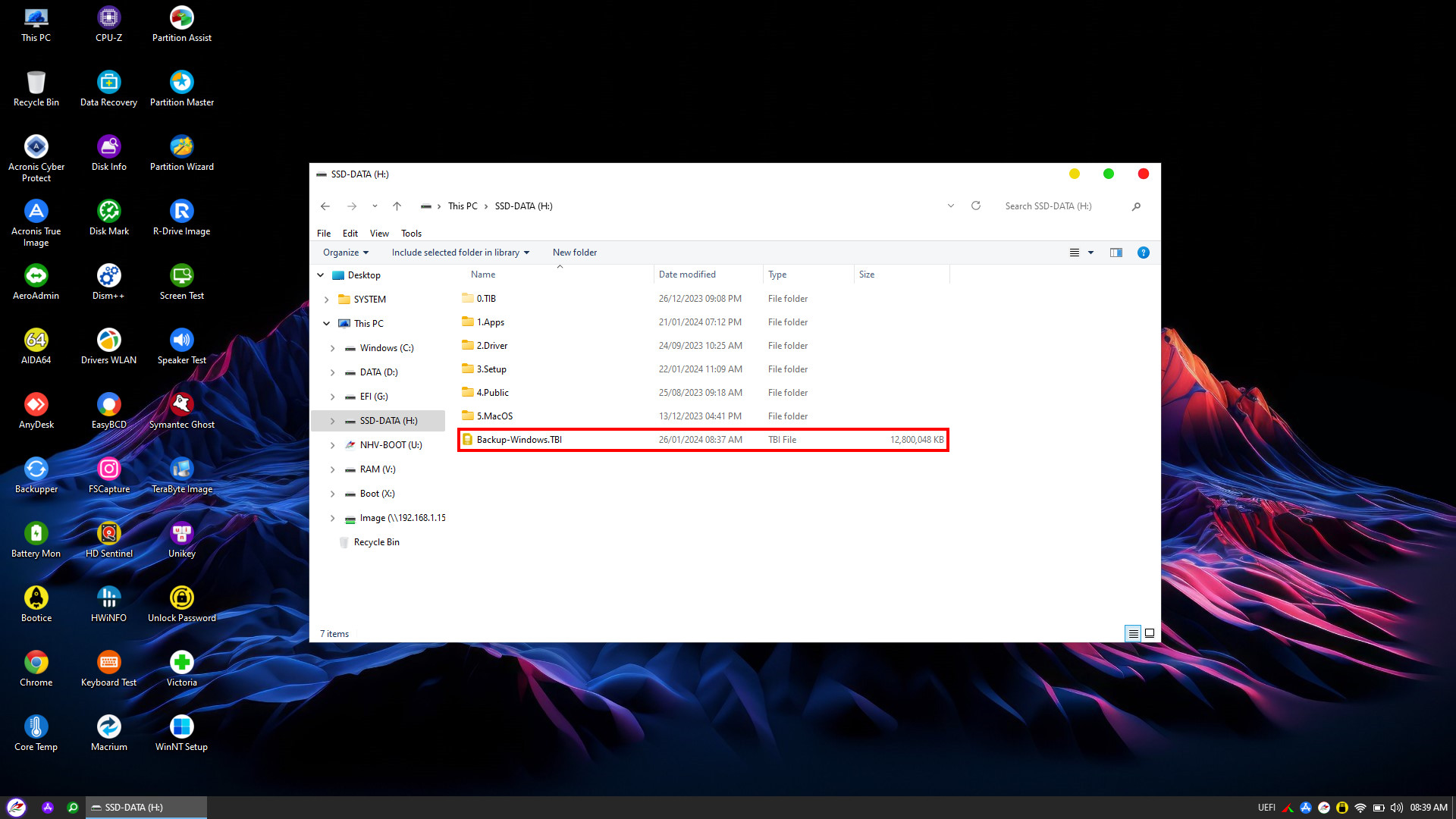
The Backup process captures the entire operating system, data, and current system configurations into a single image file (typically in .TBI format).
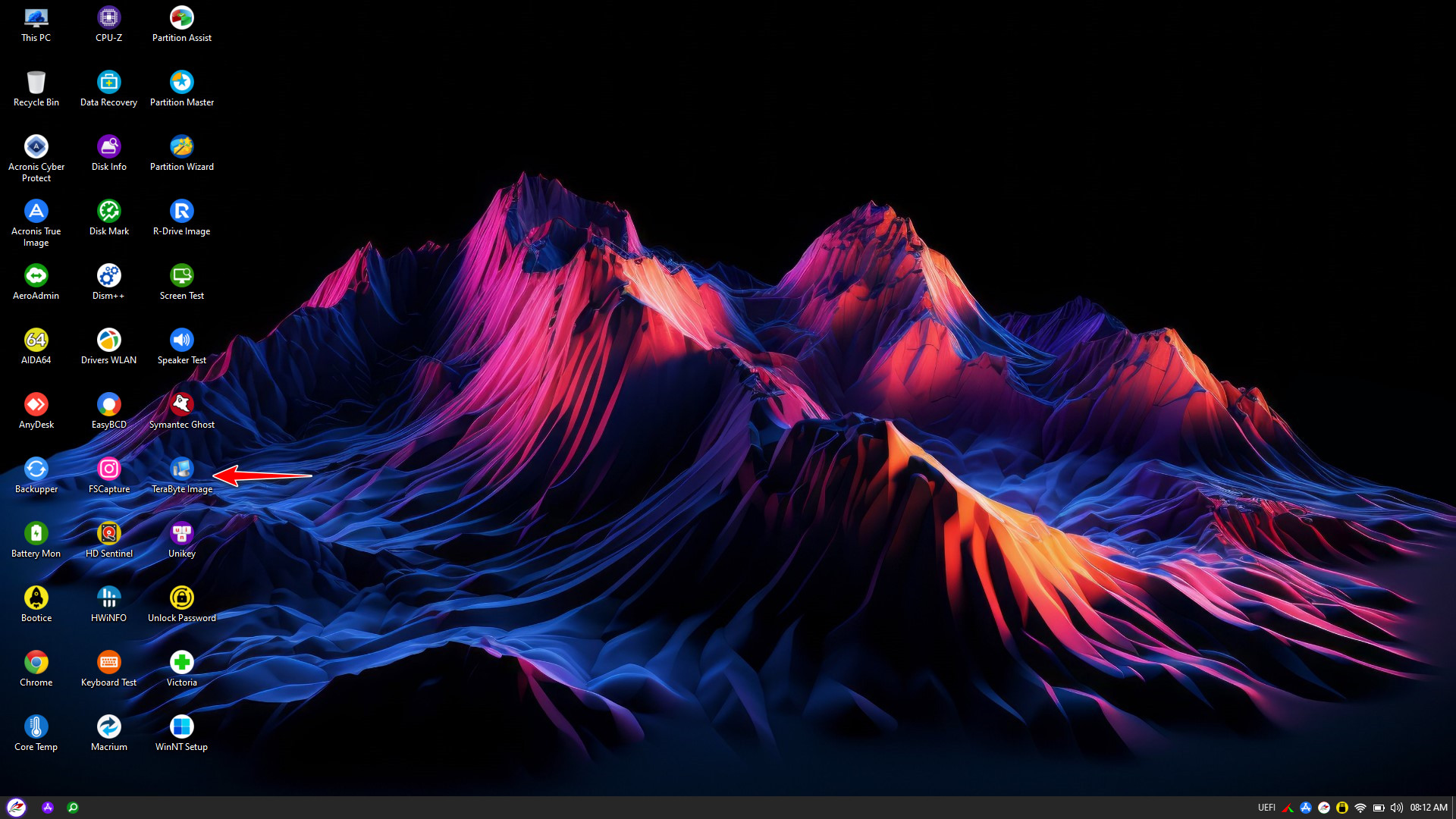
To begin, boot into the NHV BOOT WinPE environment. Launch TeraByte Image directly from the Desktop or access it via the PStart menu to open the main interface.
2. Restore Windows with TeraByte Image
When the computer encounters errors or performs sluggishly, the Restore feature reverts the entire system to its most stable state (identical to when the Backup was created)
Crucial: Before proceeding, you must delete the old EFI and Windows partitions or repartition the drive to ensure a clean restoration
Launch Partition Wizard to delete the existing EFI and Windows partitions


Once the partitions have been deleted or reconfigured, launch TeraByte Image

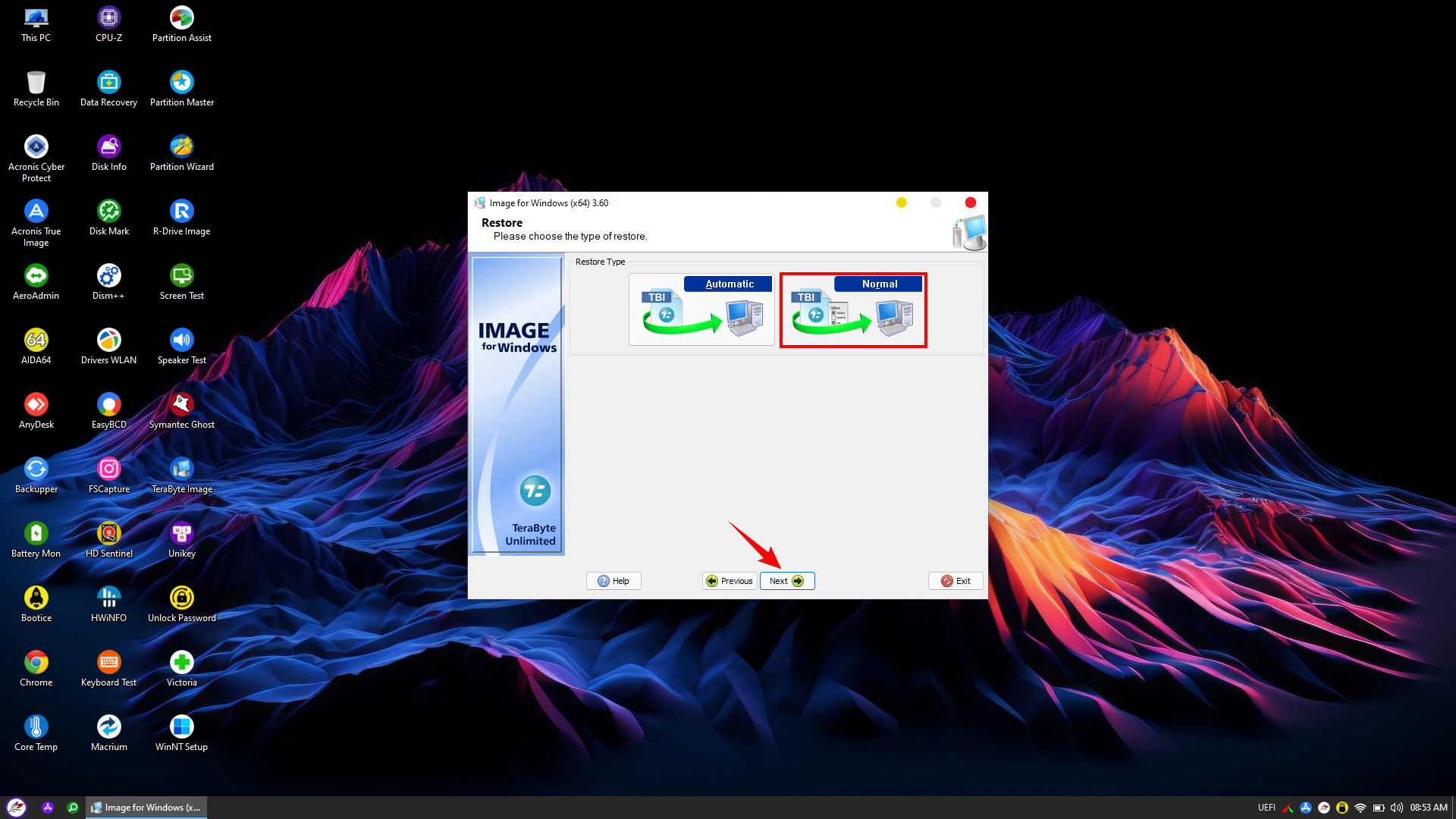
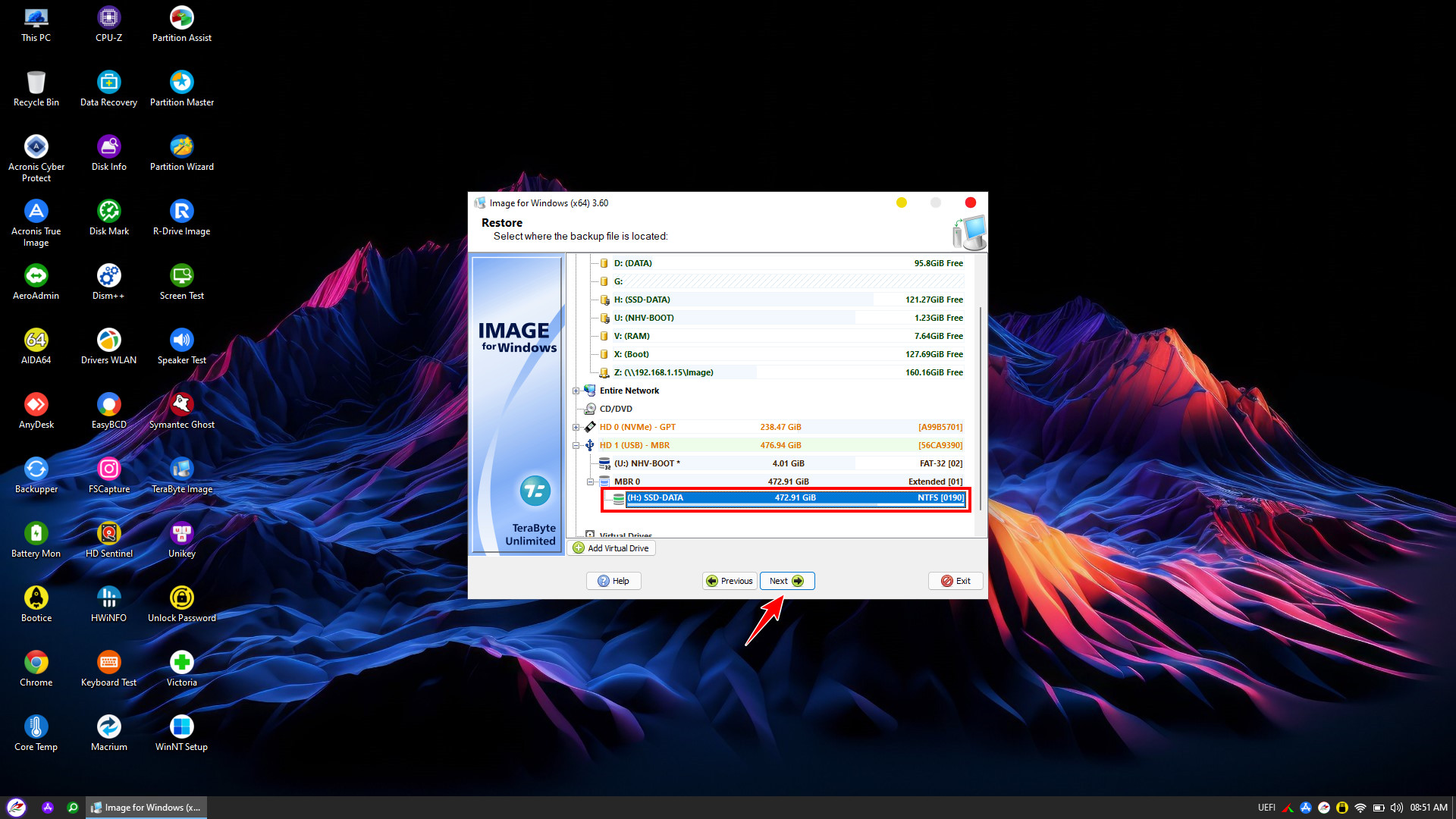
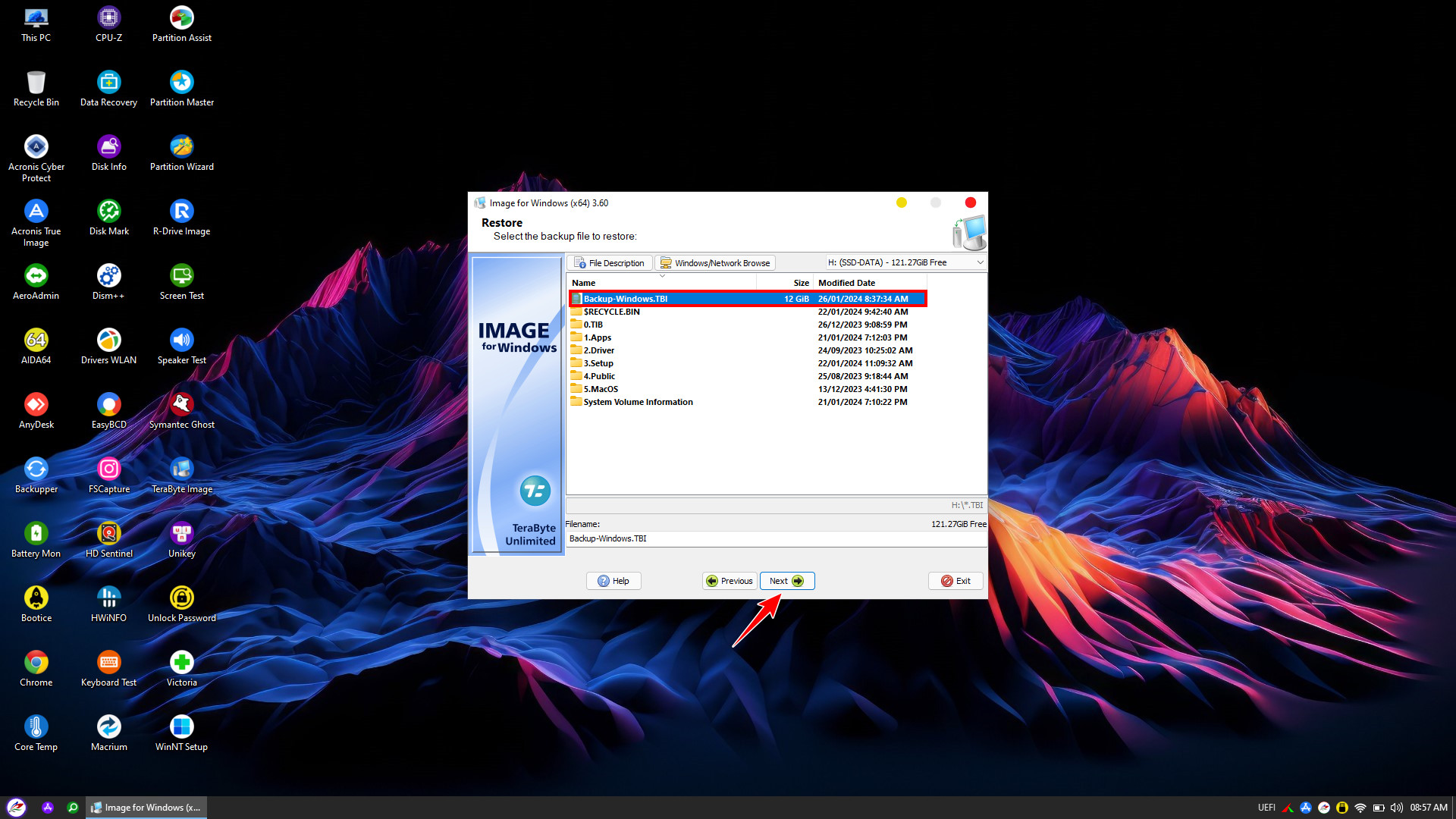
Since the backup image contains two partitions, EFI (FAT32) and Windows (NTFS), they must be restored sequentially (one by one)

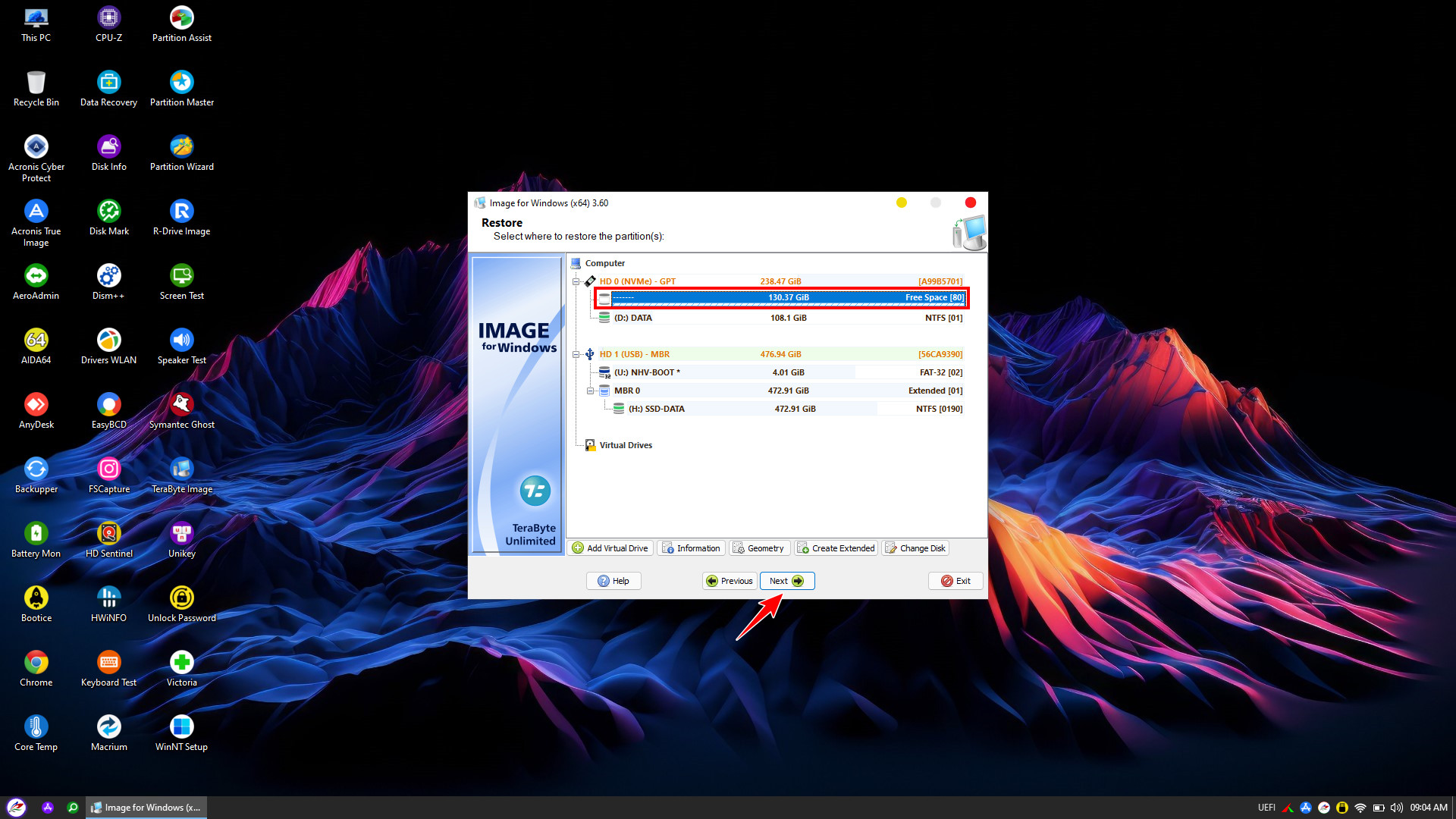
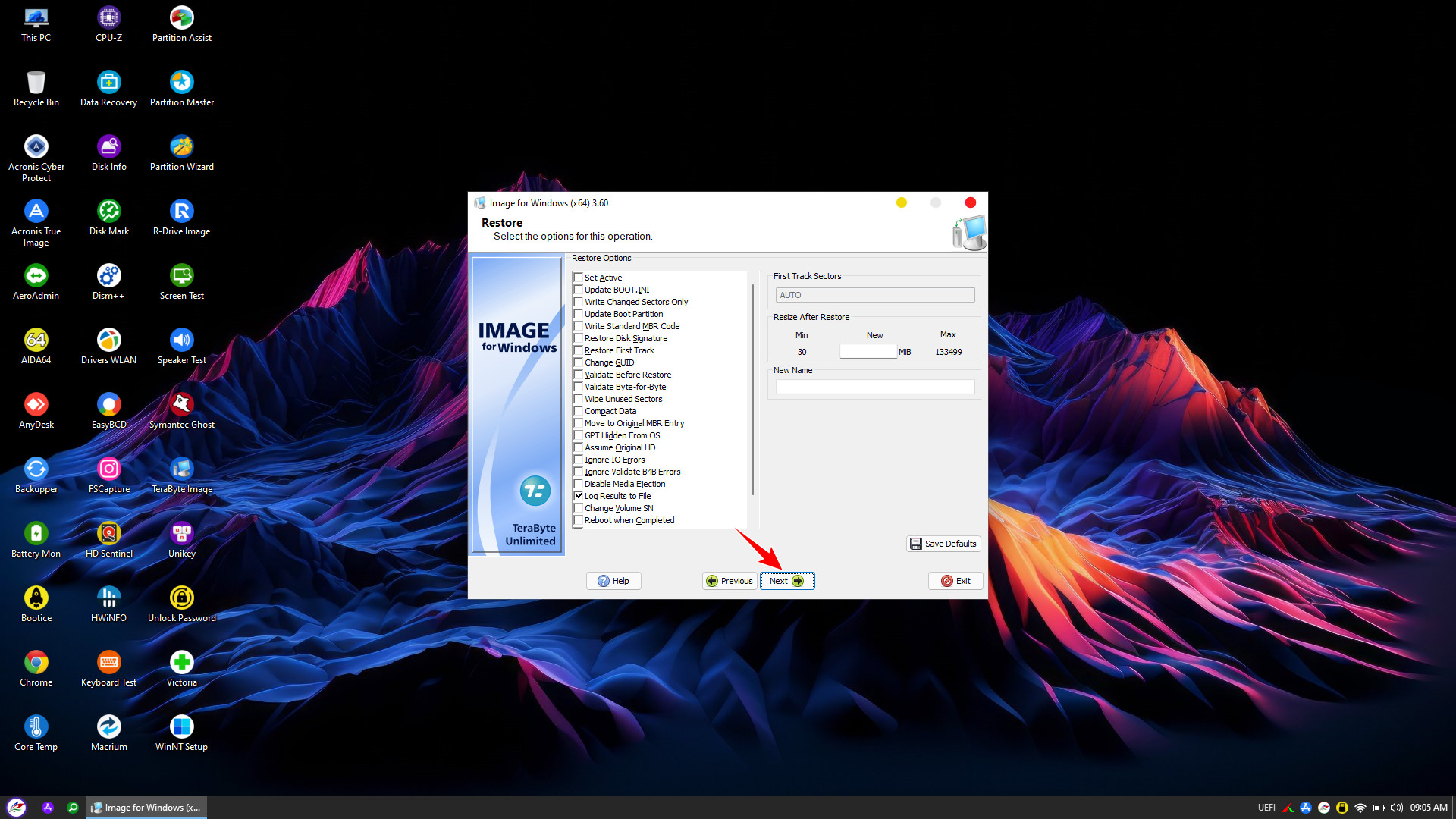
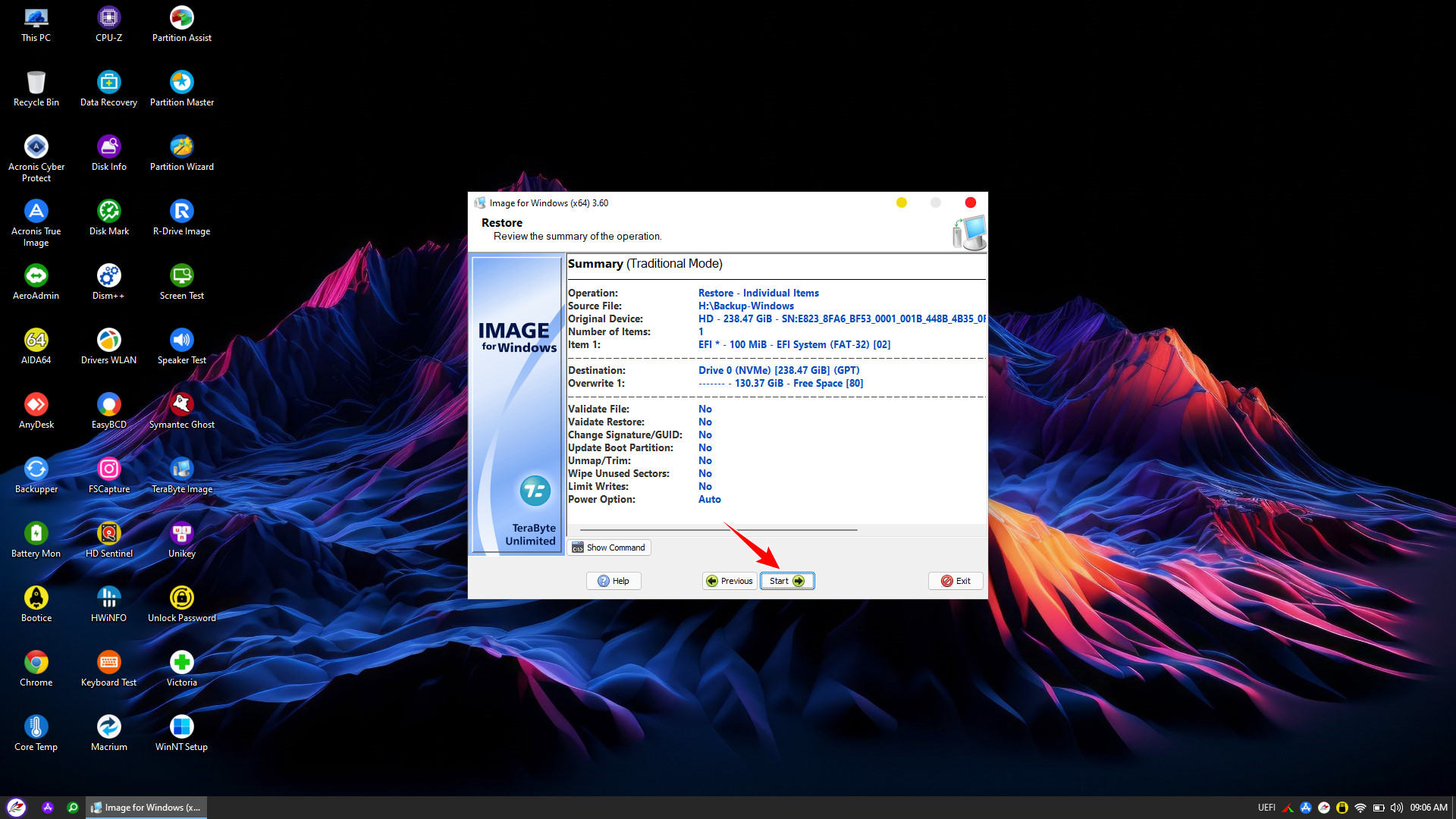
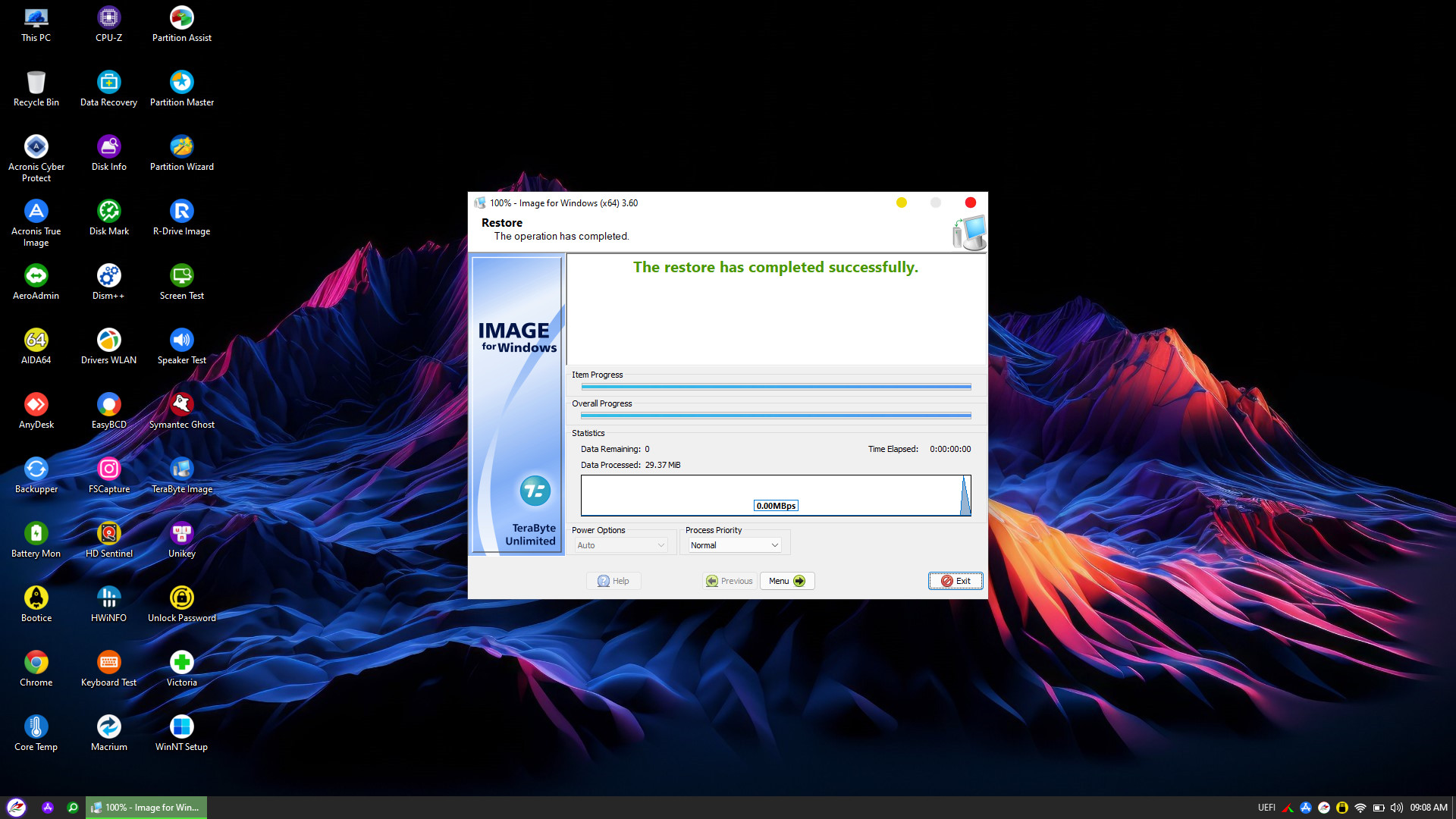
Next, proceed to restore the Windows (NTFS) partition. Repeat the previous steps, but this time select the Windows partition
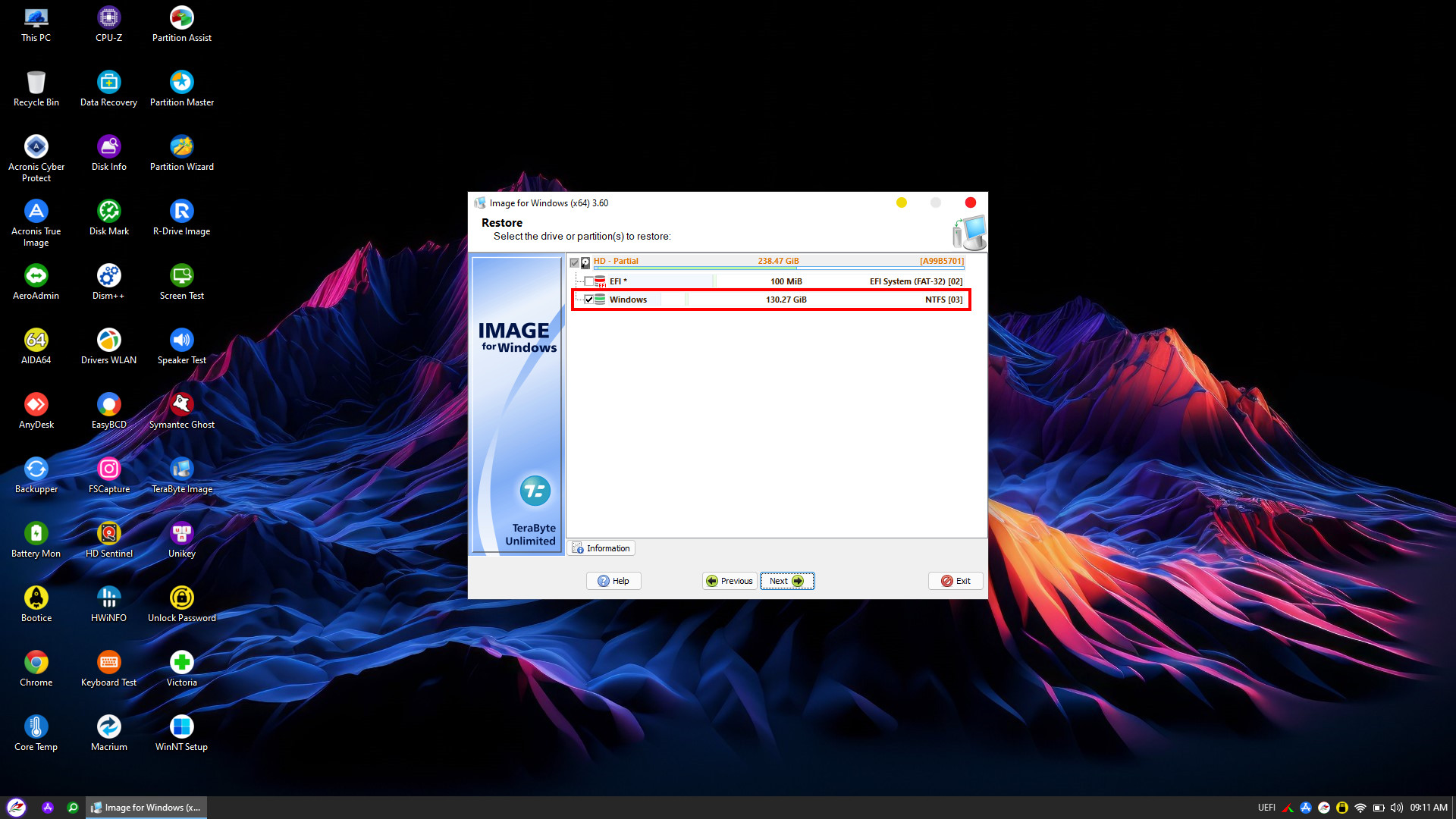
Once the restoration process is successfully completed, restart your computer to boot into Windows
3. Access Data within TeraByte Image (.TBI) Files
Occasionally, you may need to retrieve specific files from an old backup without the time-consuming process of restoring the entire operating system, which would overwrite current data
The Mount feature in NHV BOOT WinPE allows direct access to .TBI files. You can browse and extract data seamlessly, functioning exactly like a standard folder navigation
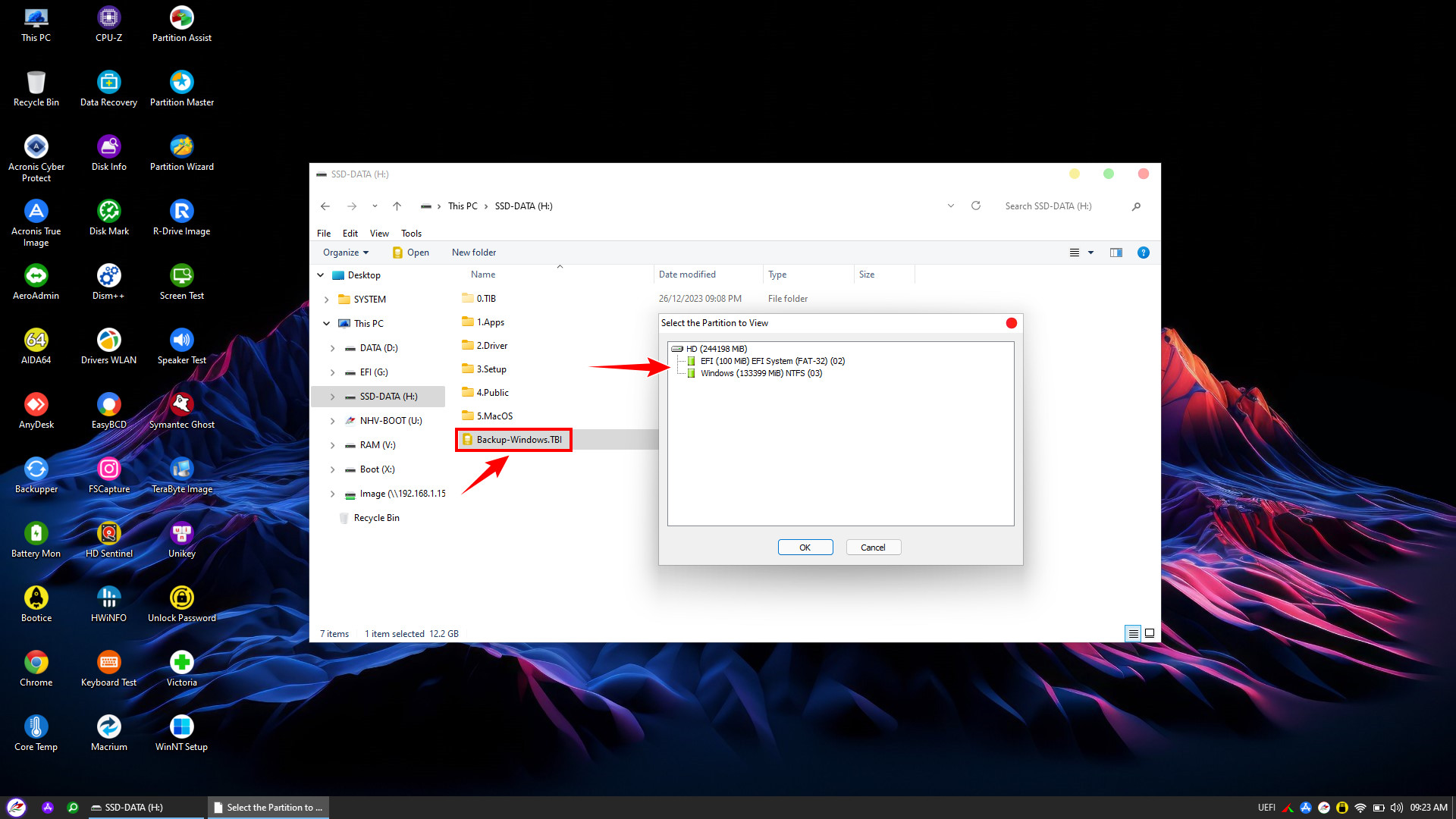
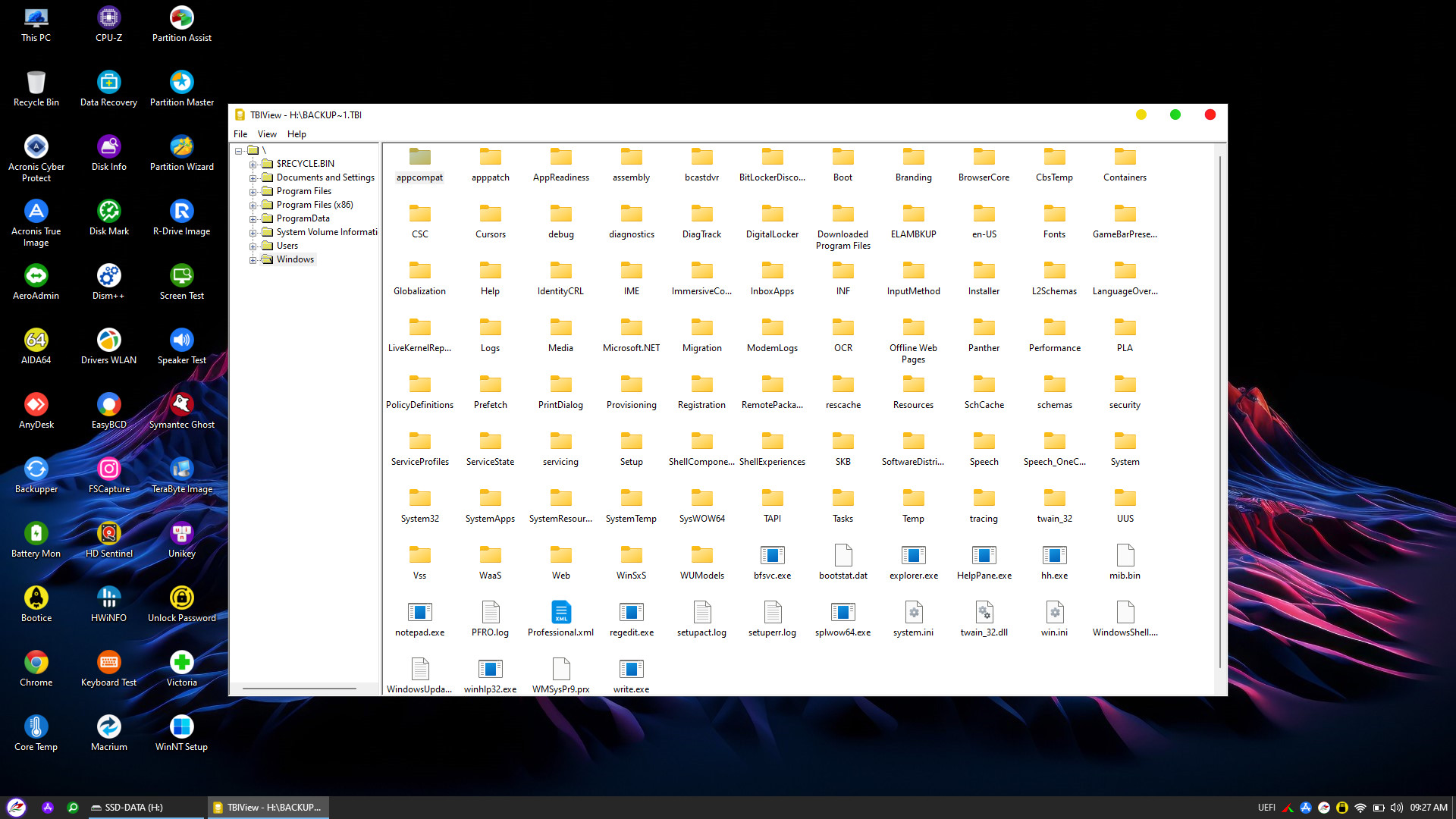
With this guide, you have now mastered the full capabilities of TeraByte Image within the NHV BOOT environment. Beyond providing rapid backup and recovery solutions during system failures, this tool excels in its ability to directly access and extract specific data from .TBI images without a full restore
Do not wait for a system crash or malware infection to search for a fix. Download NHV BOOT today and purchase a license to equip yourself with a professional rescue USB toolkit, ensuring you are fully prepared for any emergency.
Good luck with your implementation!