1. Common Windows Errors Requiring Driver Intervention from WinPE
Before diving into technical operations, you need to accurately identify the ‘symptom’ your computer is experiencing. Handling drivers from WinPE is not just a temporary fix but often the only solution when Windows cannot boot. Below are the 3 most common scenarios technicians frequently face
- Blue Screen of Death (BSOD) due to software conflict: This case often occurs after updating a new driver or installing incompatible software, leading to a system freeze and a blue screen appearing immediately upon startup
- “INACCESSIBLE_BOOT_DEVICE” error on Intel Gen 11+ Laptops: When restoring an old Ghost/Backup file to new generation laptops (Intel Gen 11, 12, 13…), the machine often fails to boot into Windows due to missing hard drive controller drivers (IRST/VMD). This is an extremely common error that confuses many users
- Loss of Mouse & Keyboard connection when installing Windows 7: The original Windows 7 installer usually does not integrate USB 3.0 drivers. Therefore, when installing on newer computers, you will encounter a situation where you cannot control the mouse and keyboard, interrupting the installation process
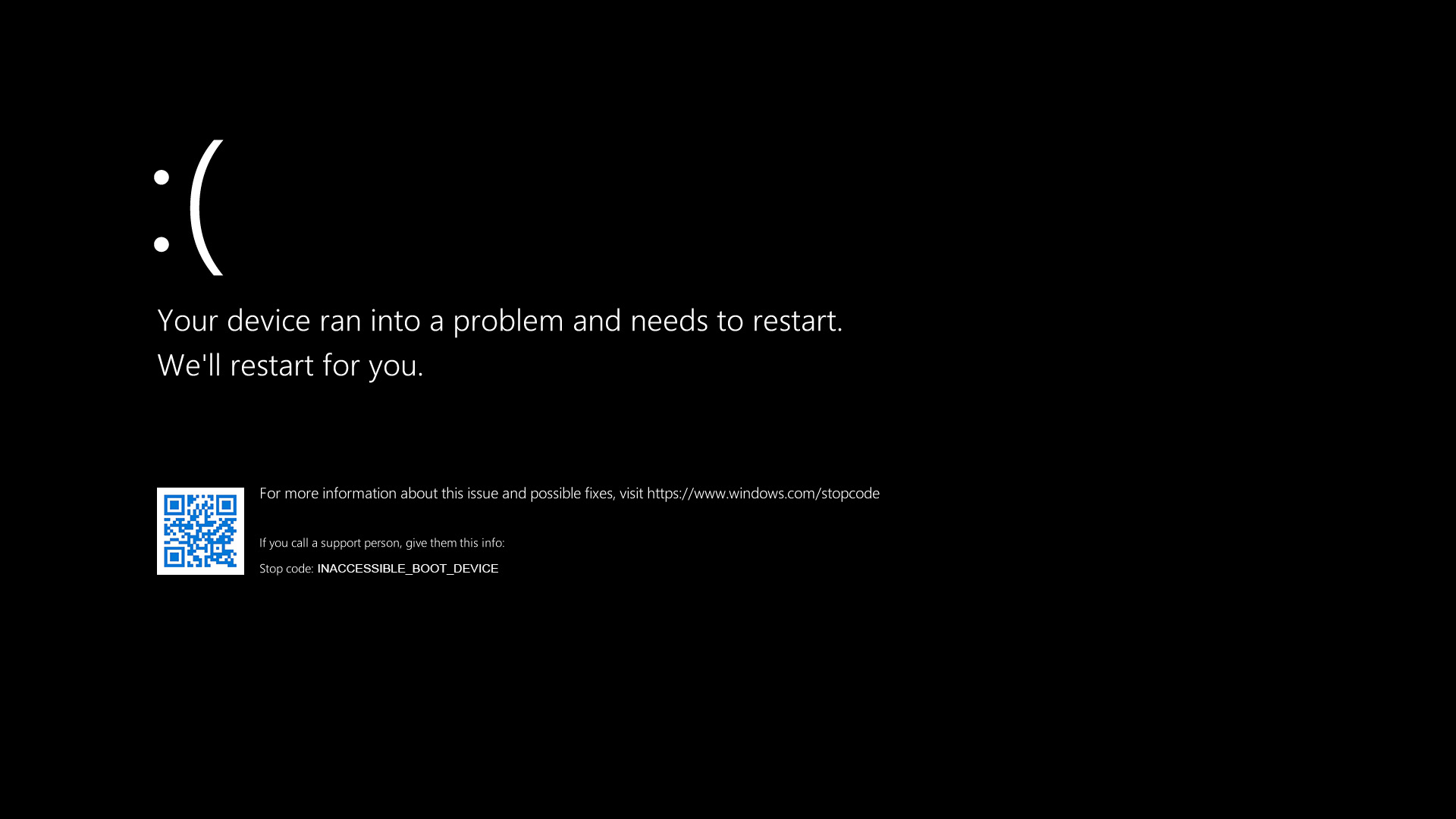
Download Intel Rapid Storage Technology Driver (IRST) to fix the “INACCESSIBLE_BOOT_DEVICE” error here: https://drive.google.com
2. Guide to Install or Uninstall Windows Drivers from WinPE
We will use Dism++ – a powerful system management tool integrated right on the NHV BOOT Desktop. The advantage of Dism++ is its intuitive graphical interface, allowing you to install or uninstall drivers with just a few simple clicks without remembering complex commands. Let’s start following the standard procedure below
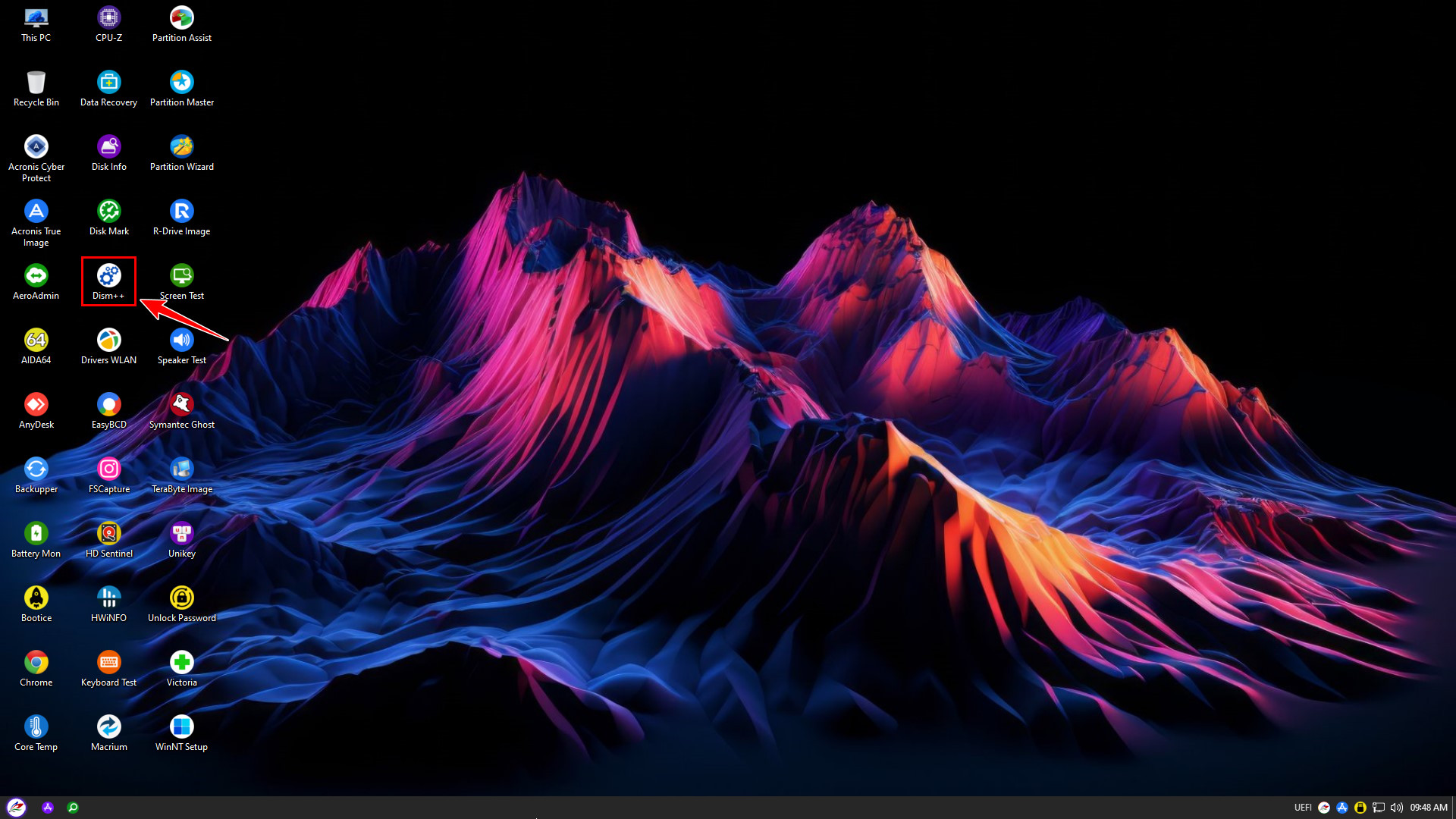
Boot into NHV BOOT WinPE and open Dism++ software
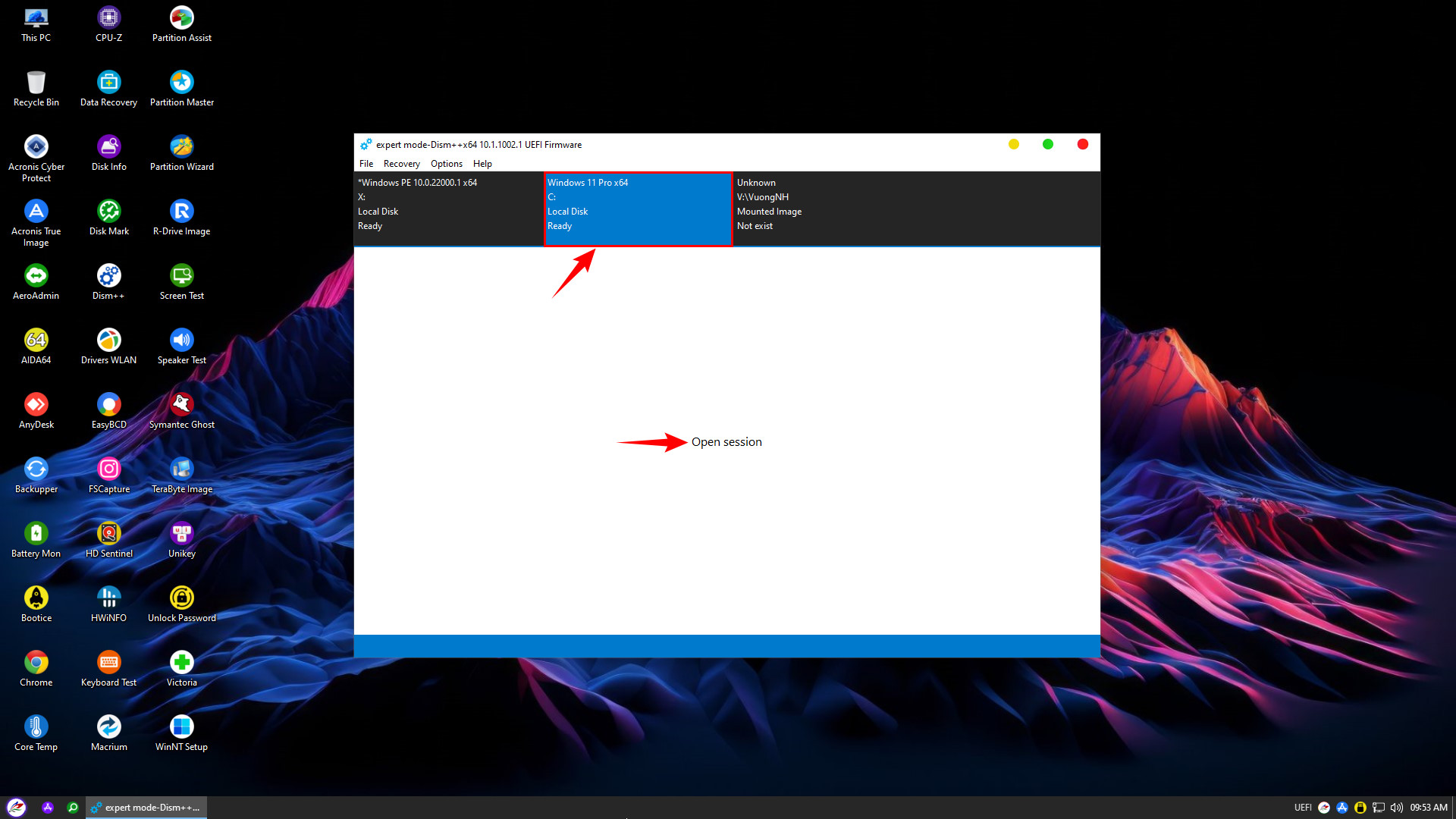
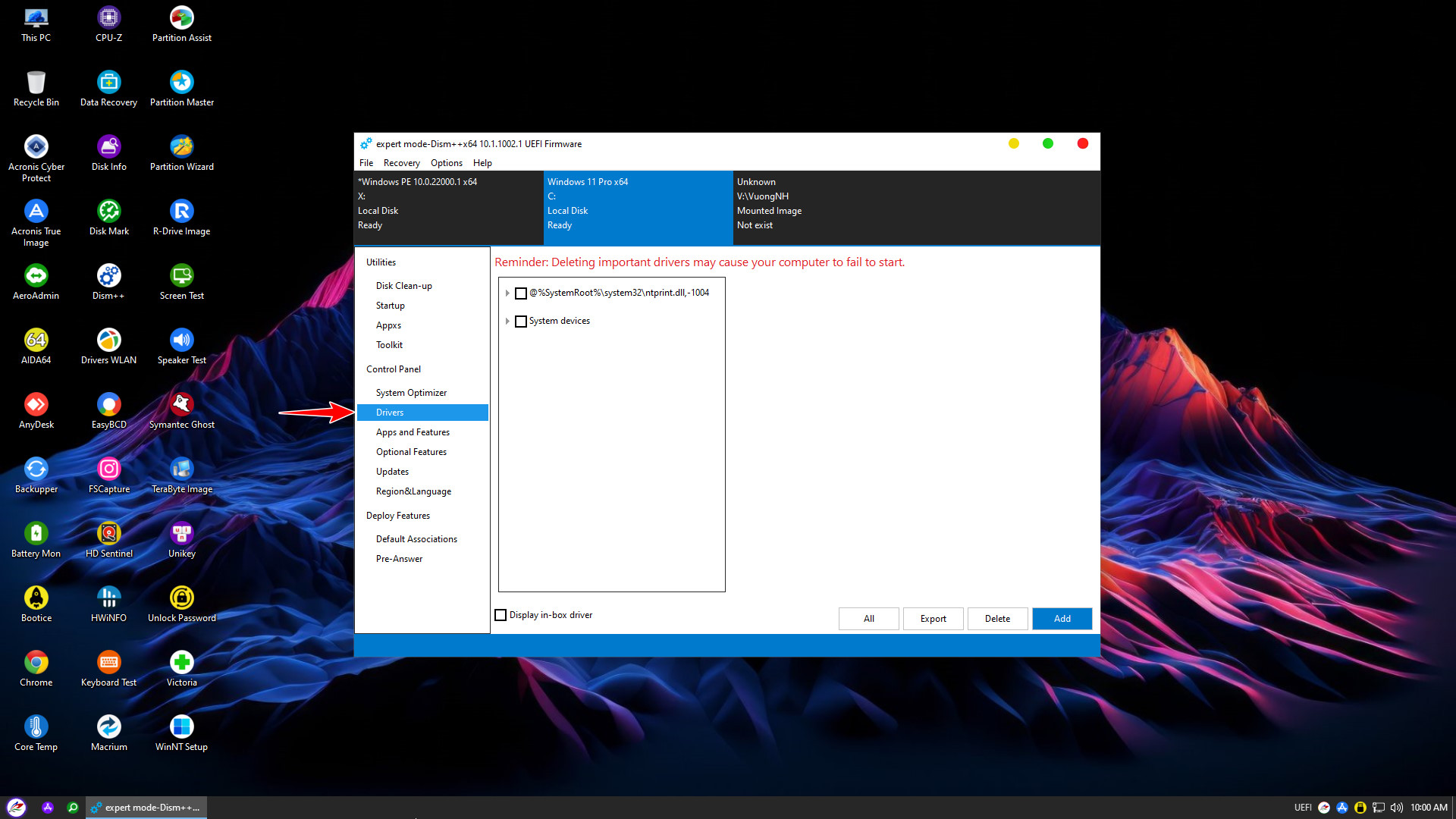
To uninstall a driver, select the target driver and click Delete
To install a driver, select Add
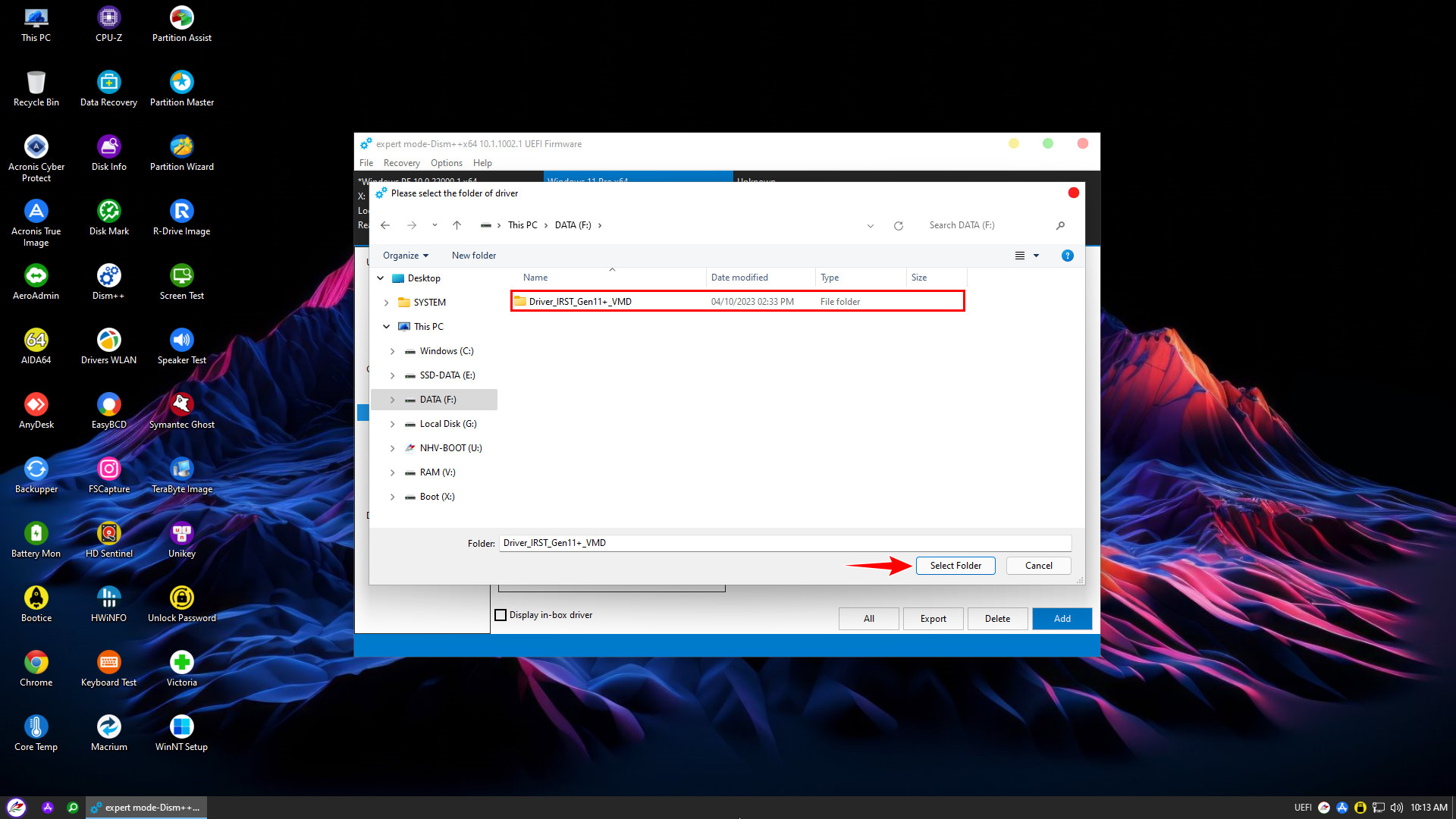
Note: The driver installation folder must contain an .inf file. An .inf file is a plain text file containing information such as registry details, driver name, and installation location
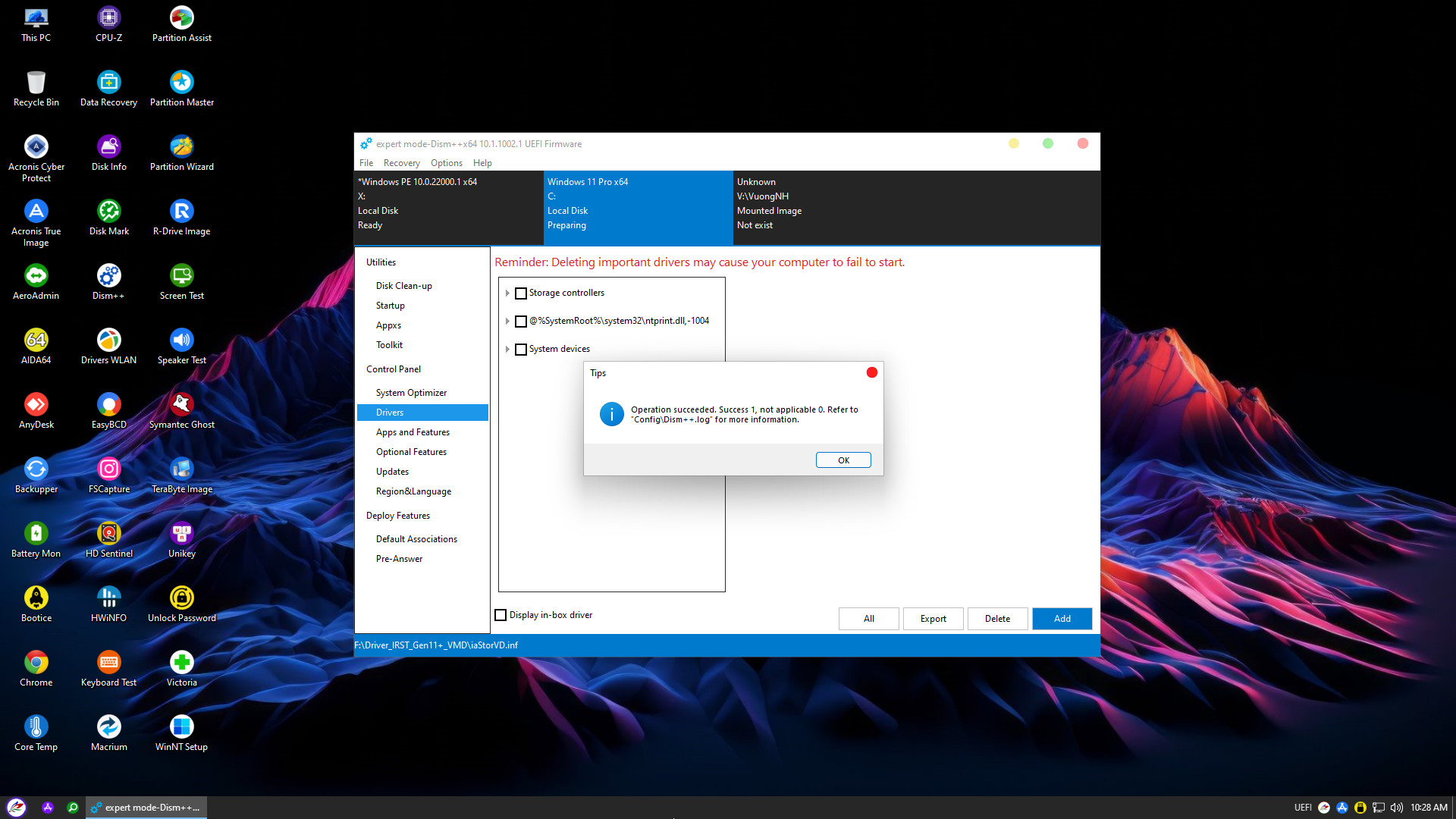
Thus, nhvboot.com has completed the guide on how to install or uninstall Windows drivers from WinPE using Dism++ software. This is a crucial advanced rescue skill that helps you quickly resolve blue screen errors or missing hard drive drivers without reinstalling Windows.
Hopefully, this tip will assist you in your computer repair process. Don’t forget to download the latest version of NHV BOOT to access this powerful rescue toolkit. Good luck!