1. Connect WinPE to LAN to retrieve data
In computer rescue scenarios, the need to retrieve installation files, drivers, or Ghost images from another computer is significant. Instead of time-consuming USB transfers, you can connect WinPE to the LAN to access shared data directly. Below are the steps to configure WinPE as a Client to quickly retrieve data
To initiate the connection, you need to open the command prompt. On the NHV BOOT WinPE interface, use one of the following 2 simple methods
Method 1 (Using Shortcut): Press Windows + R to open the Run dialog. Type cmd and press Enter
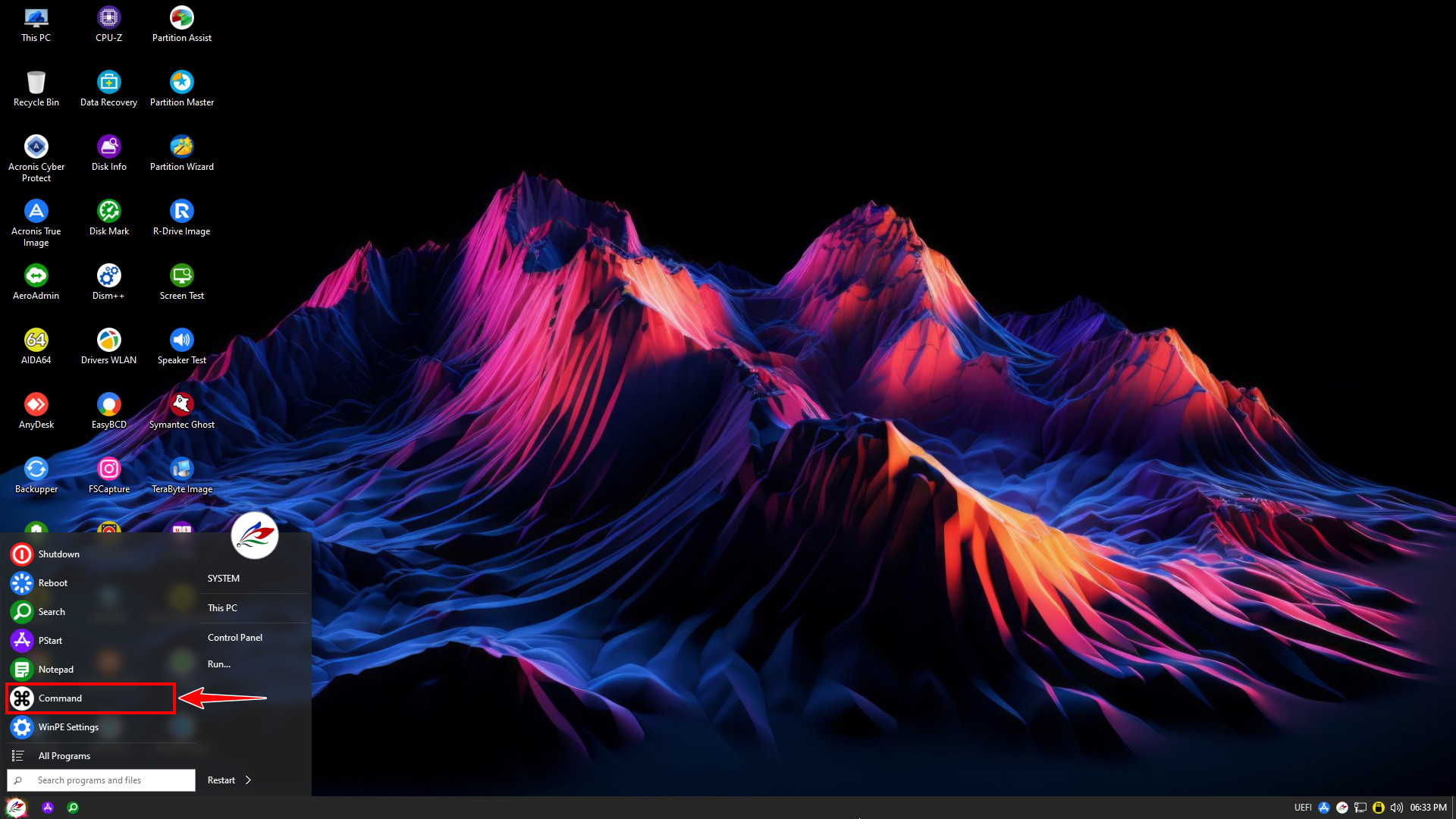
Method 2 (Using Start Menu): Click the Start button in the bottom-left corner, then select Command from the application list
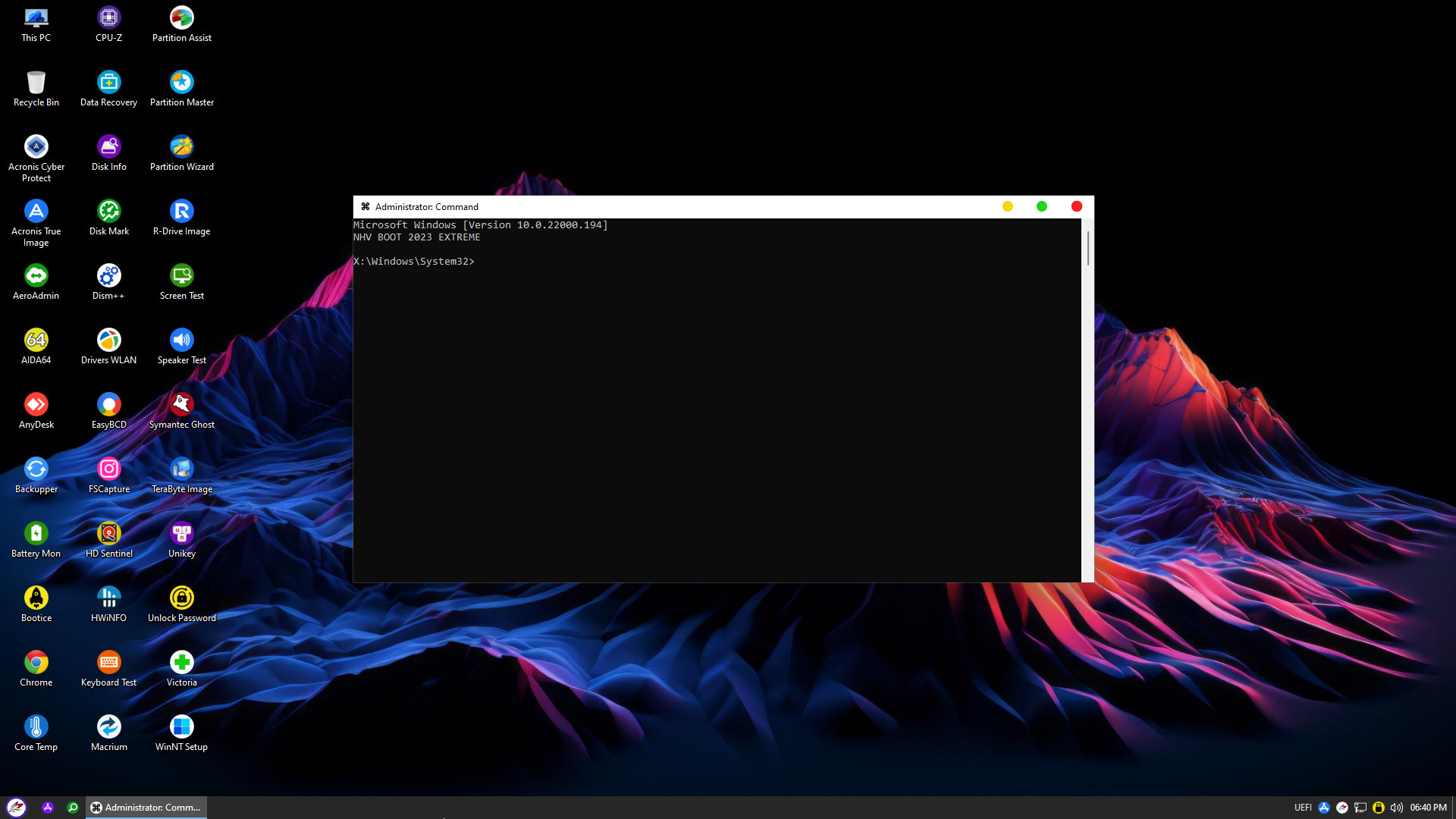
Example: The file server IP address is: 10.10.10.25, Hostname: SrvData
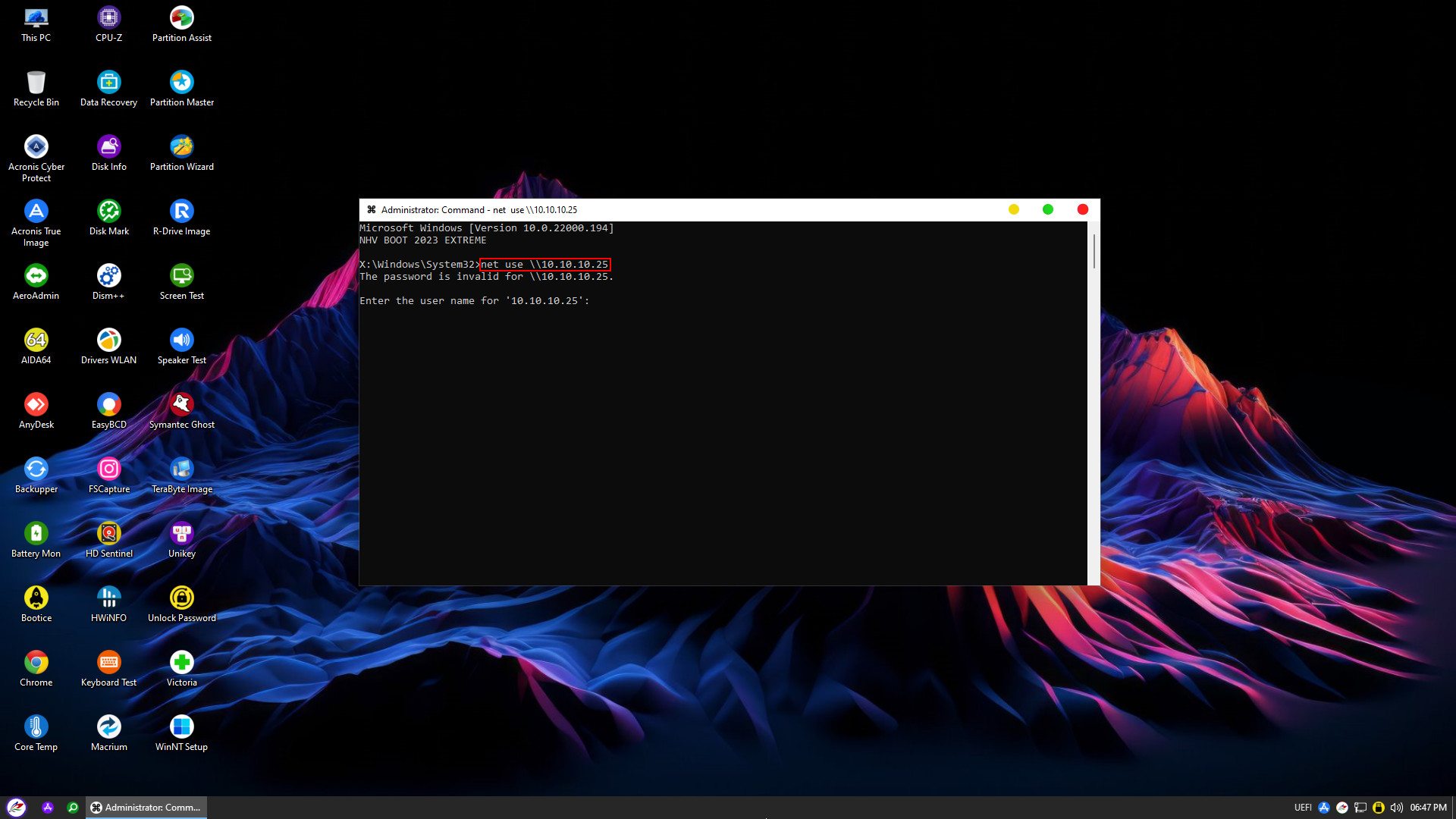
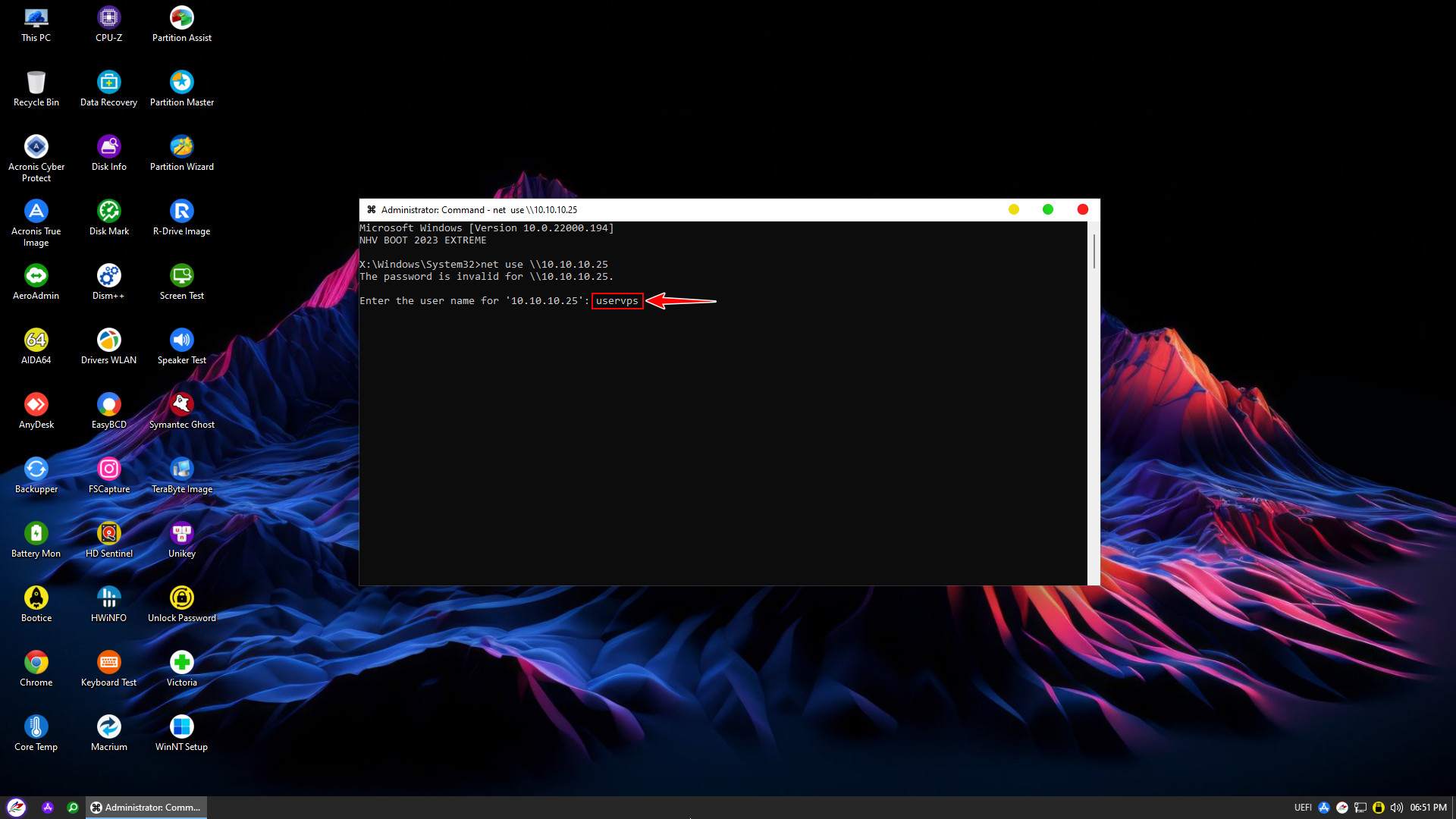
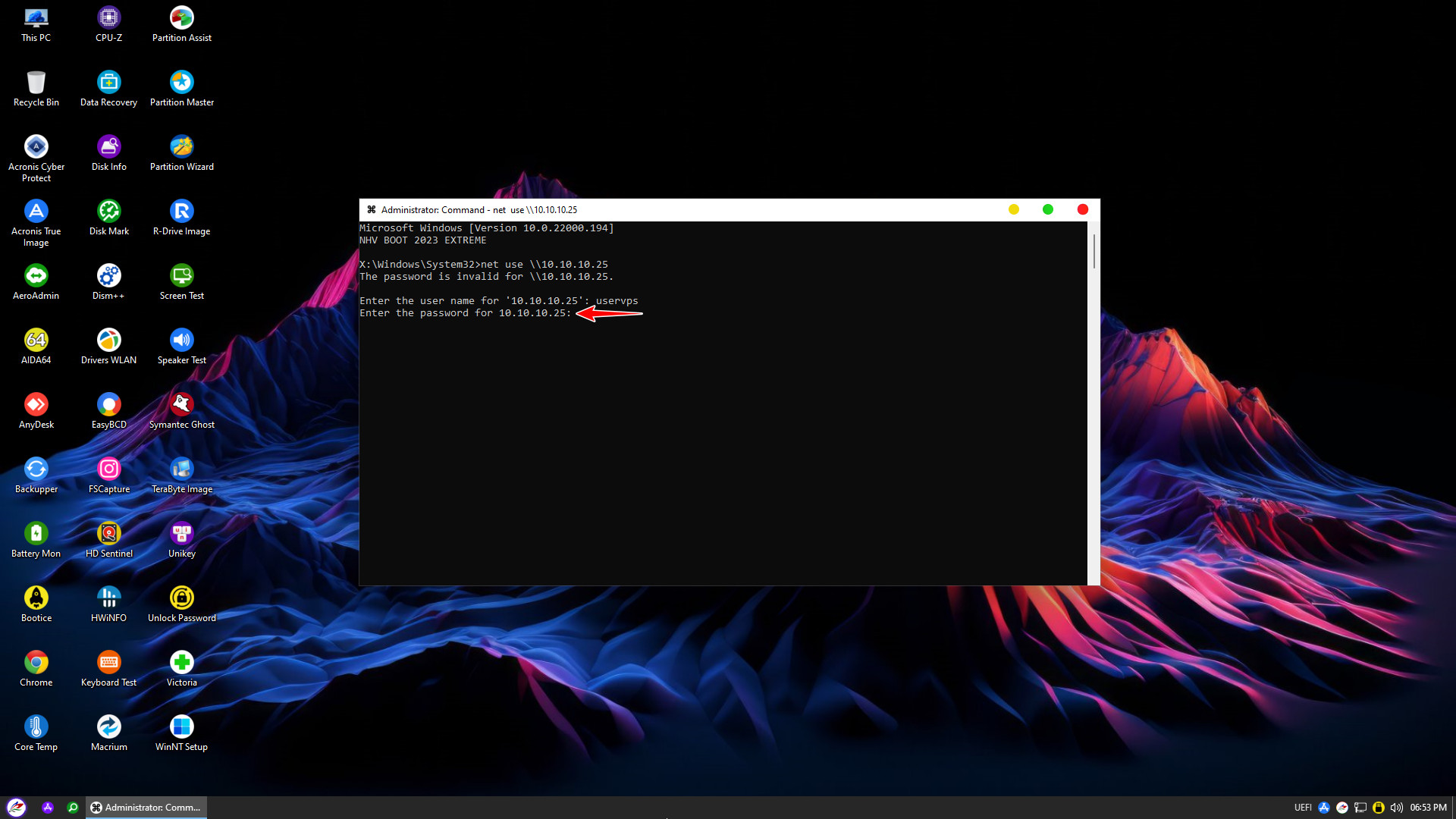
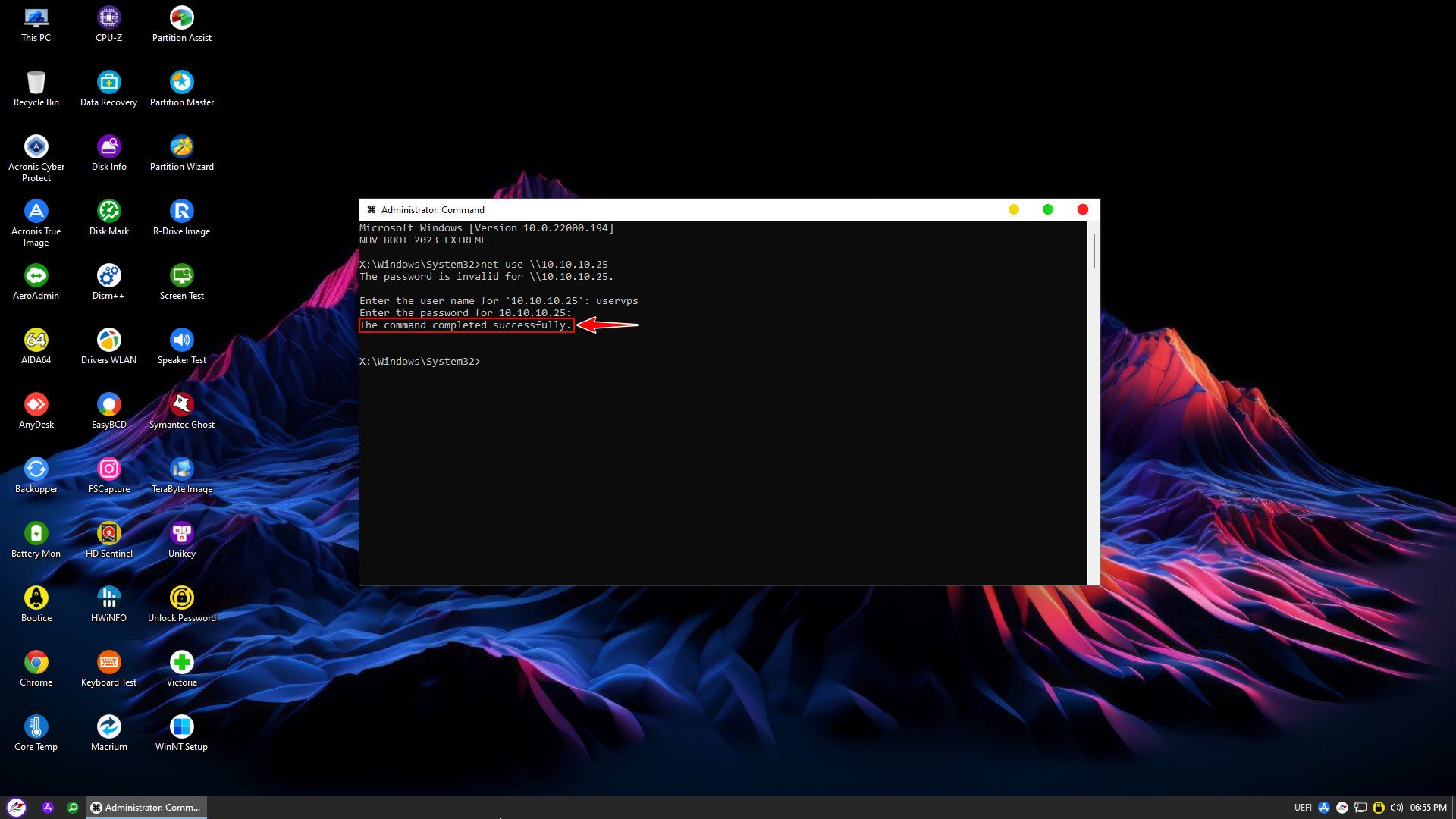
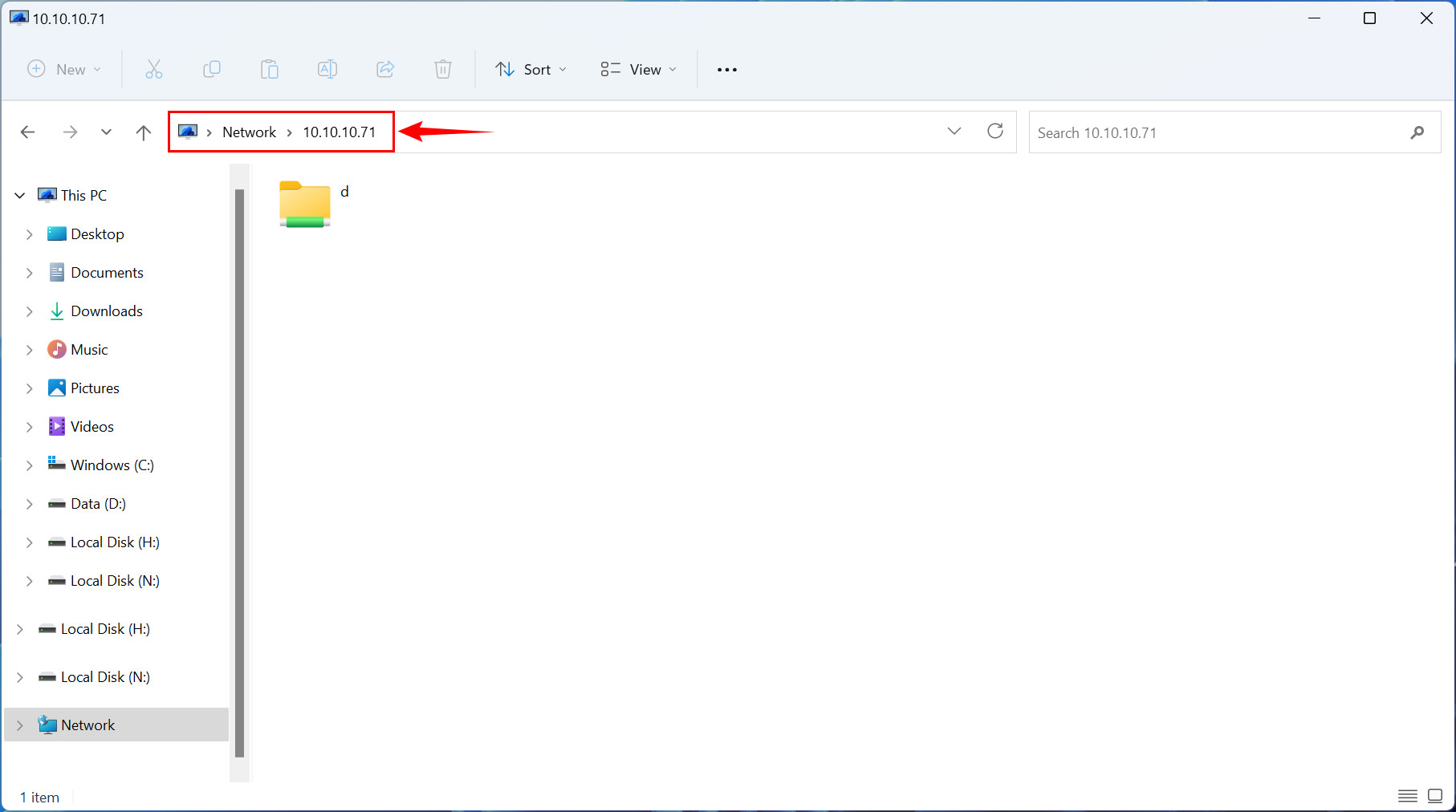
Next, open File Explorer and type \\(IP address or Hostname of the file server) in the address bar
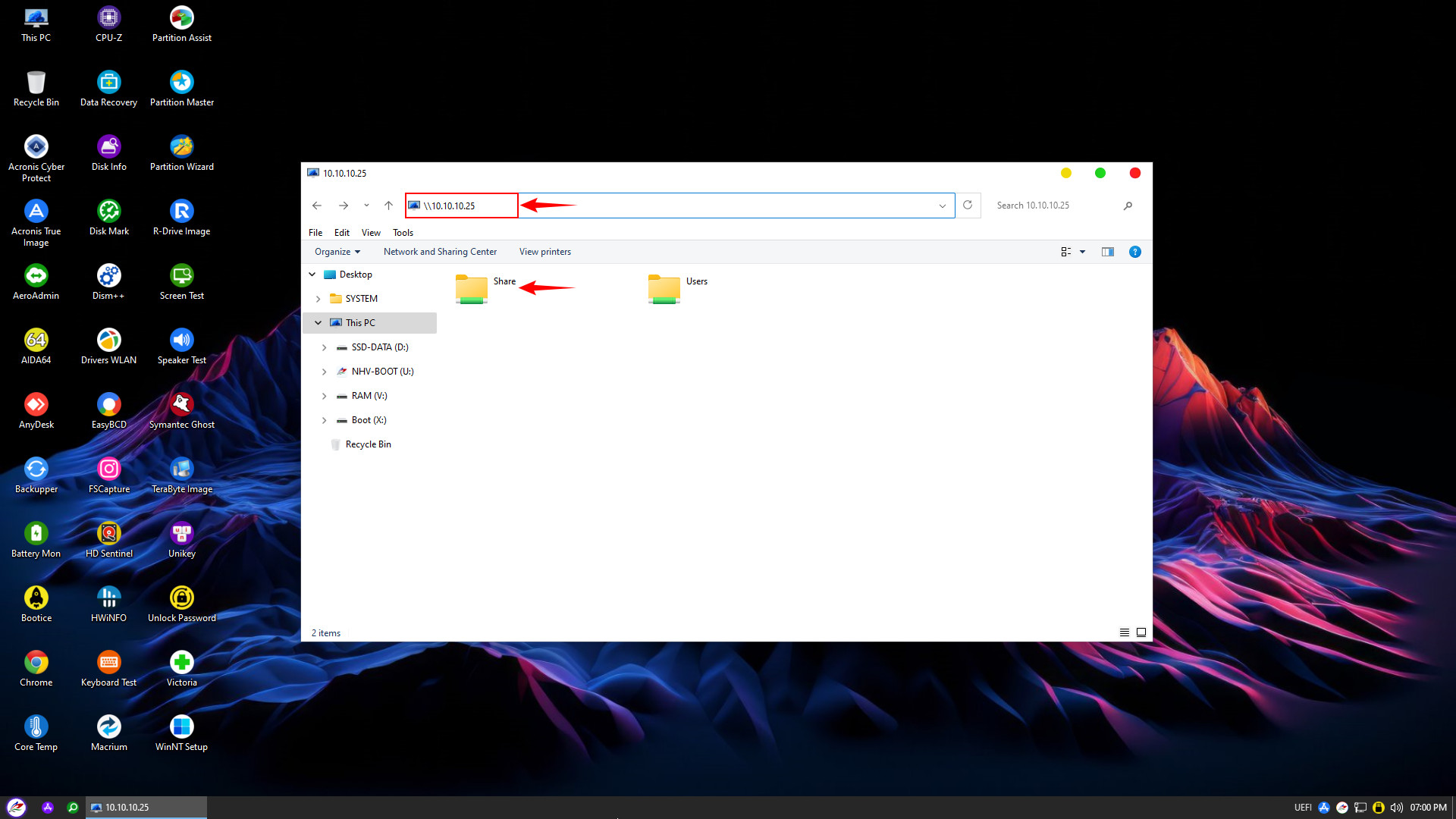
Next, you can optionally Map Network Drive to the shared folder to perform backup/restore operations over LAN
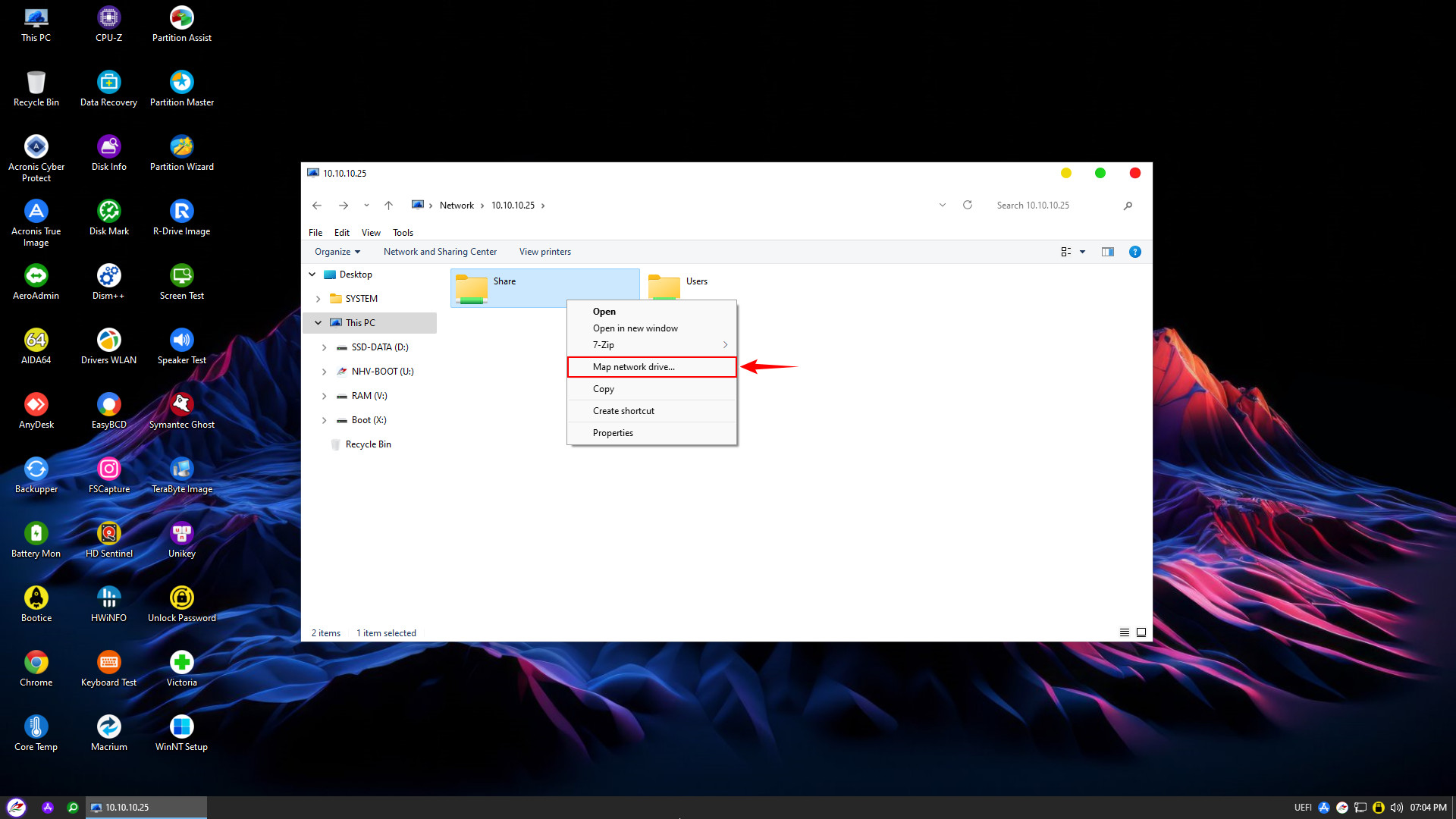
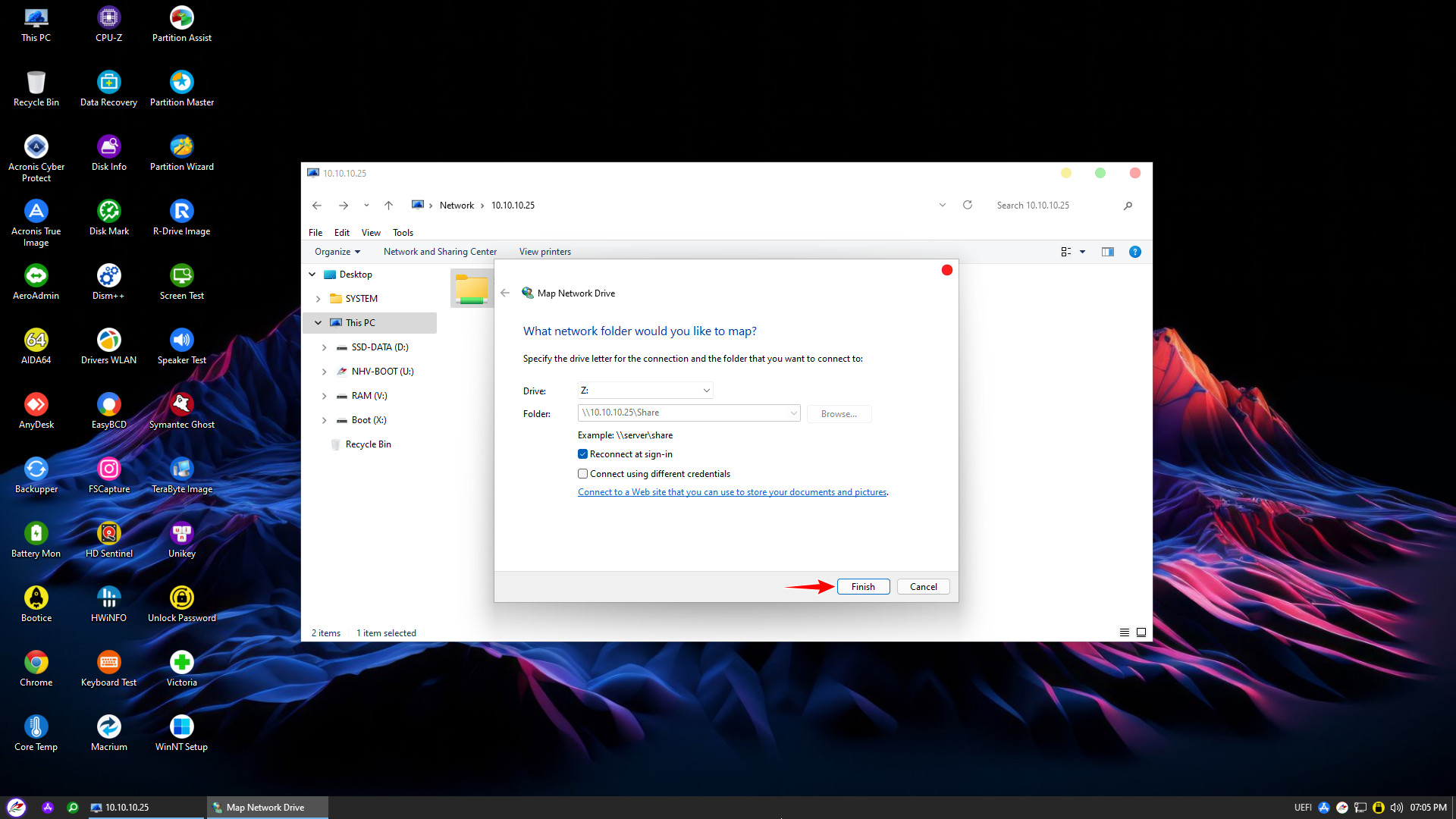
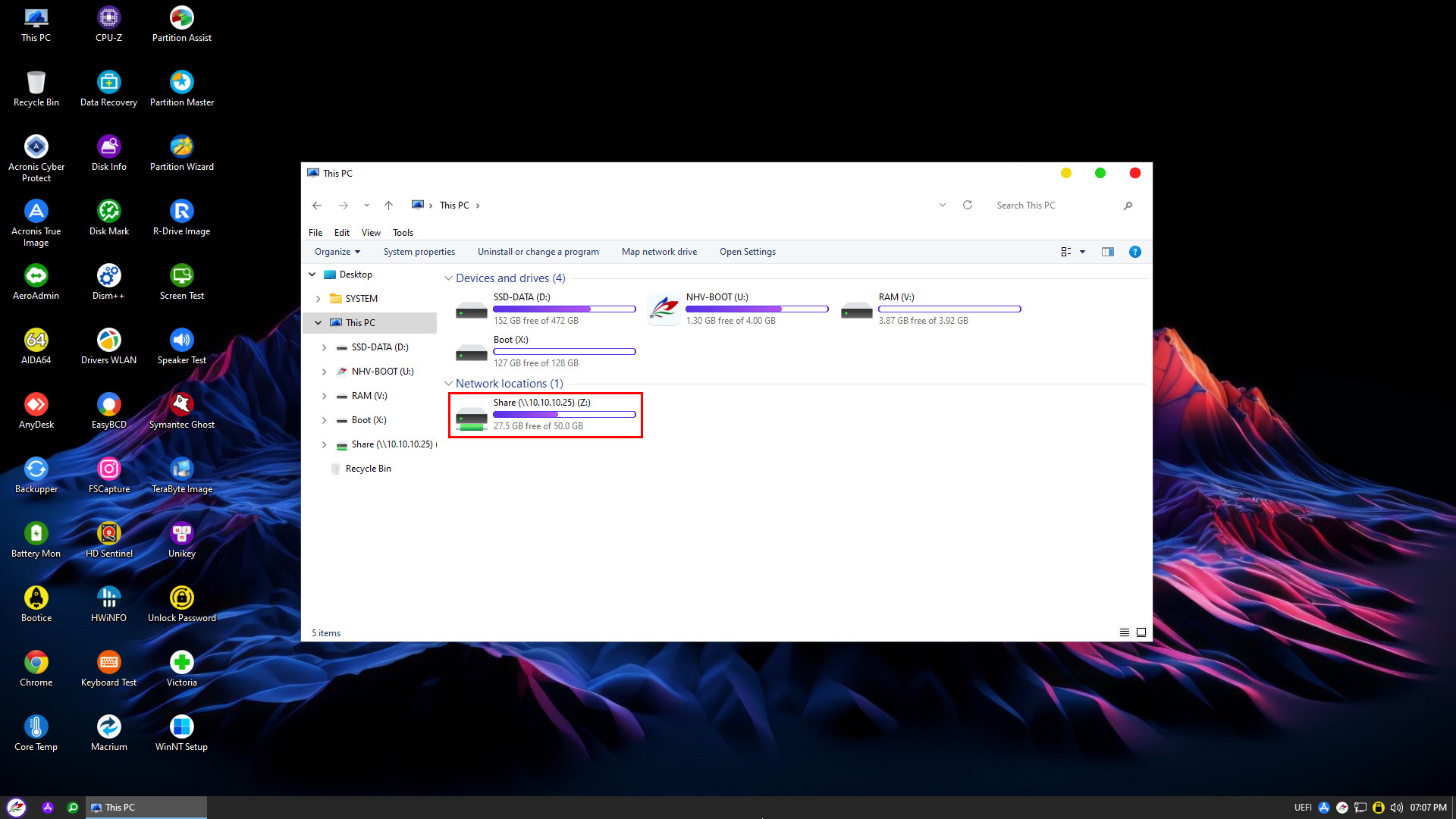
After successfully Mapping Network Drive, you can access and backup/restore (ghost) over LAN just like a Local Disk. Backup/restore speed over LAN depends significantly on network hardware.
2. Share Data from WinPE to Other Computers
Not only does it support retrieving data, but NHV BOOT also allows you to perform the reverse operation: Share data from WinPE to other computers. Turning the WinPE environment into a file server is very useful when you need to urgently back up data from a failing computer to a safe device. Follow the setup steps below
Select Data to Share: In File Explorer, navigate to the hard drive or folder you want to share. Right-click on the item and select Properties to open the settings panel
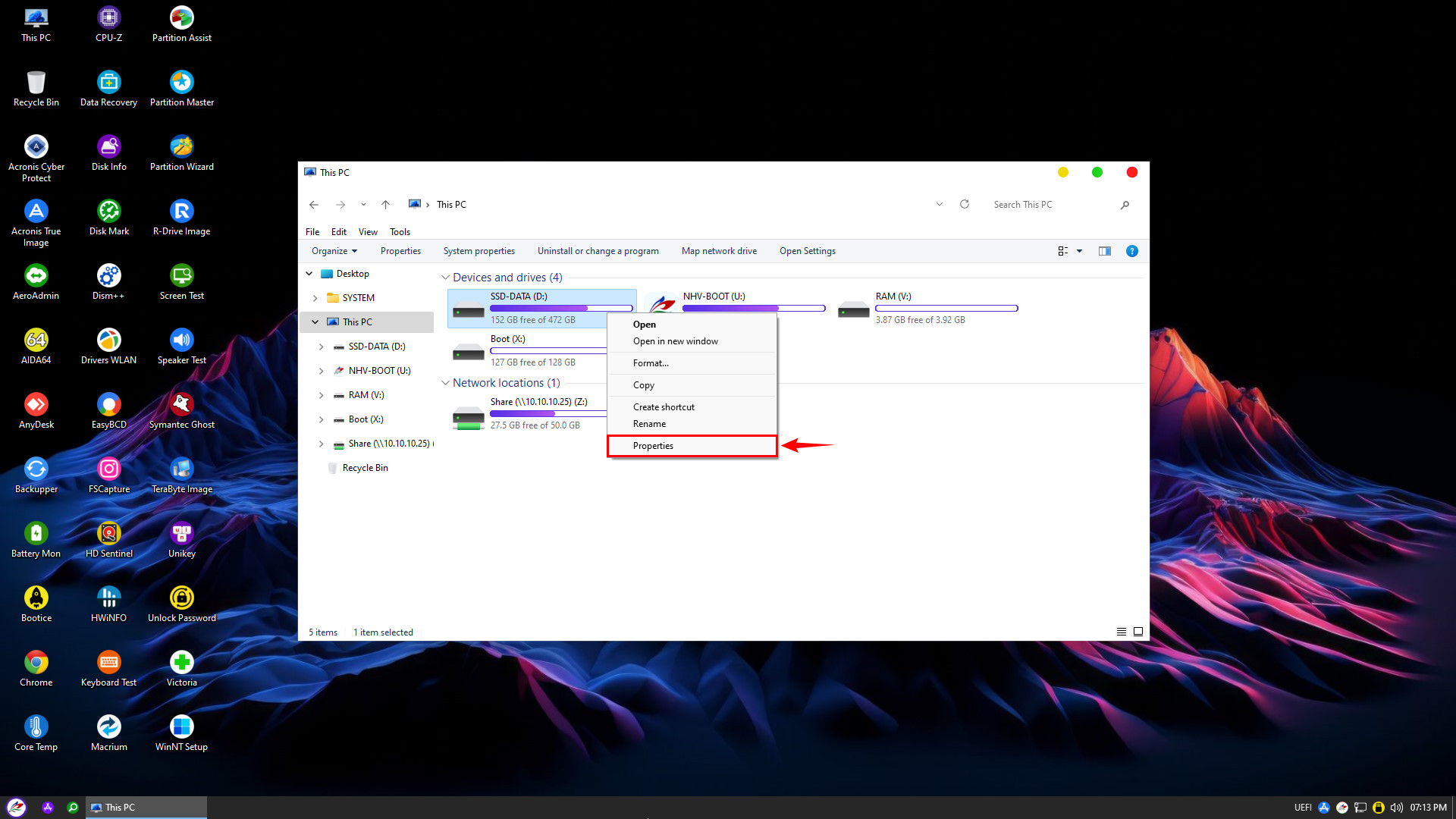
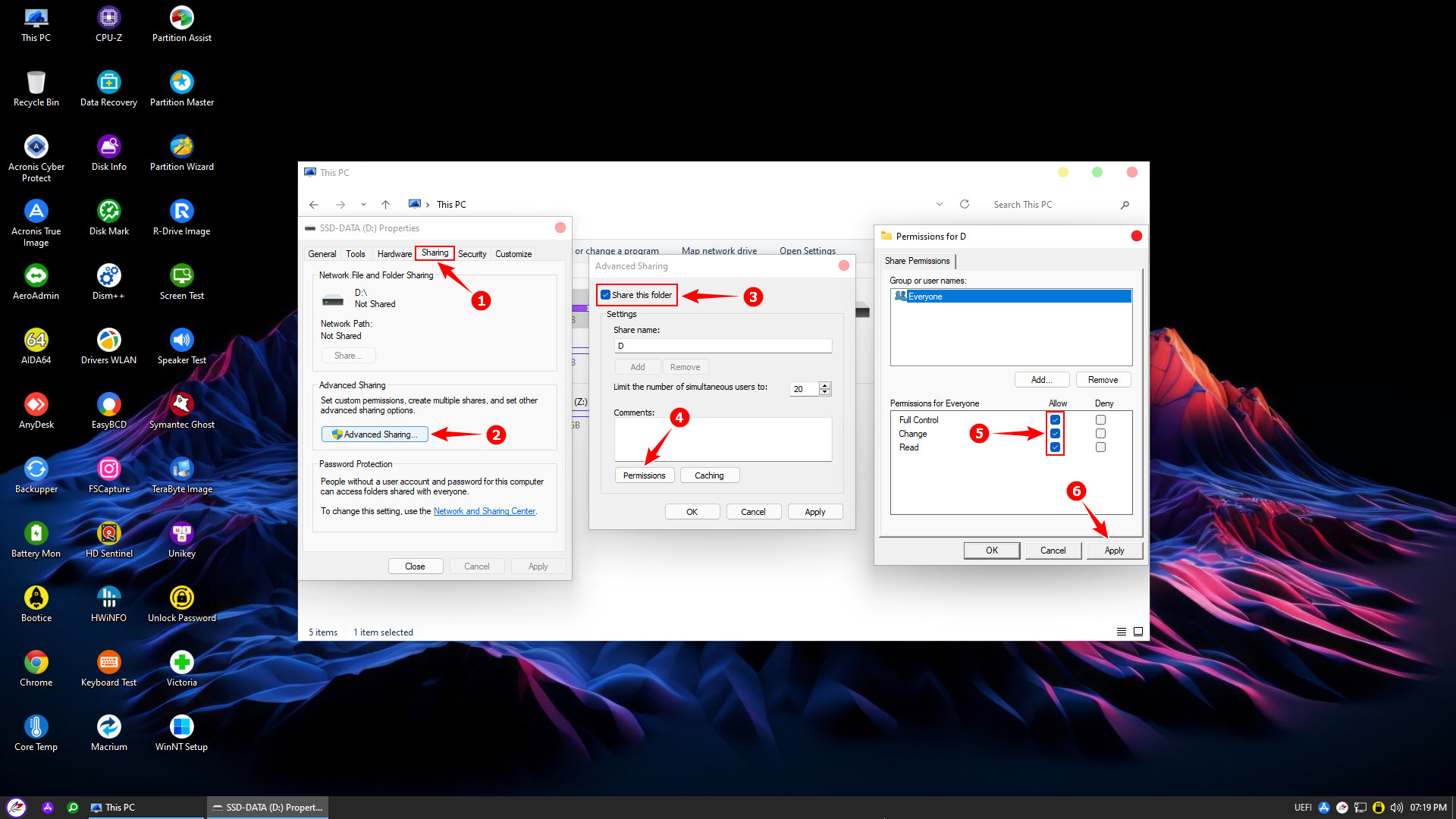
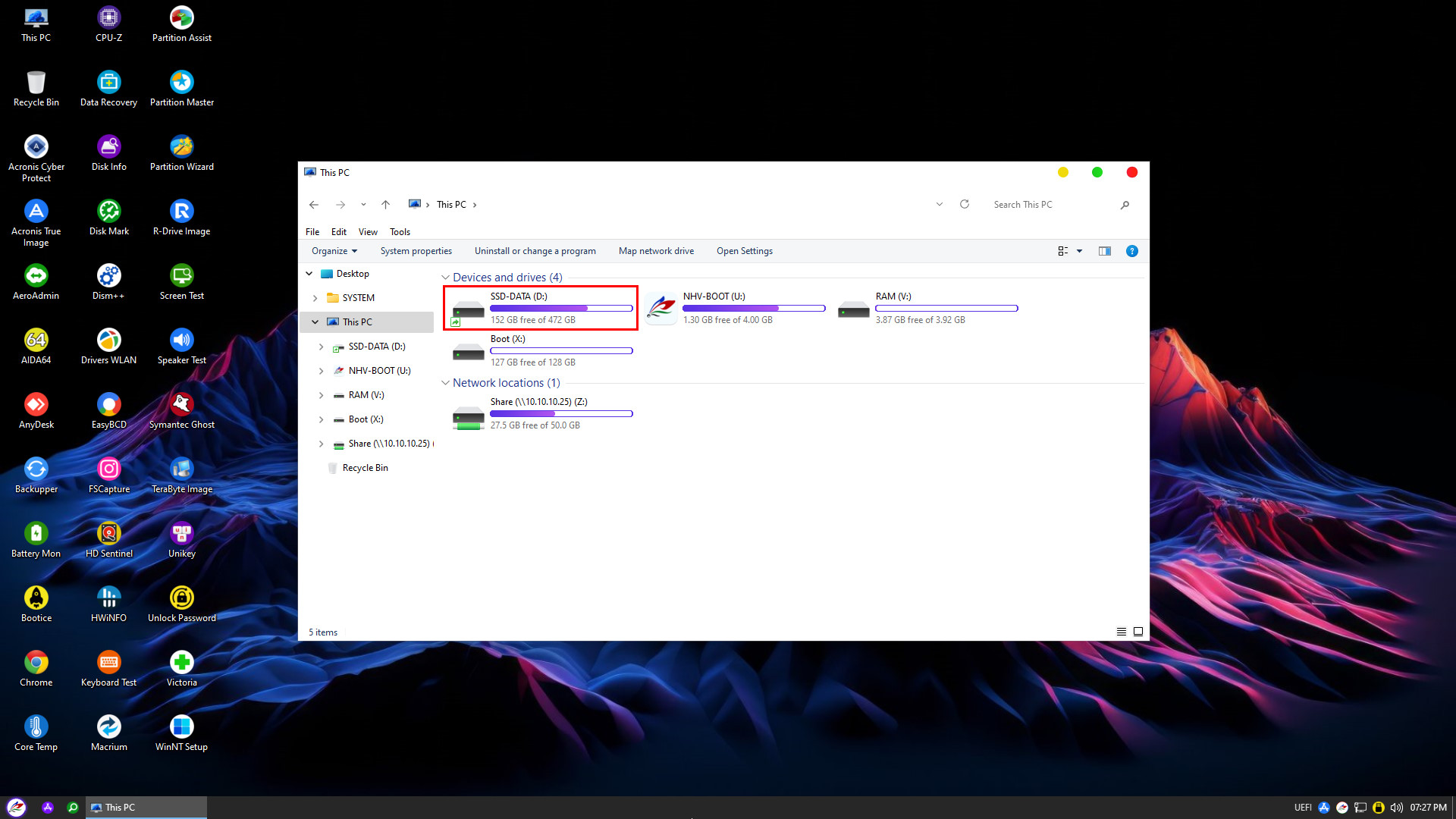
To access the WinPE server from another computer, proceed as follows
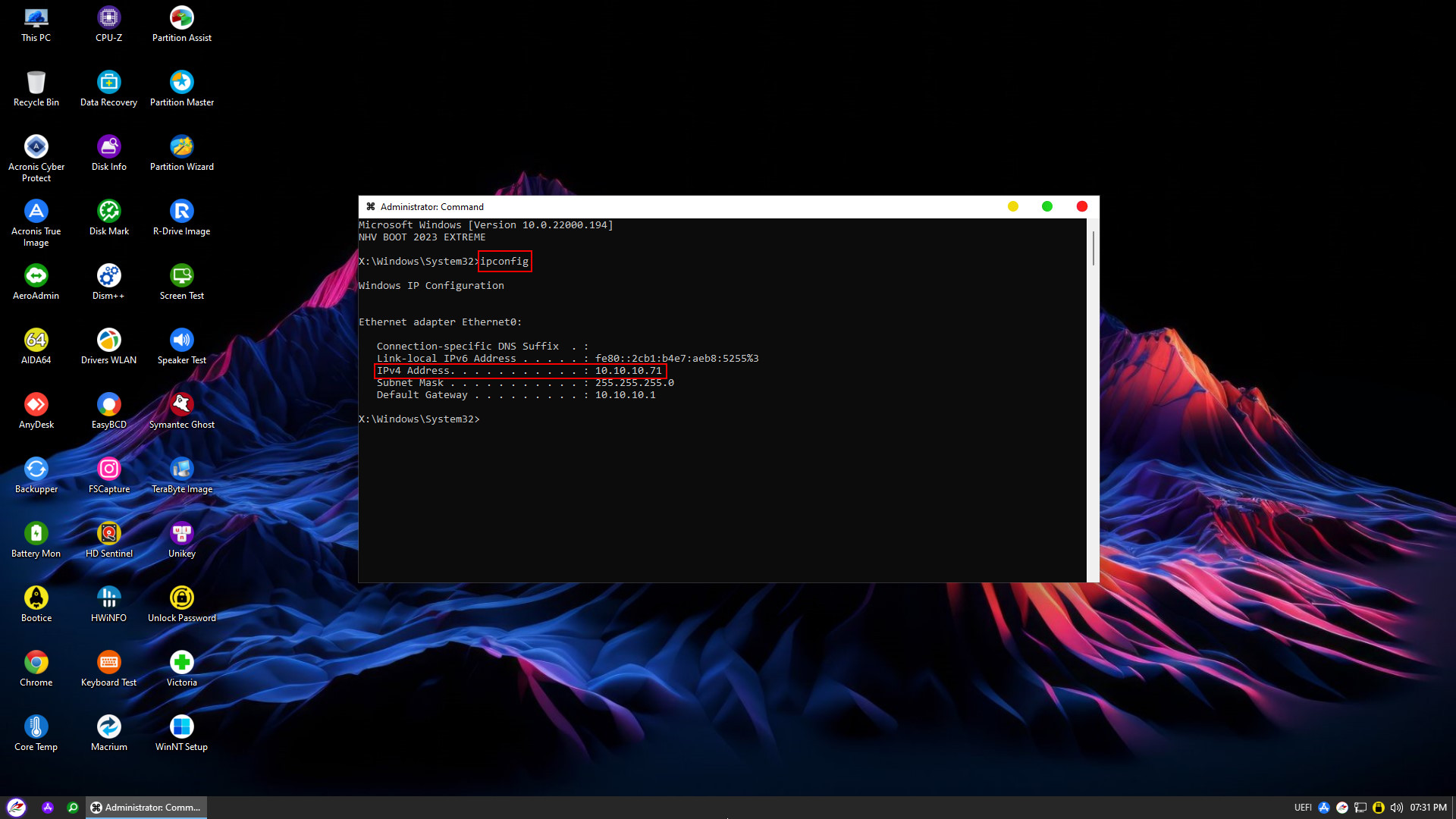
After identifying the WinPE server IP address, on the client computer, access it by opening Run (Windows + R) and typing \\IP_Address or \\nhvboot. Alternatively, open File Explorer and enter \\IP_Address or \\nhvboot in the address bar
Hopefully, through this guide, you have mastered how to share data over LAN in WinPE with NHV BOOT. This feature will certainly make your computer rescue process faster and more professional. Good luck!