1. Important Notes
- WinNTSetup supports installing all Windows versions (XP/7/8/10/11) in both UEFI and Legacy modes
- This is the optimal solution for installing Windows Lite/Rebuild builds (stripped components) that often fail with the standard Setup.exe installer
- For laptops with Intel 11th Gen CPUs or newer, you must download and install IRST Drivers to ensure SSD recognition and prevent Blue Screen errors (Inaccessible Boot Device)
Official Microsoft Windows download links:
2. Install Windows using WinNTSetup
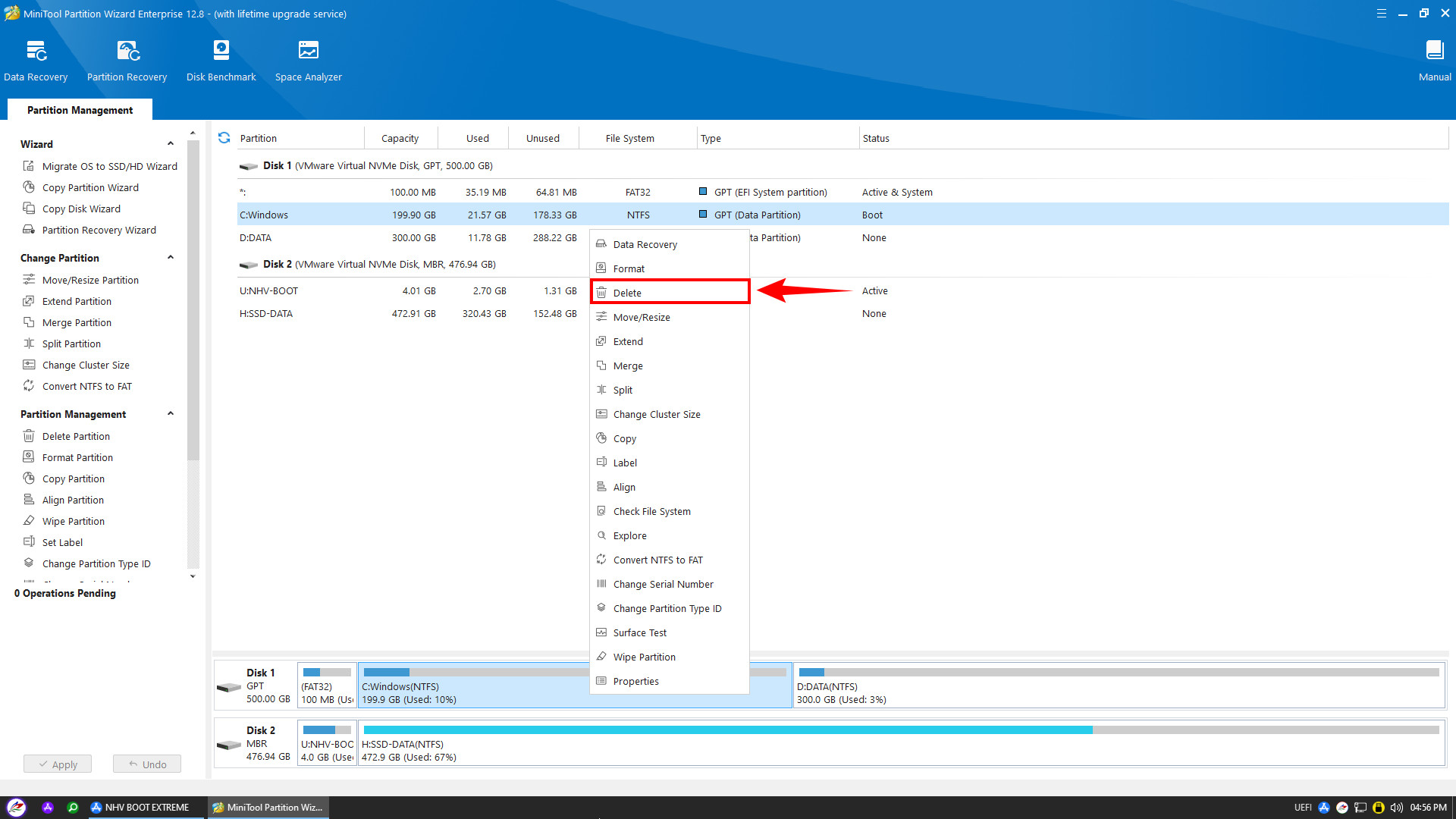
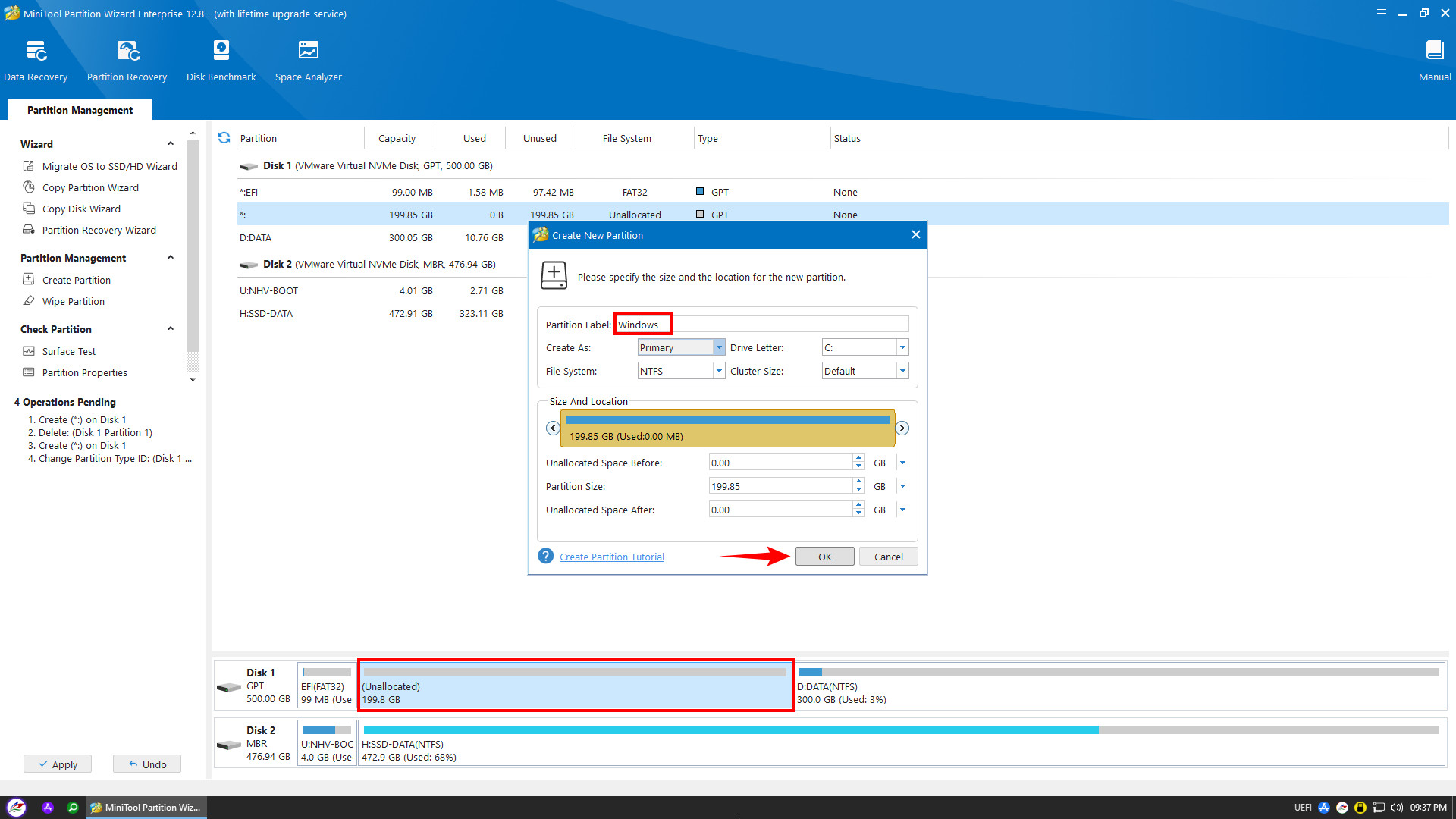
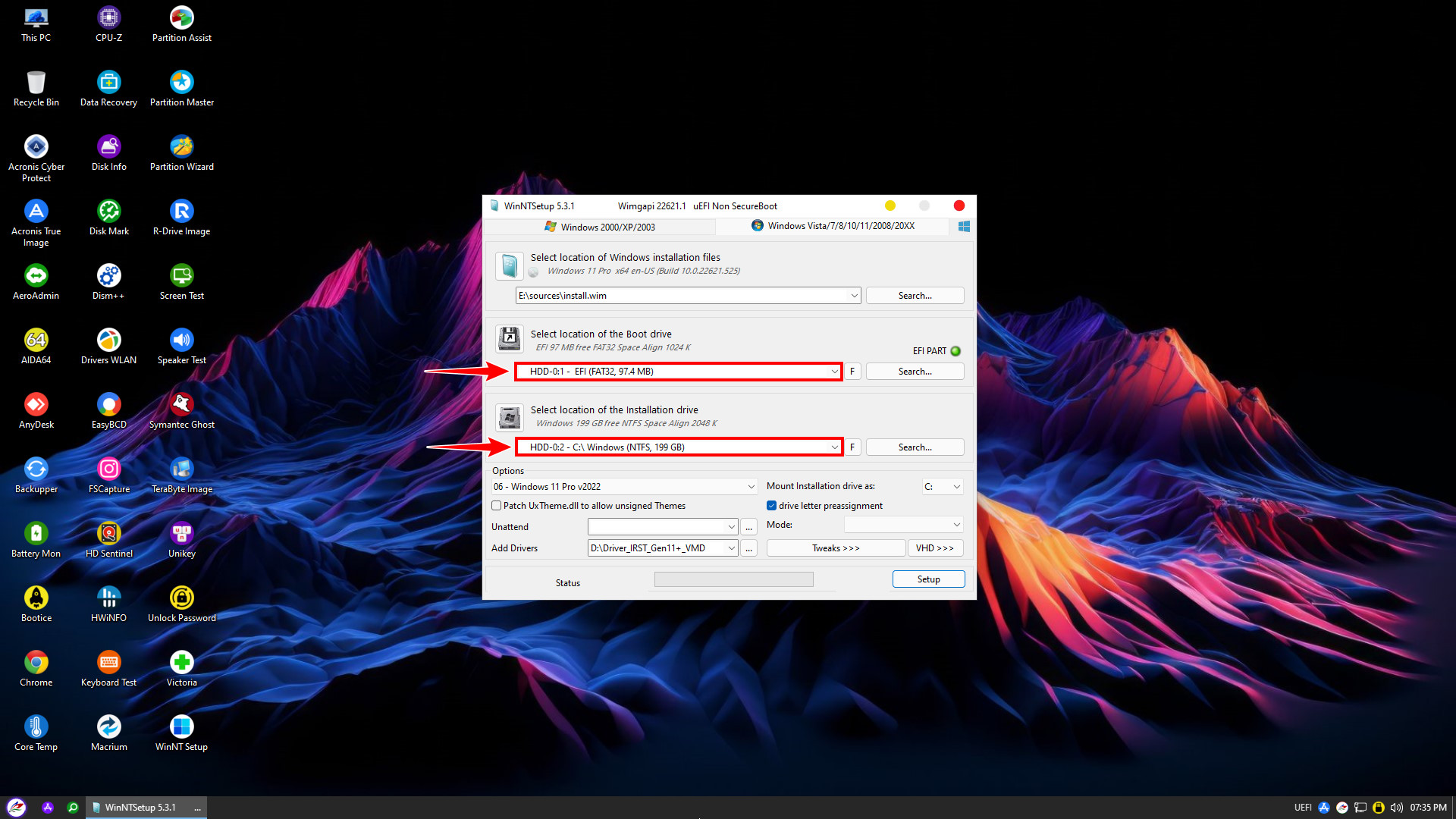
To install Windows in UEFI boot mode, the hard drive must be formatted as GPT and contain two essential partitions: EFI (FAT32 format) and Windows (NTFS format). Open Partition Wizard on the WinPE desktop to delete old partitions or repartition the drive accordingly
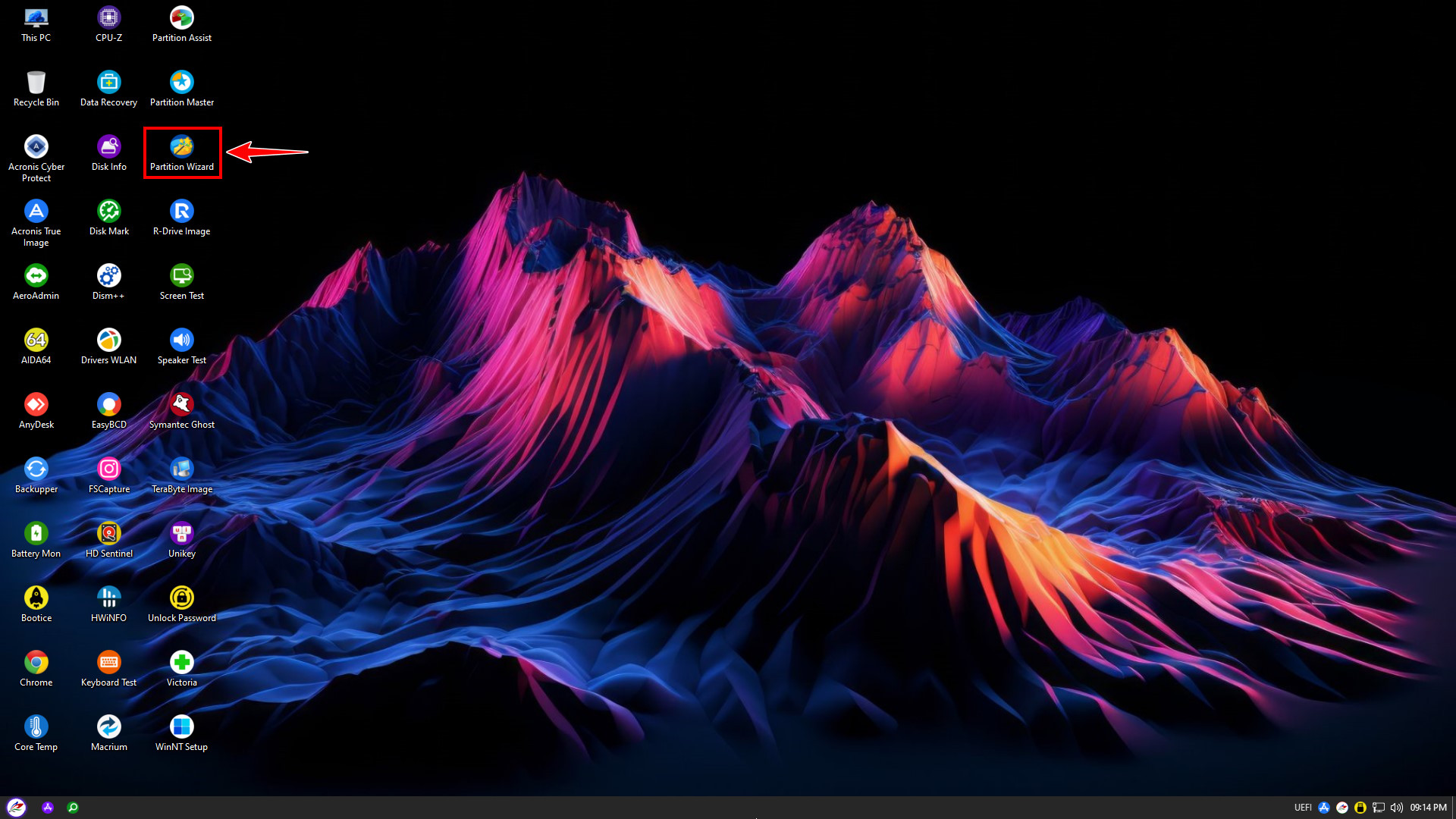
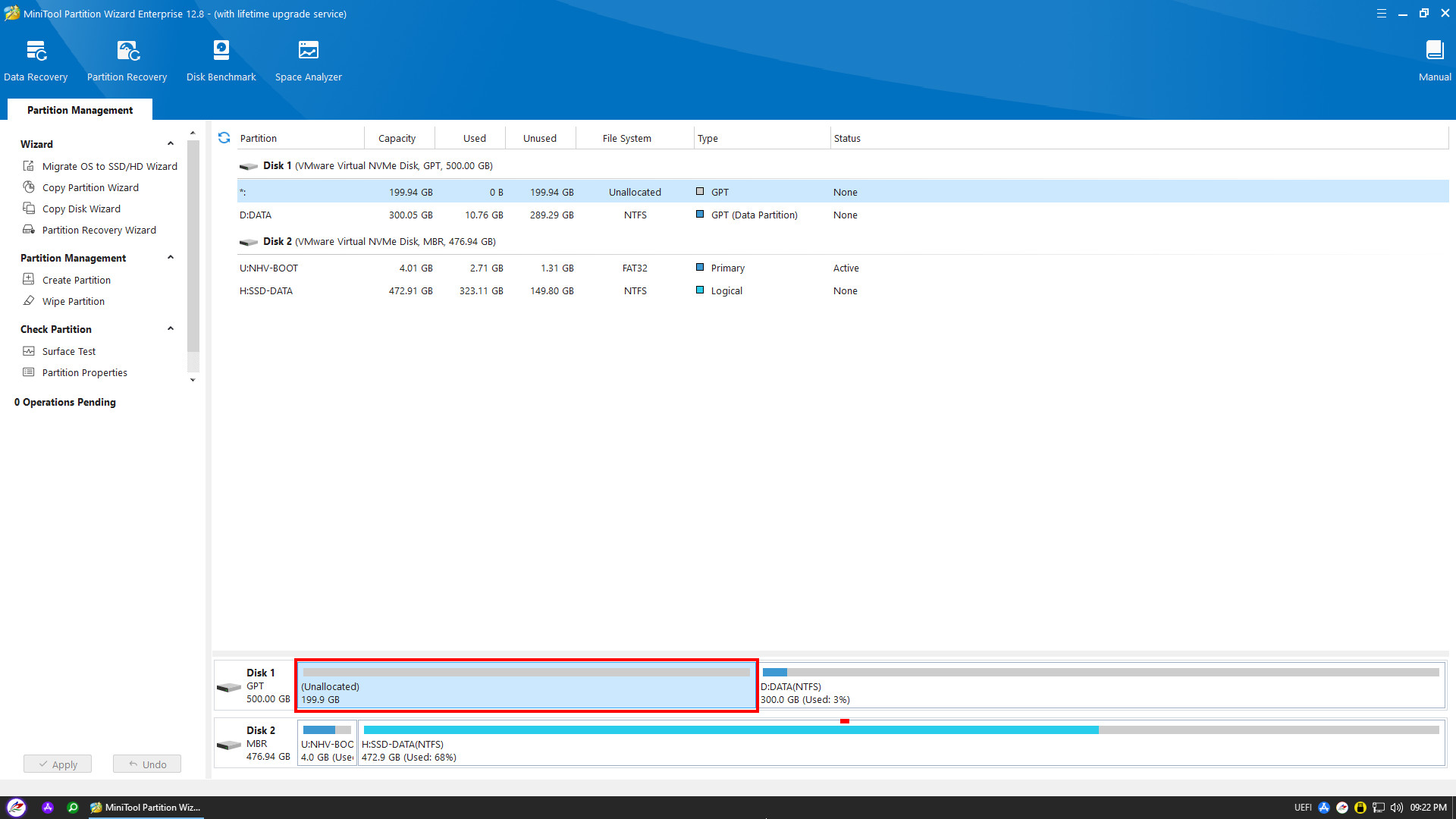
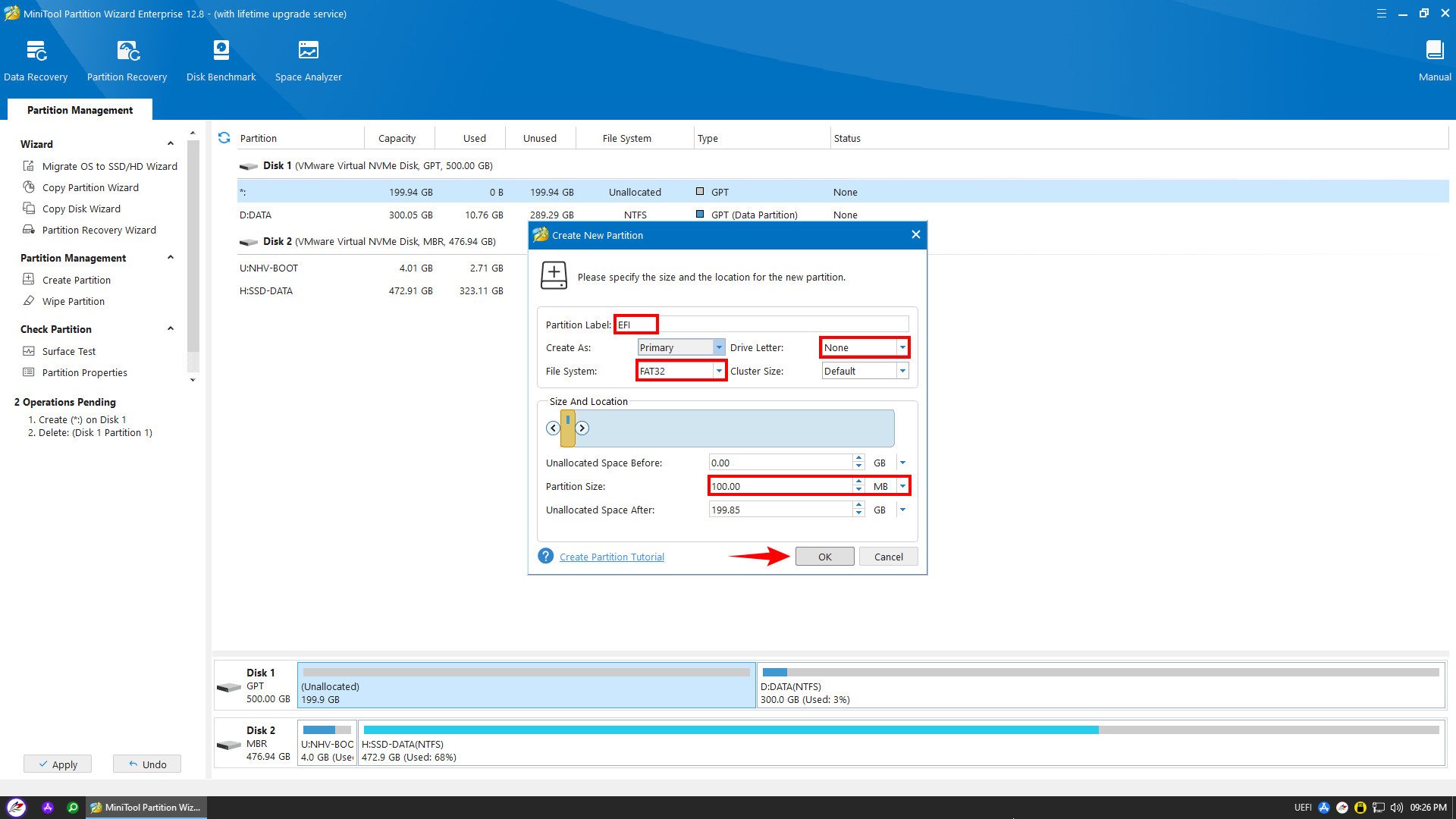
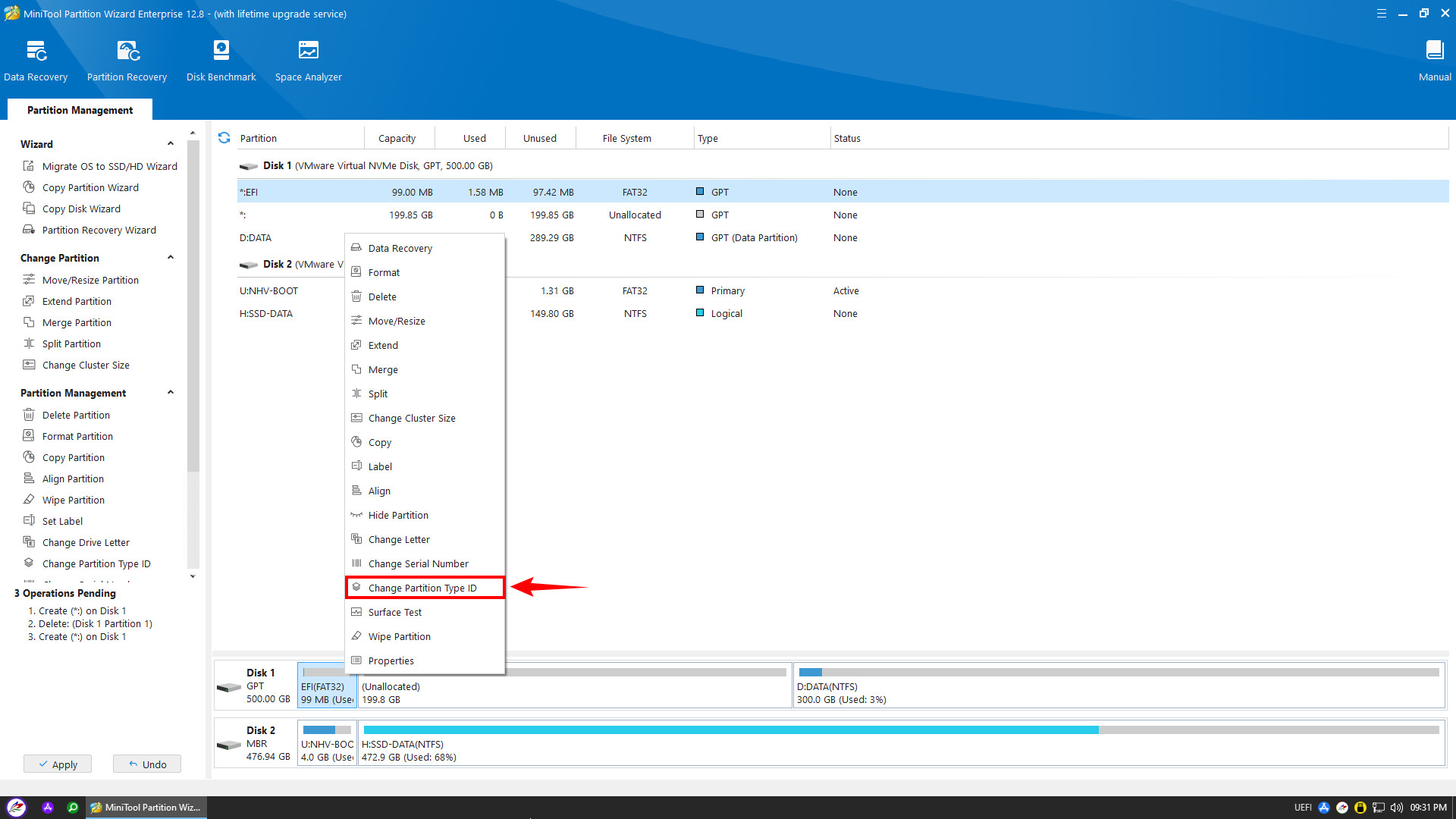
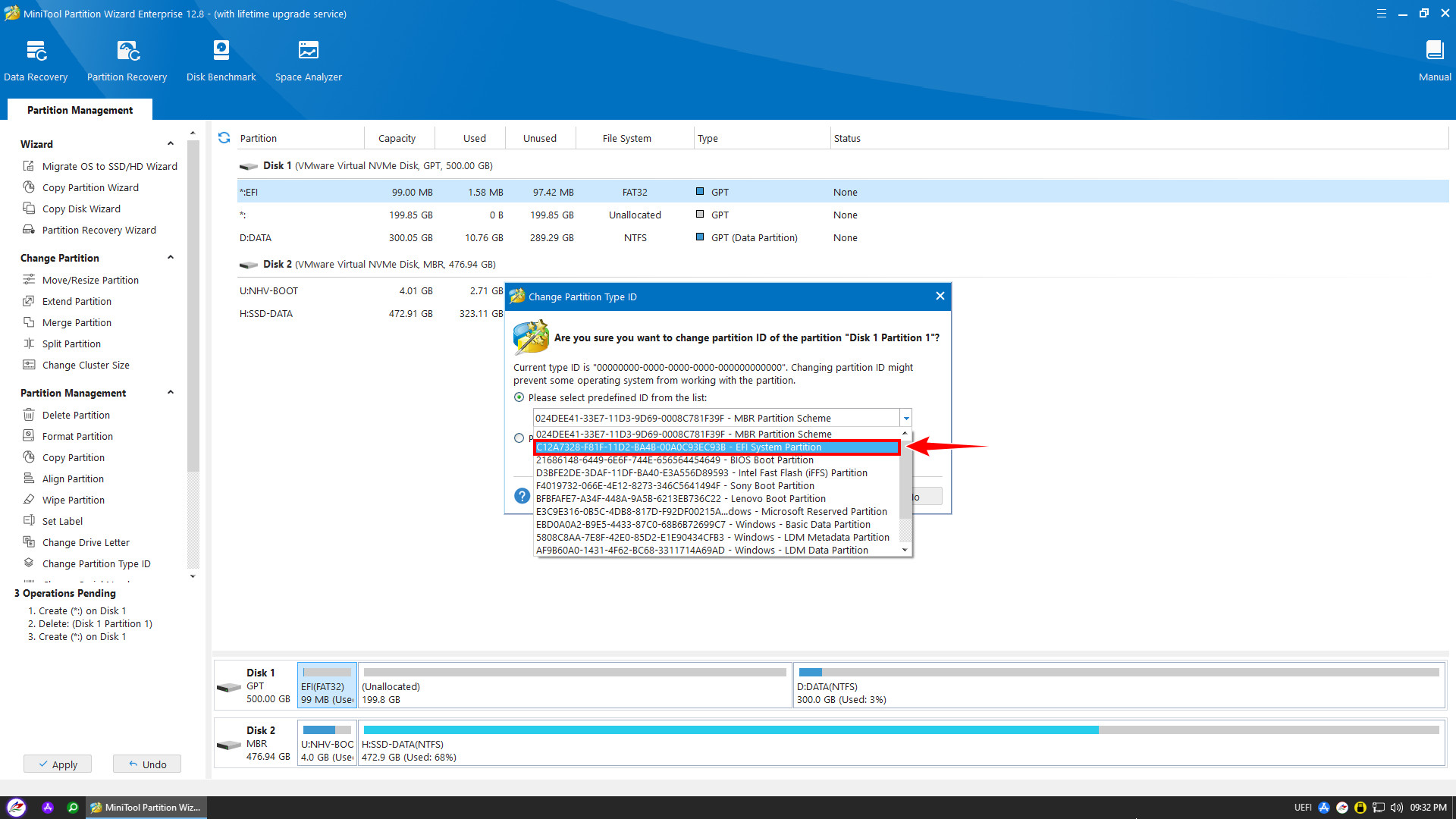
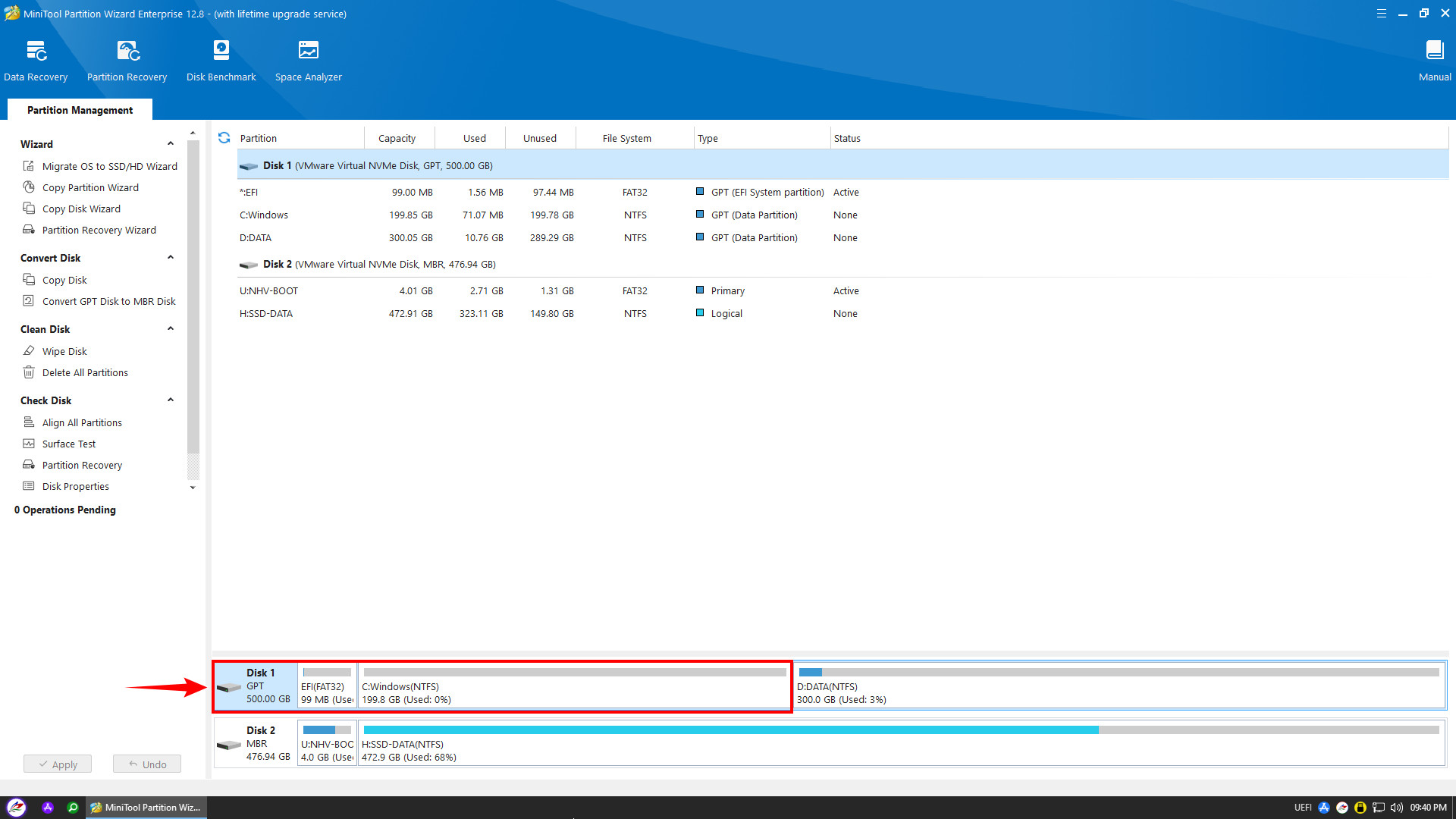
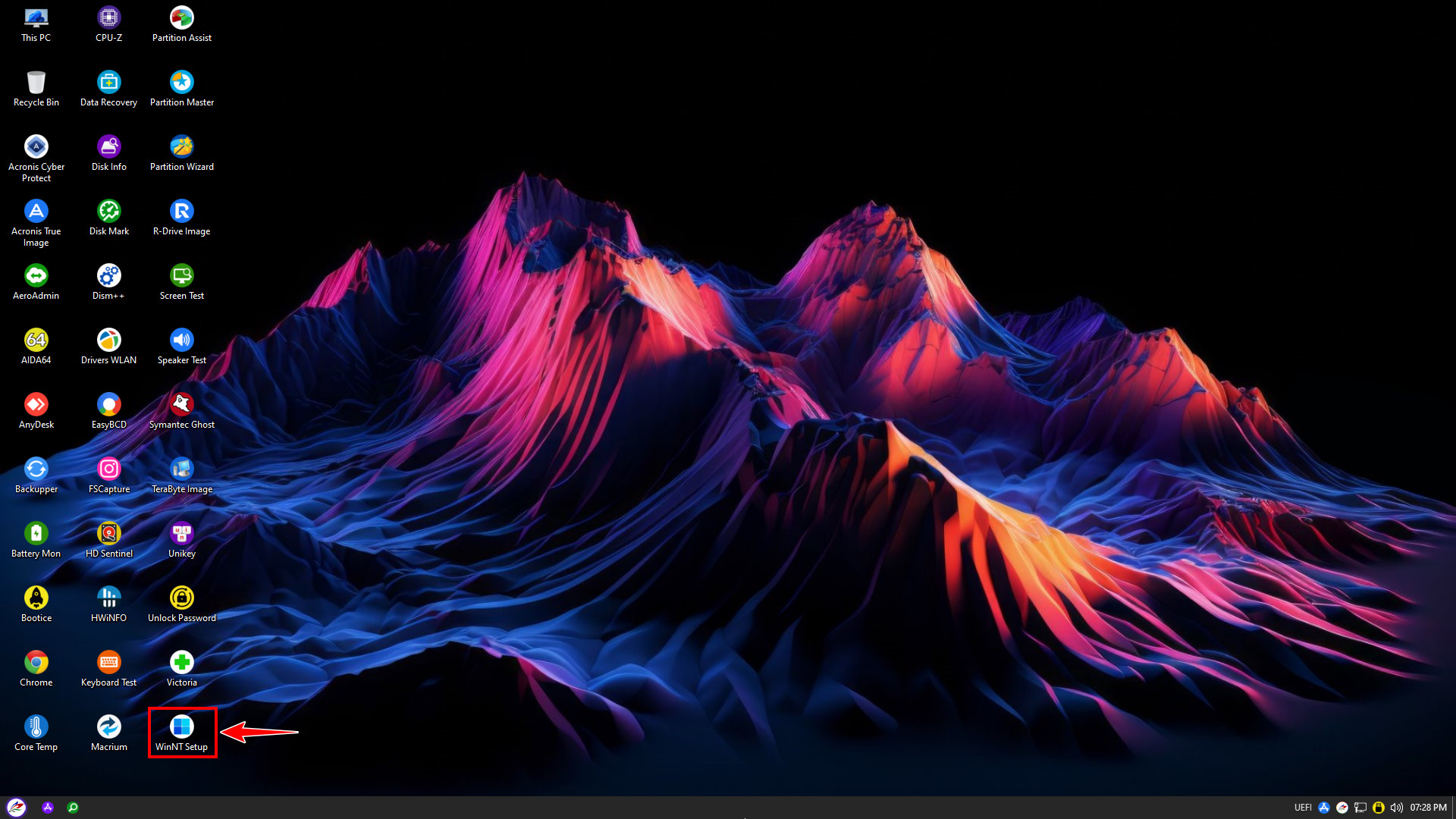
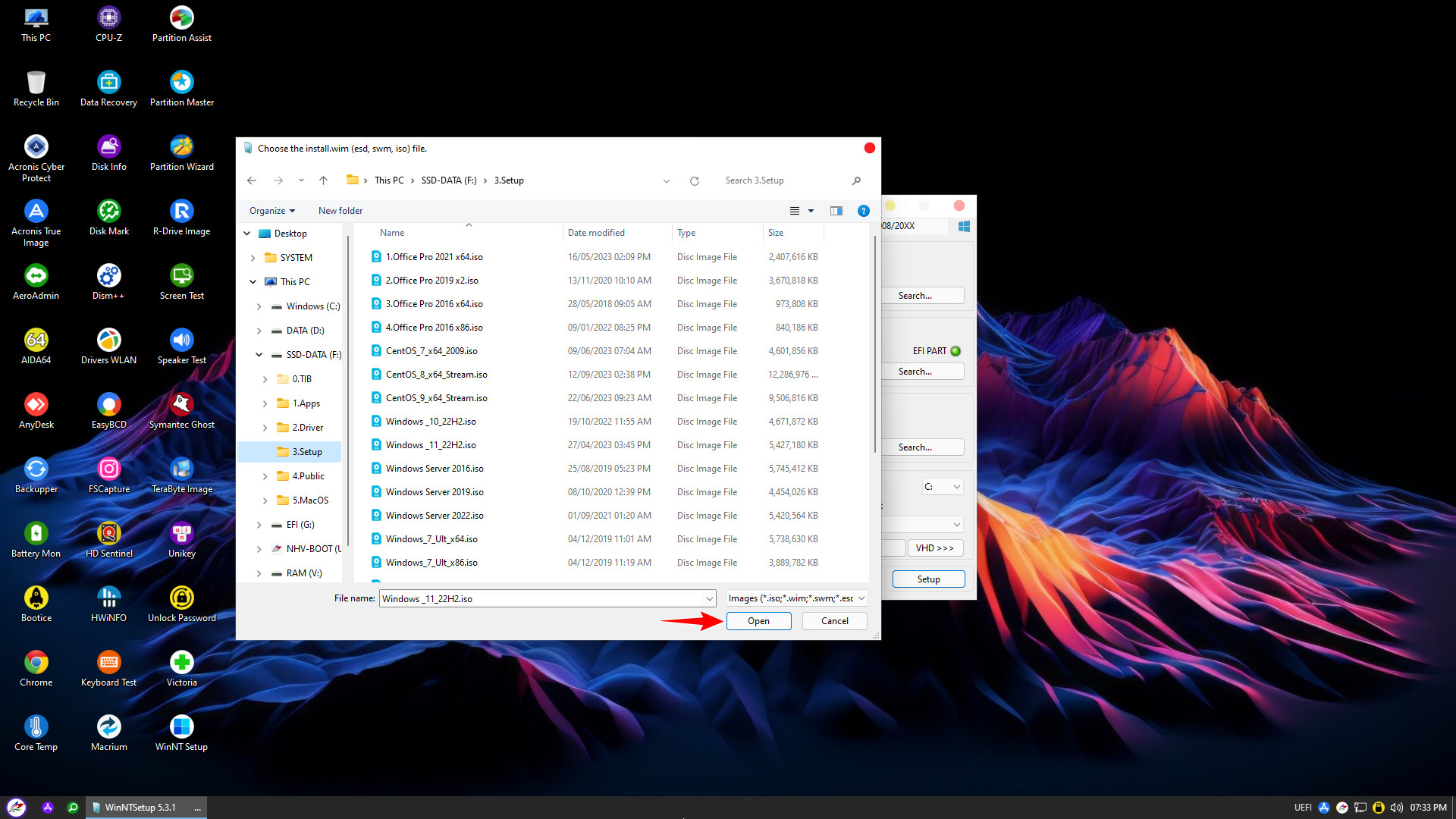
Once partitioning is complete, return to the main screen and open WinNTSetup. The tool icon is available on the Desktop or in the PStart menu
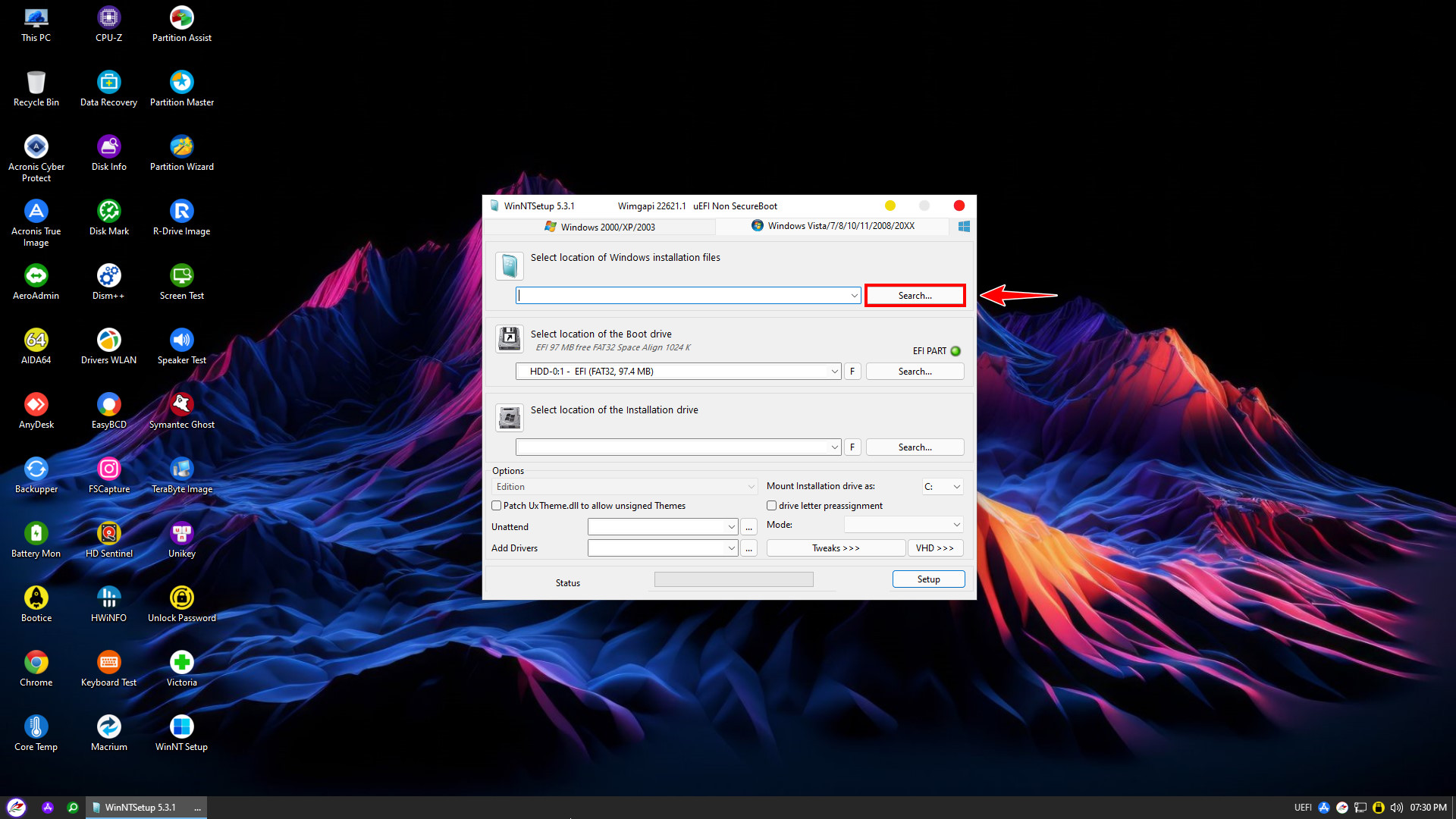
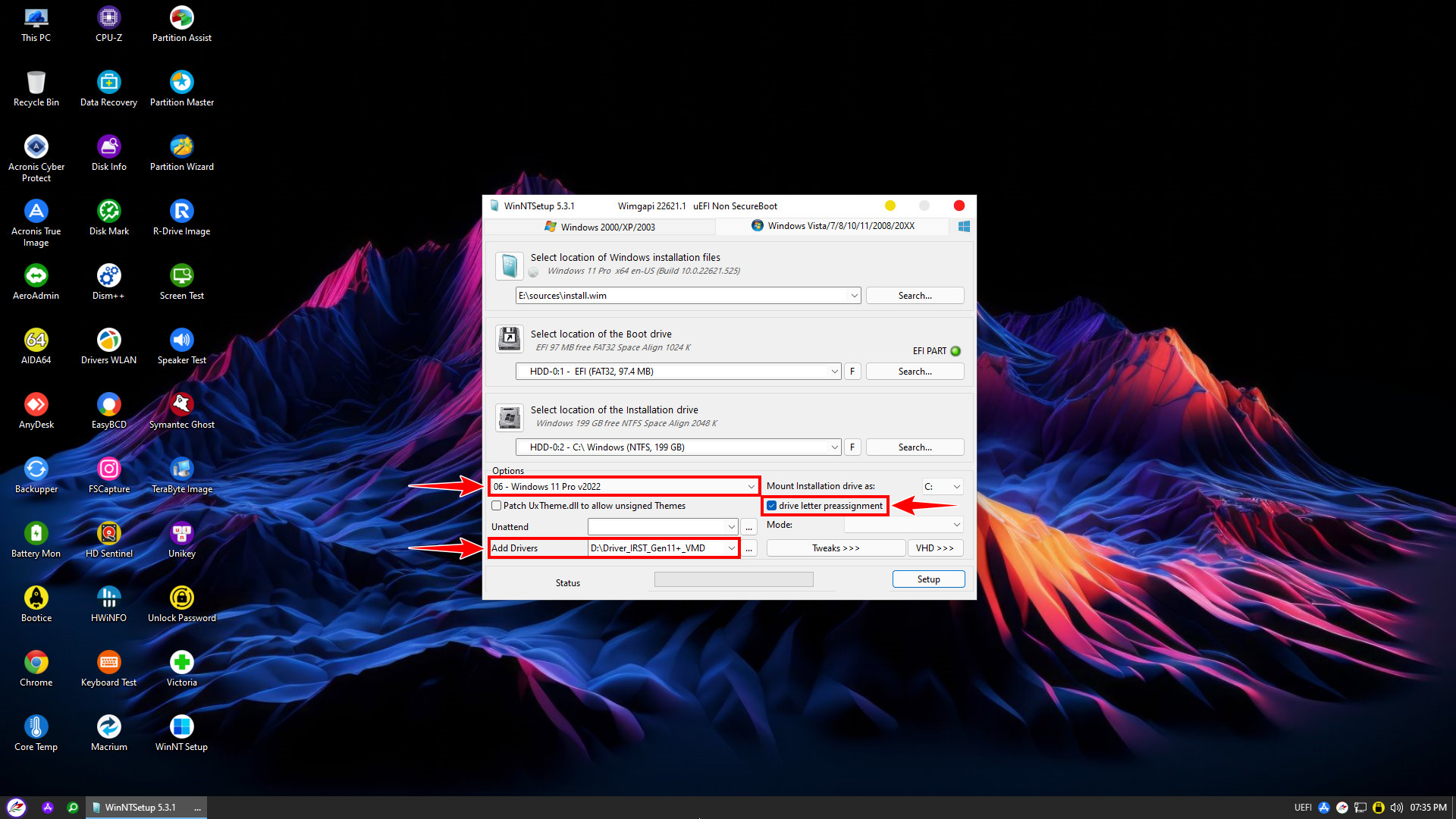
Under Options: A list of Windows editions included in the installer will appear (e.g., Home, Pro, Enterprise…). Click to select the version that suits your needs. Also, check the drive letter preassignment box (as shown by the arrow) to ensure the system automatically assigns the standard drive letter (C:) after installation, preventing partition errors
Under Add Drivers (Important): This is a critical step for Windows to recognize the hard drive on modern devices.
- For Laptops with Intel Gen 11 CPUs or newer: You must select the path to the IRST (Intel Rapid Storage Technology) driver. If skipped, the installation may complete, but you will encounter a Blue Screen error (Inaccessible Boot Device) upon reboot due to missing storage drivers
- For Intel Gen 10 CPUs (or older) and AMD CPUs: You can skip this step, no additional drivers are required
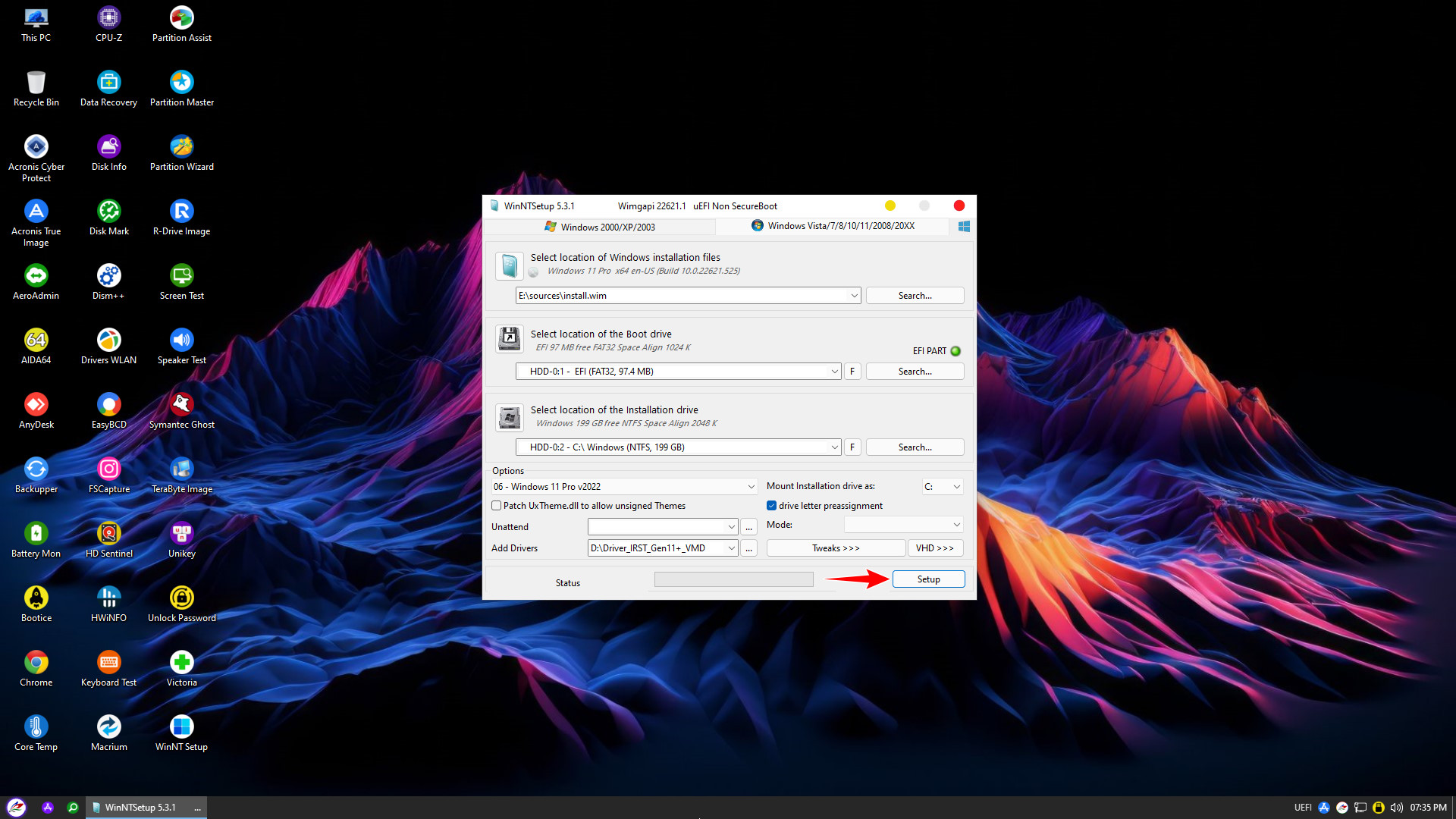
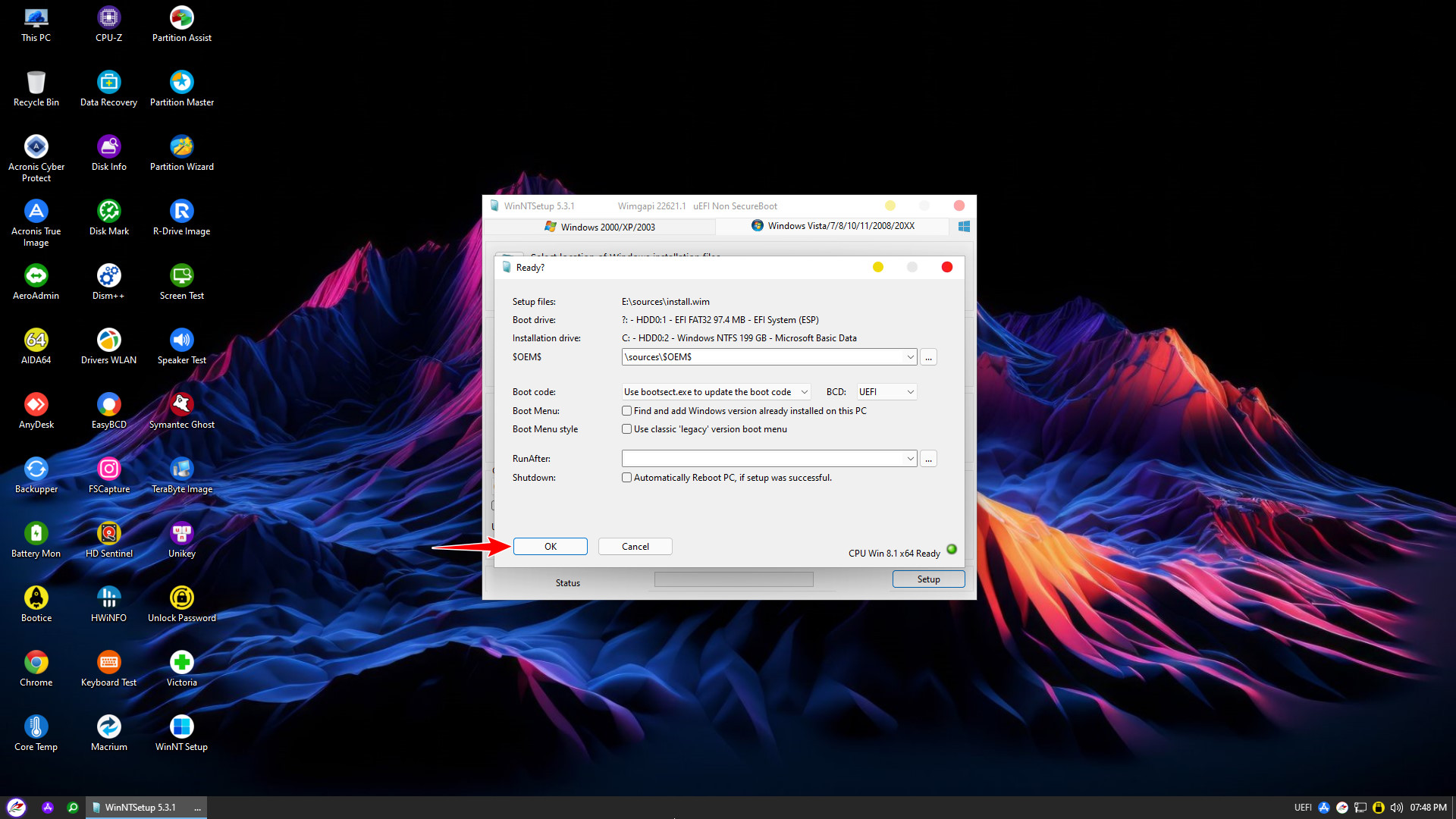
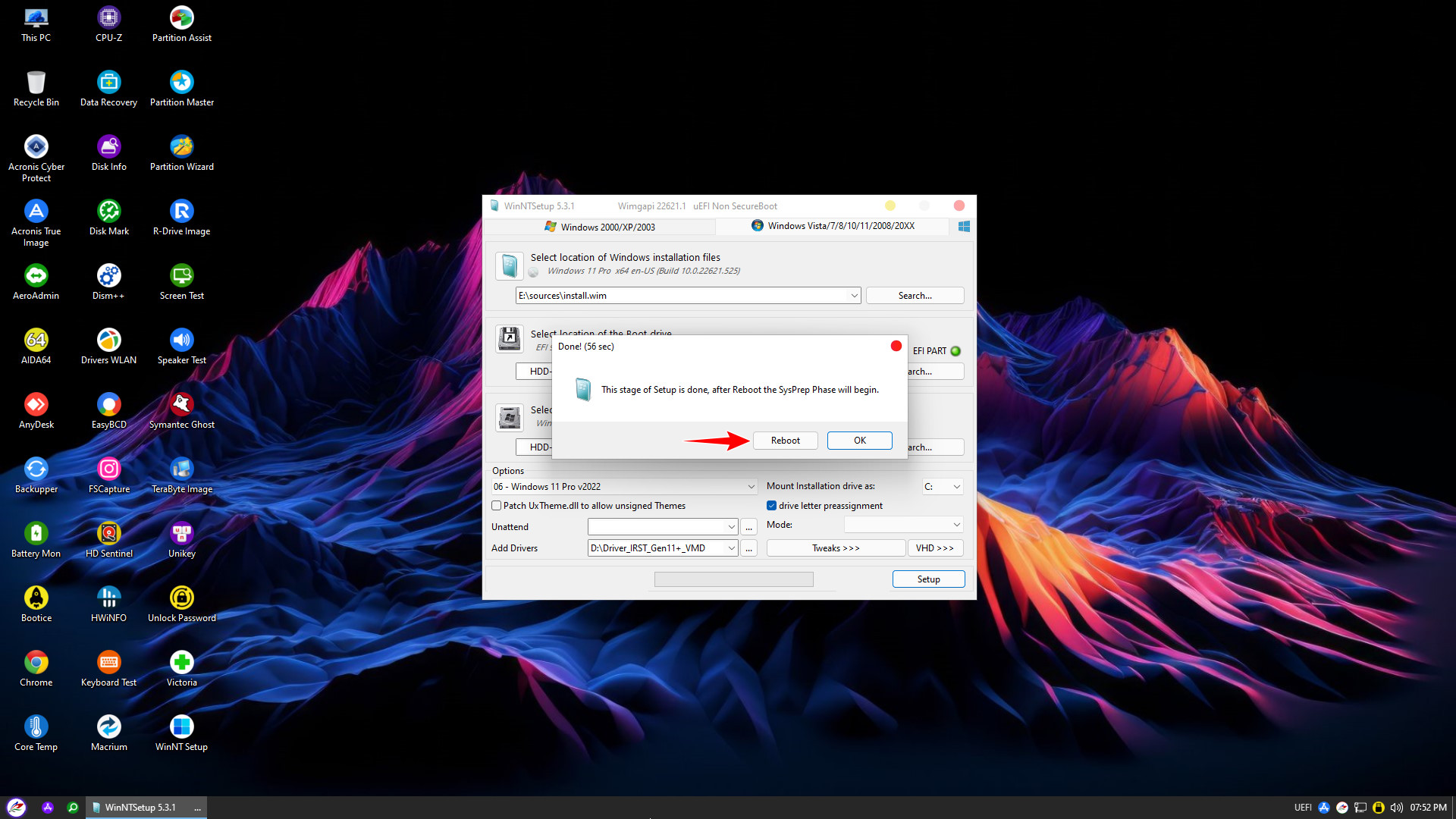
Important Note: Do not connect to the internet during the initial Windows setup (unplug the LAN cable or skip Wi-Fi). This significantly speeds up the installation process
After the installation is complete and the Desktop appears, proceed to install full Drivers and necessary applications
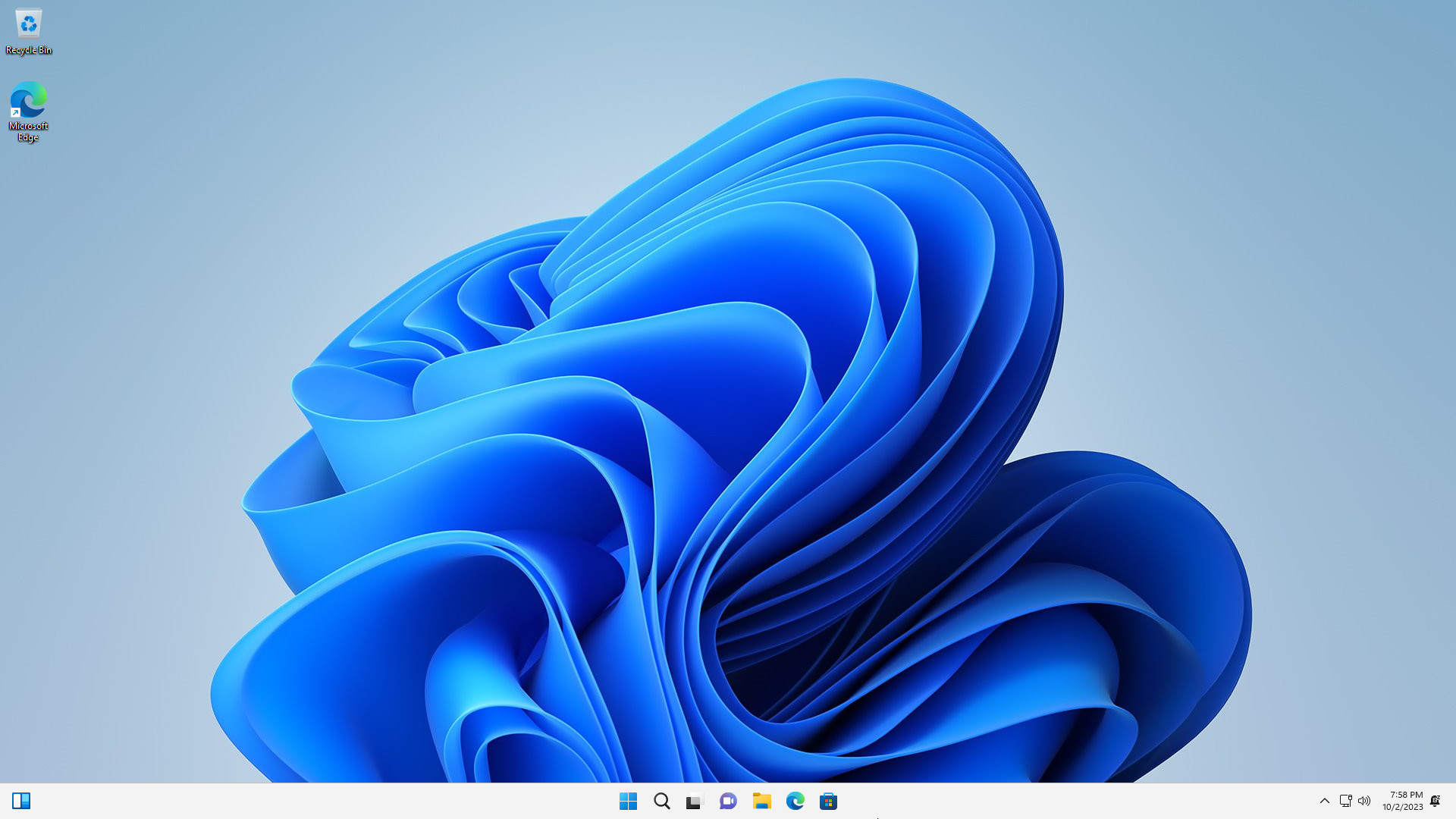
This concludes NHV BOOT’s detailed guide on the entire process of installing Windows in UEFI mode using WinNTSetup. We hope this guide helps you reinstall your operating system quickly and easily. Good luck