1. Preparation and Important Notes
Before installing, you need to download the Windows ISO file (10 or 11) to your computer A special feature of NHV BOOT WinPE is the auto-Bypass mechanism, allowing you to install Windows 11 smoothly even on older computers that do not support TPM 2.0 or Secure Boot
⚠️ Golden rules for Boot standards (Must remember):
- Machine boots in UEFI mode -> Must install on GPT standard hard drive
- Machine boots in Legacy mode -> Must install on MBR standard hard drive
Official Windows download link from Microsoft:
Note: For Laptops using Intel 11th Gen chips or newer, you need to download the IRST Driver (Intel Rapid Storage Technology) so the Windows installer can recognize the SSD
2. Delete Old Windows Partitions and Install New Windows
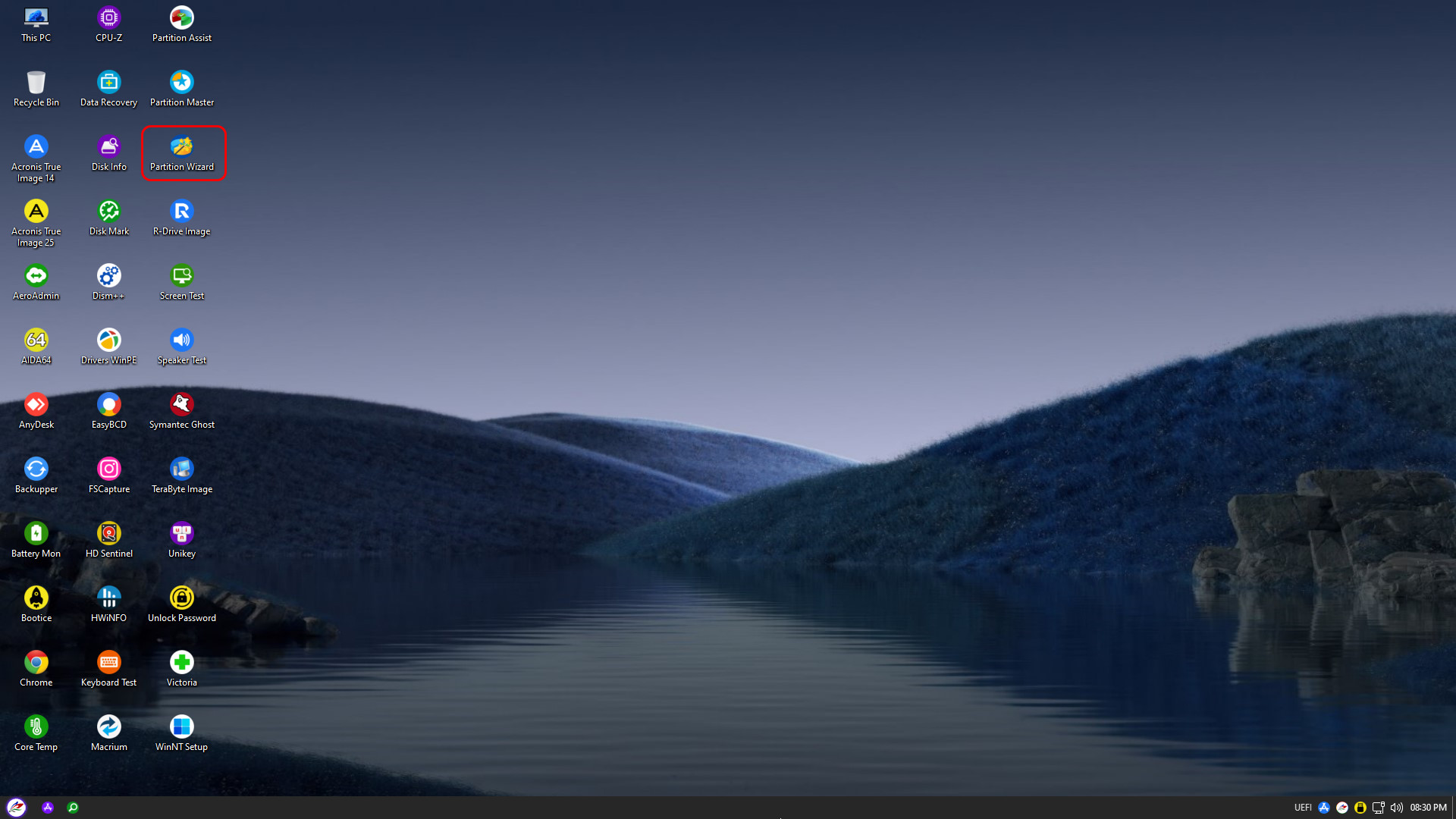
The first step in the installation process is to clean the drive. From the NHV BOOT Desktop interface, open the Partition Wizard tool to delete old Windows partitions or repartition the hard drive as desired
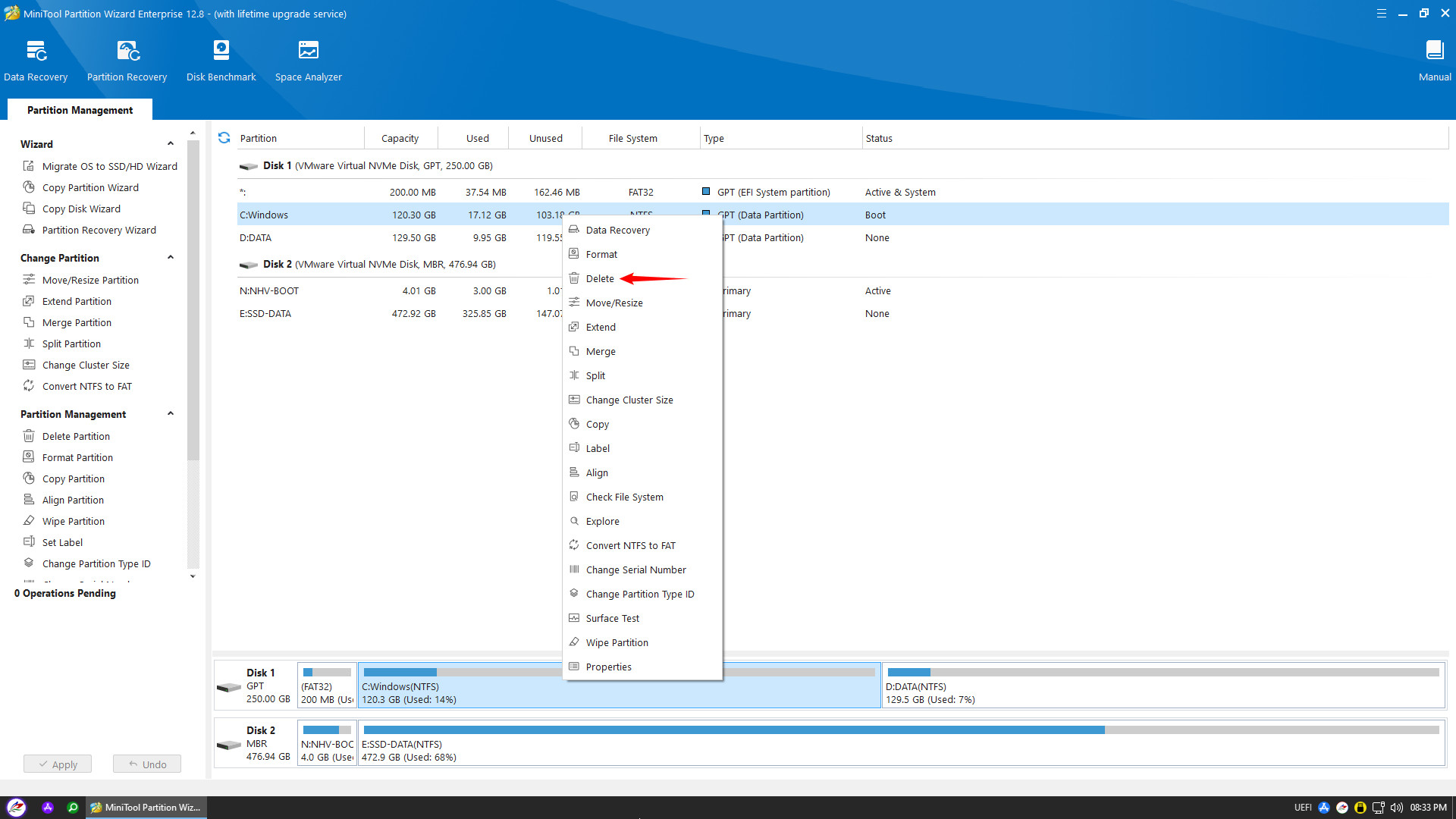
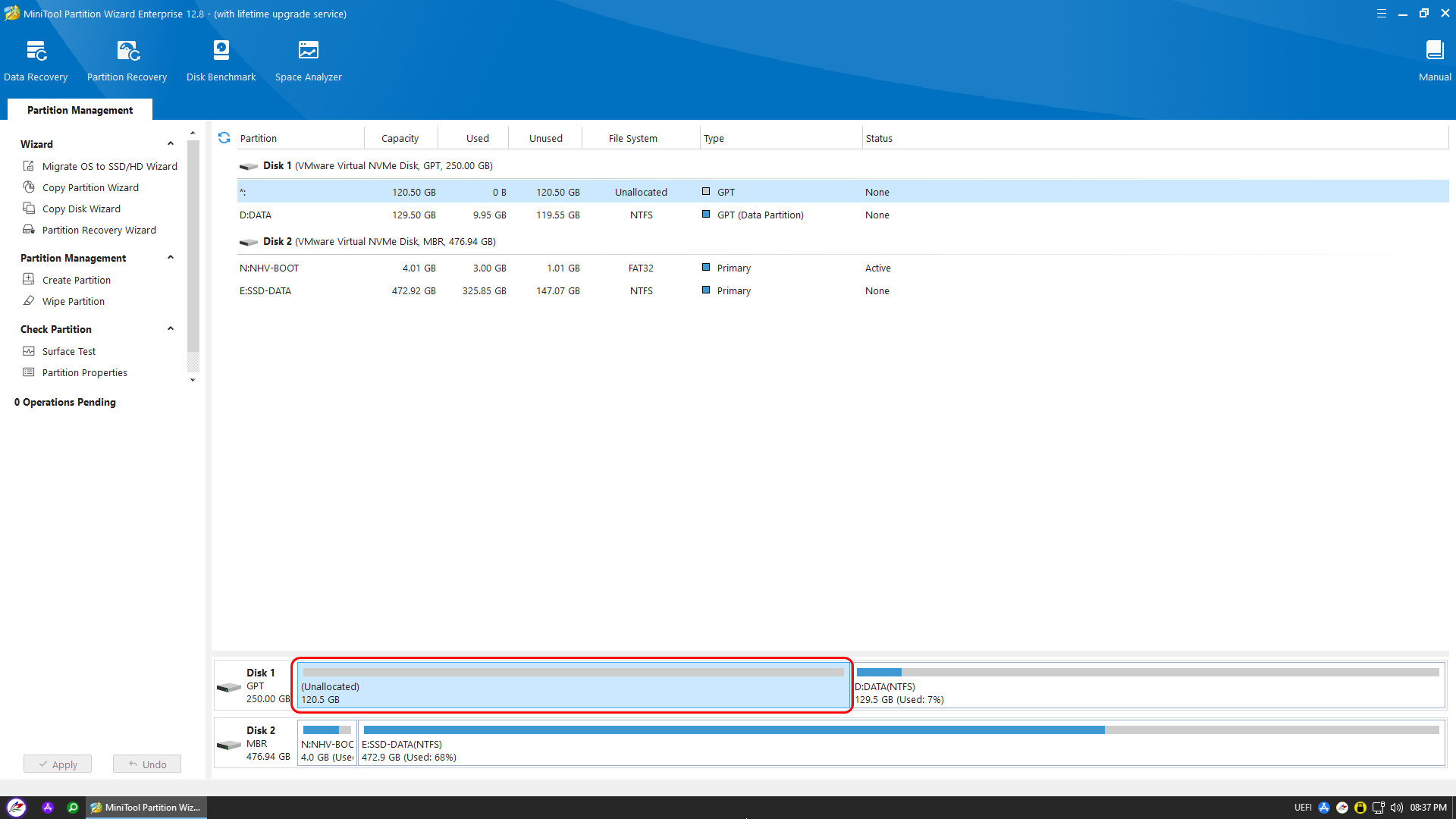
After cleaning the hard drive, access the data drive and locate the pre-downloaded Windows installation ISO file
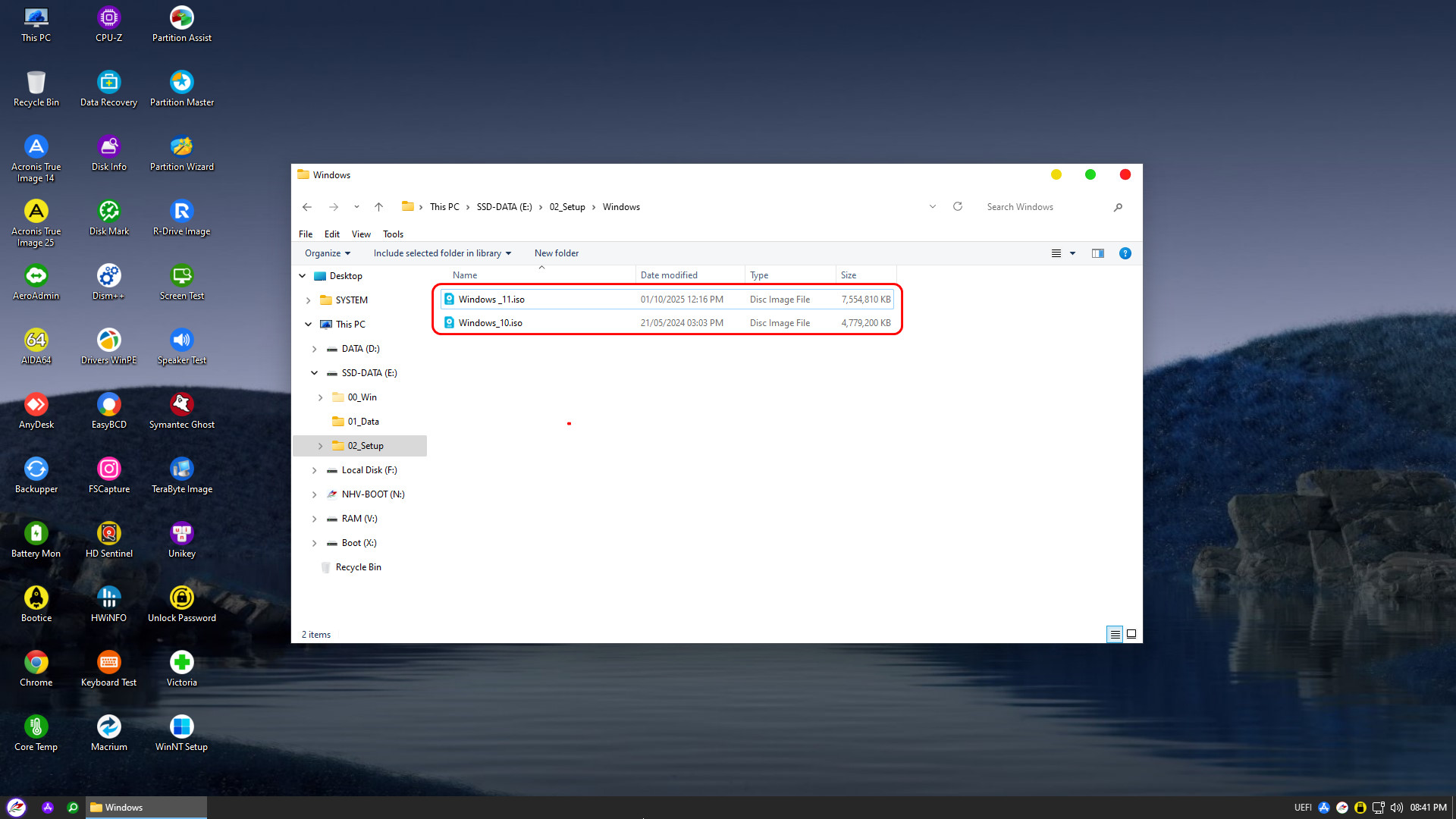
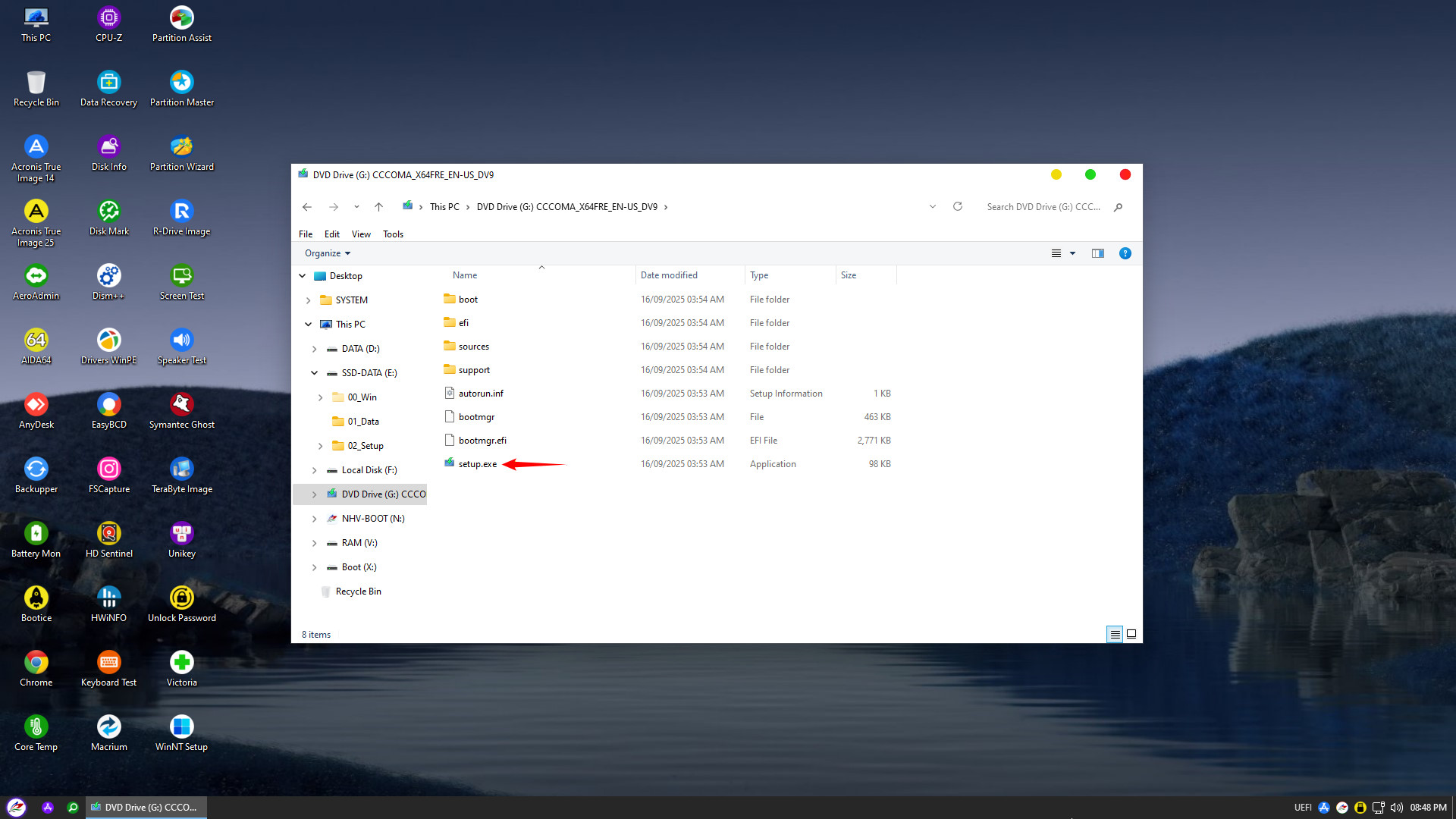
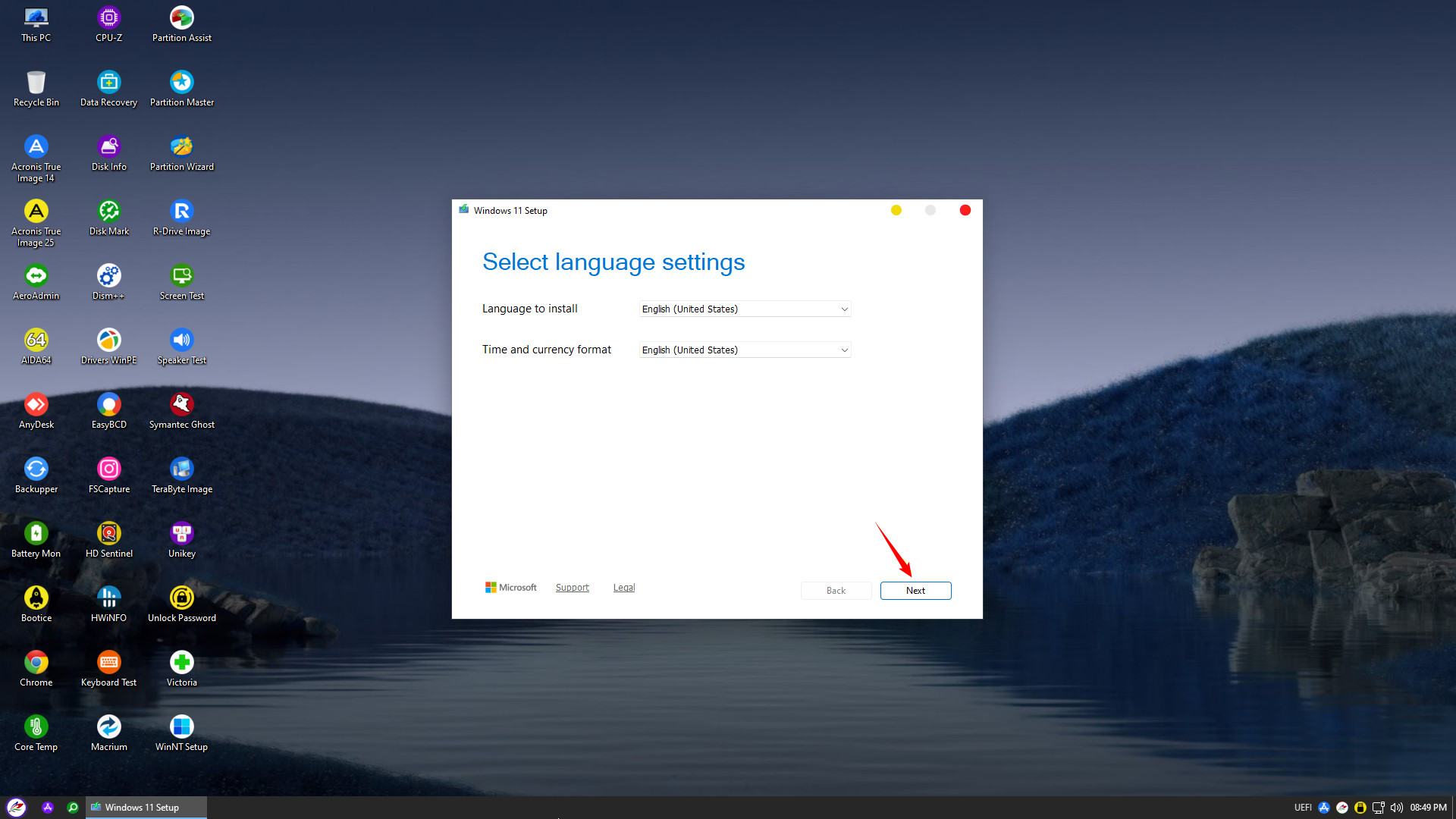
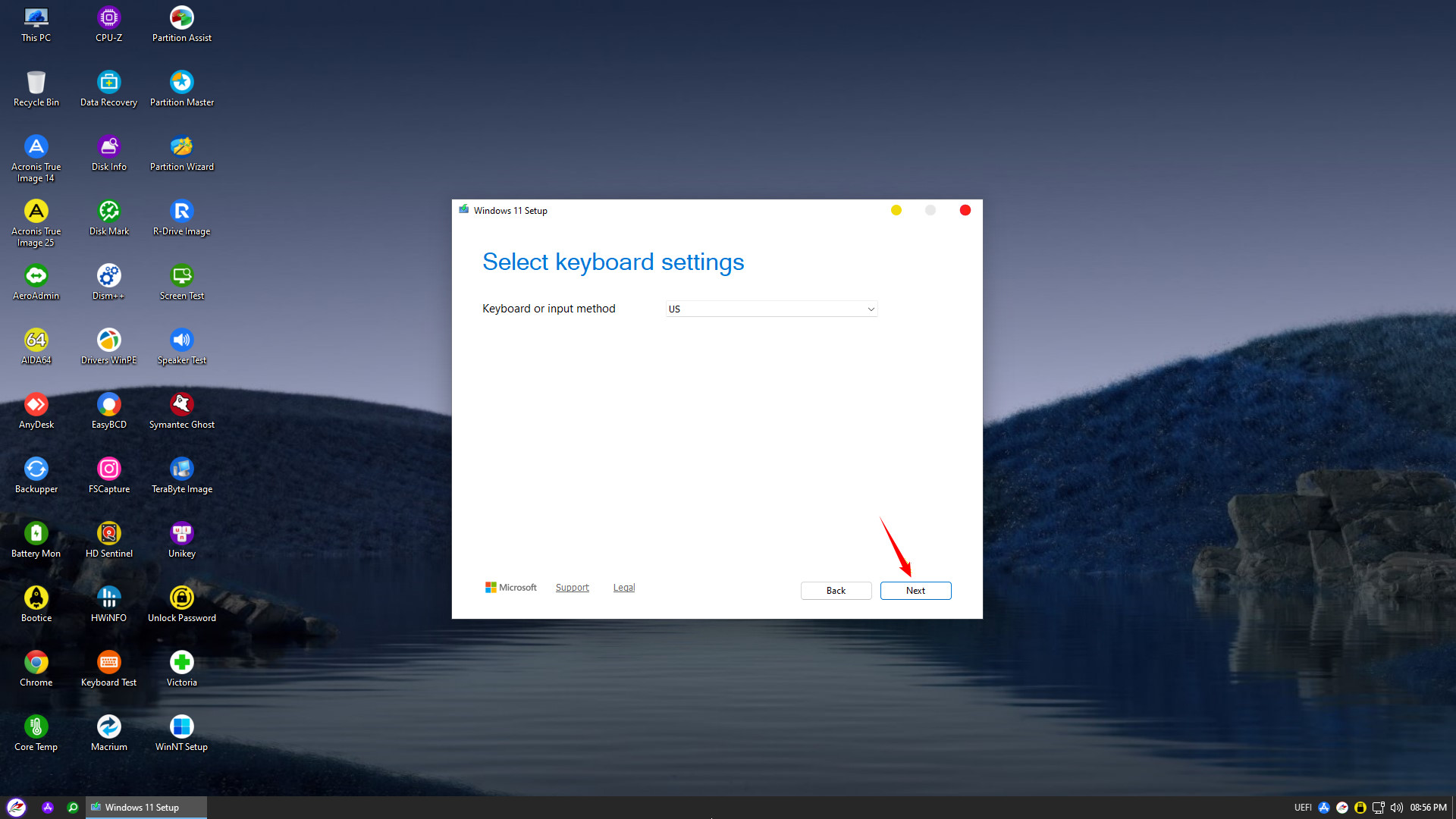
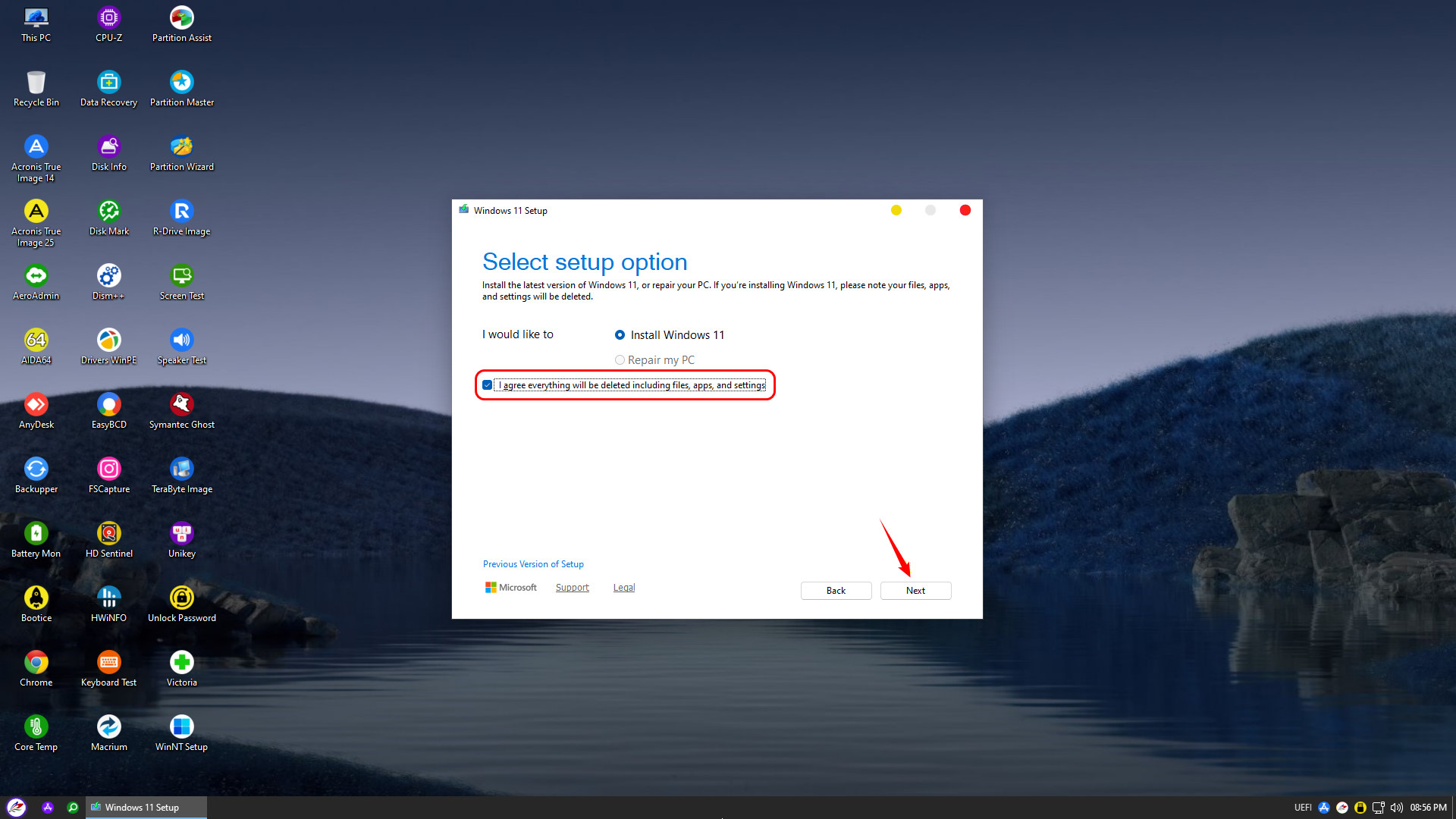
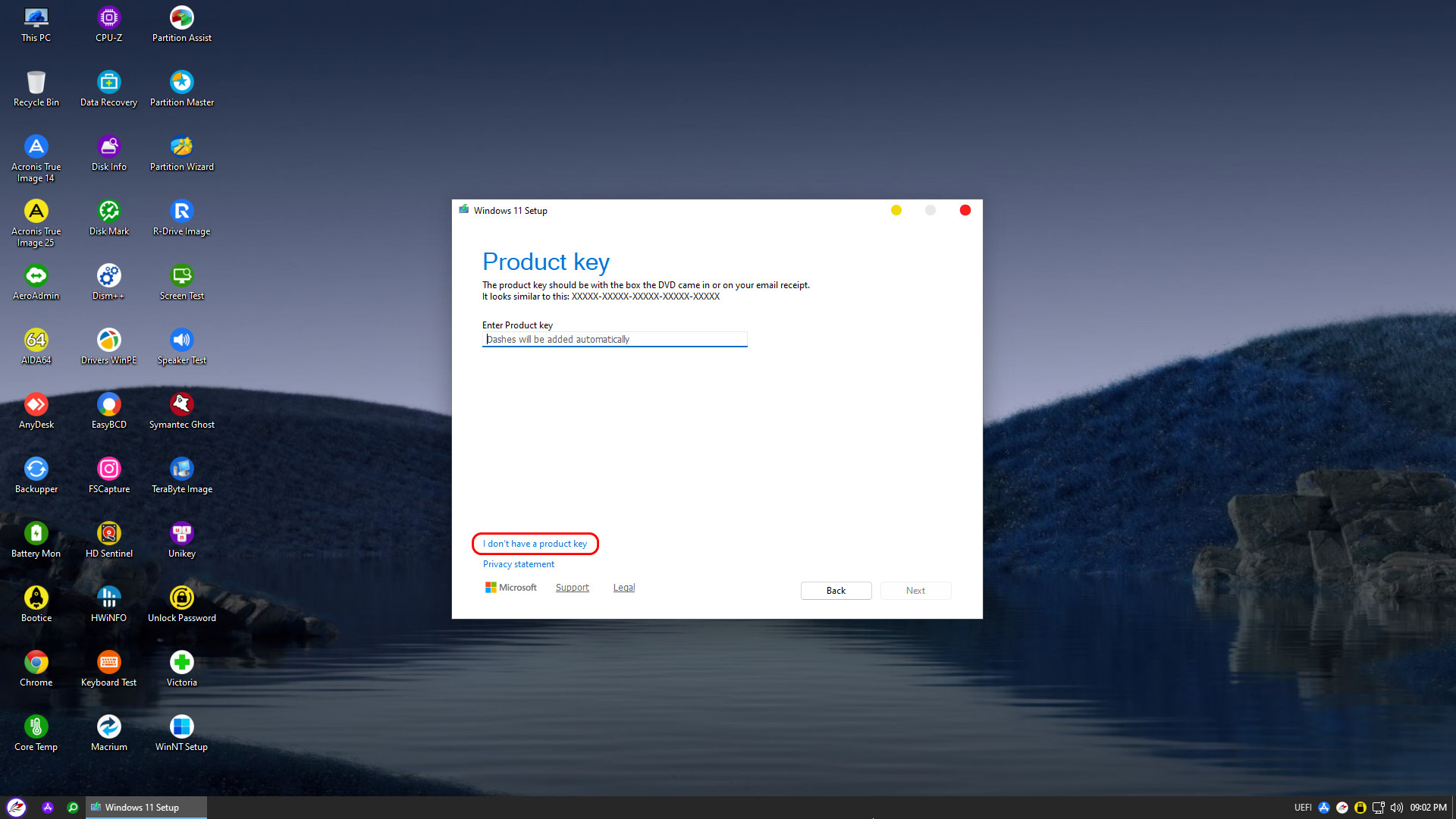
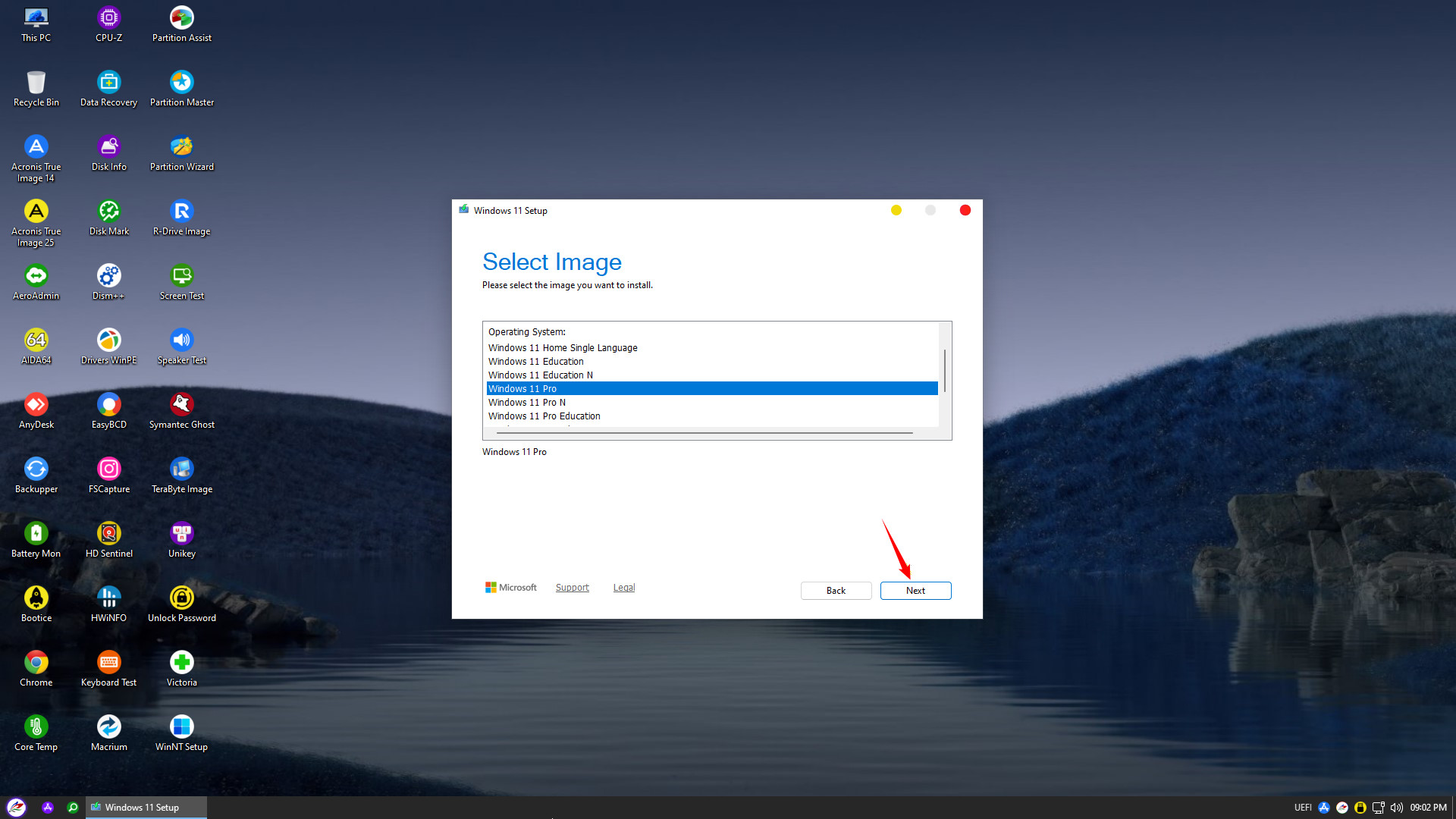
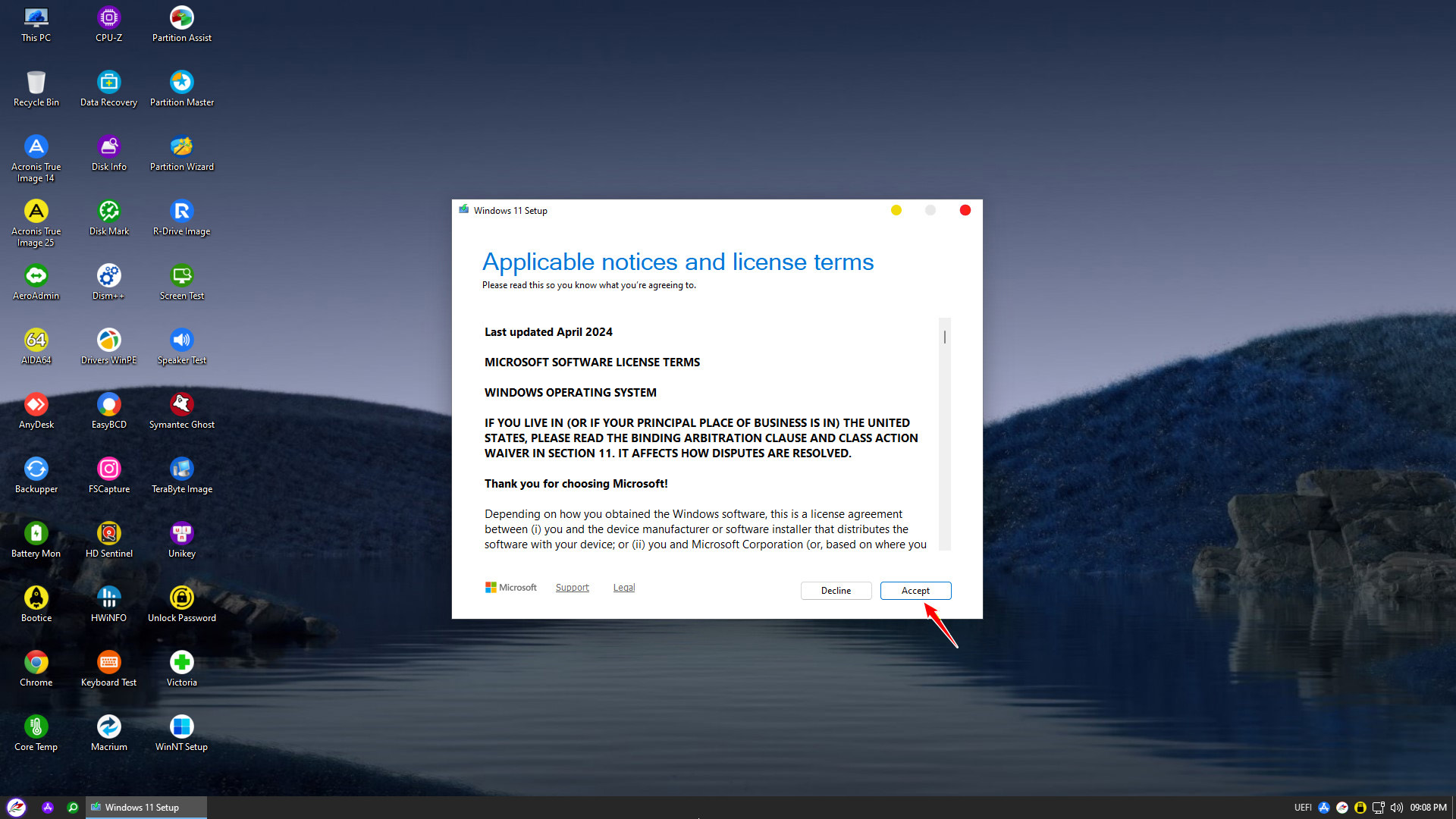
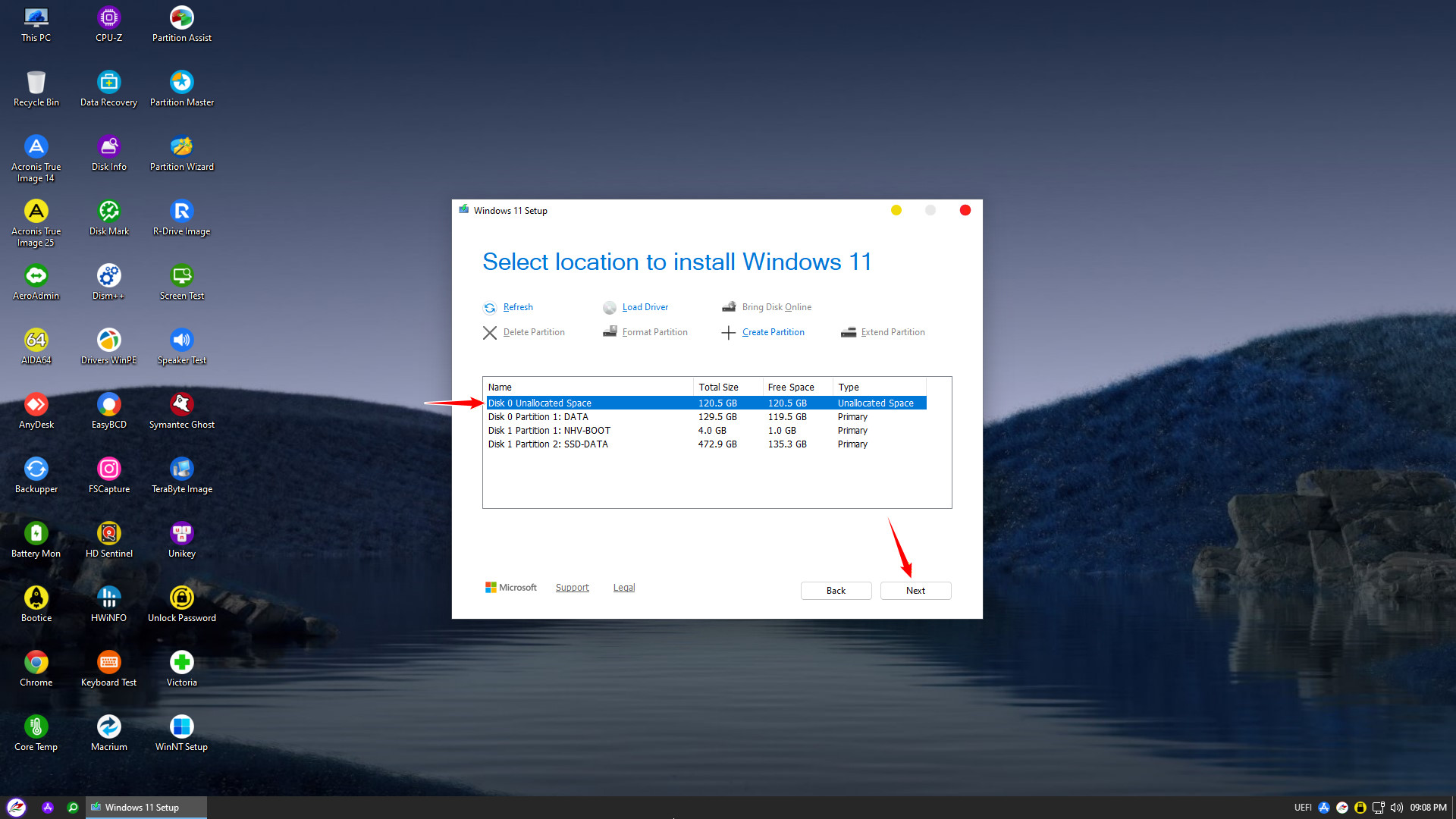
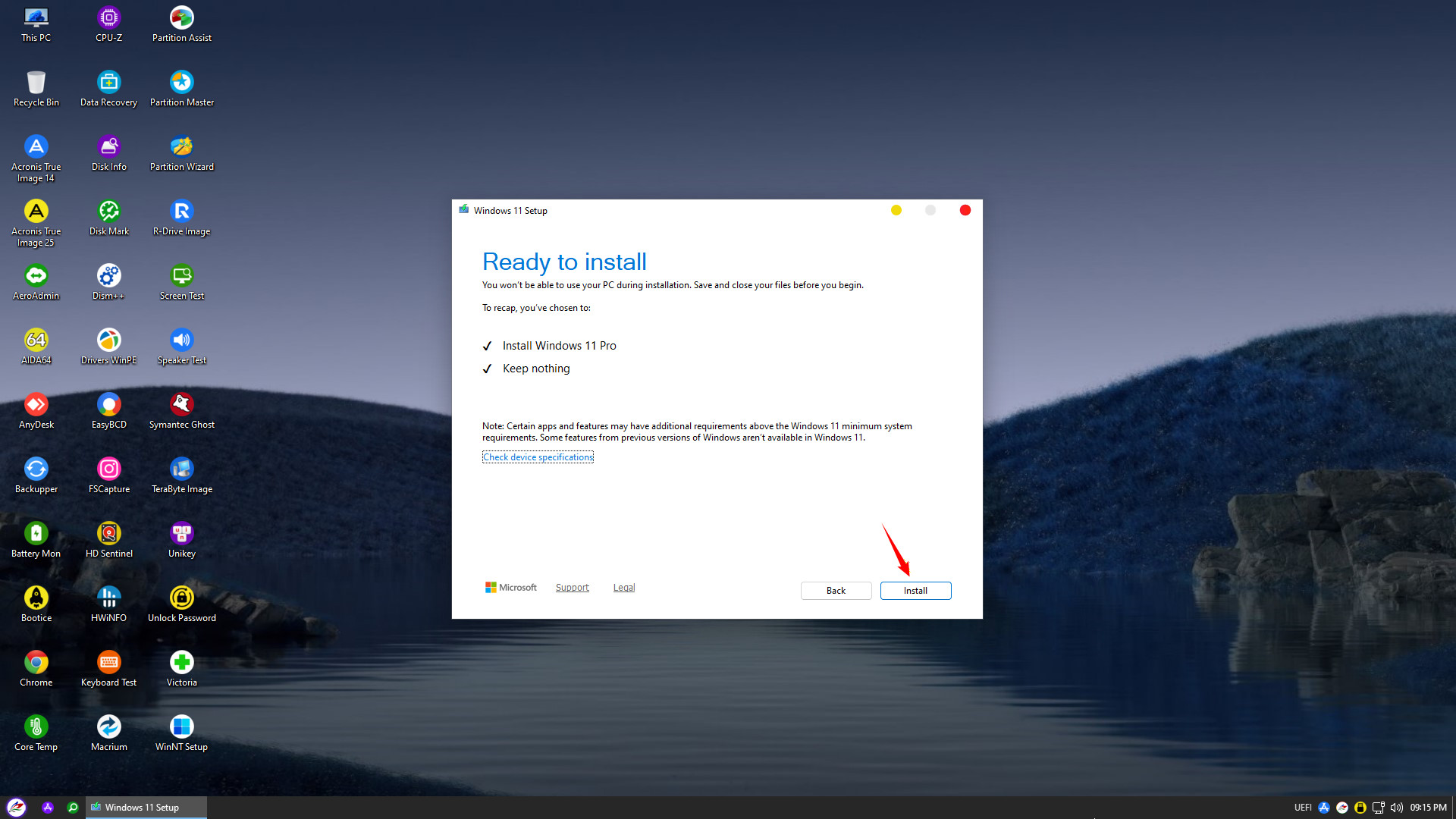
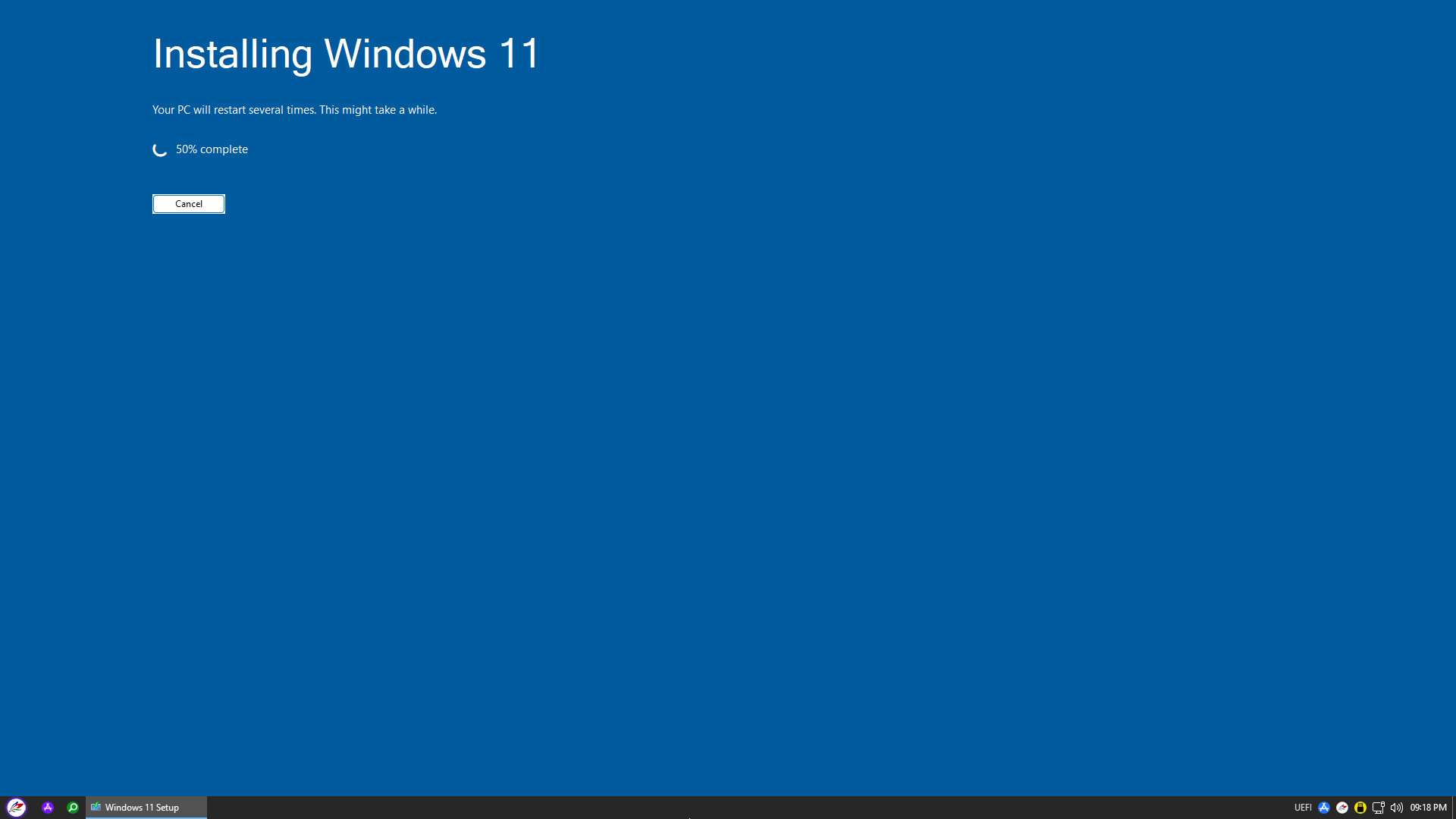
Important note: During the initial Windows setup, you should not connect to the network (unplug the LAN cable or skip WiFi) to make the installation process faster
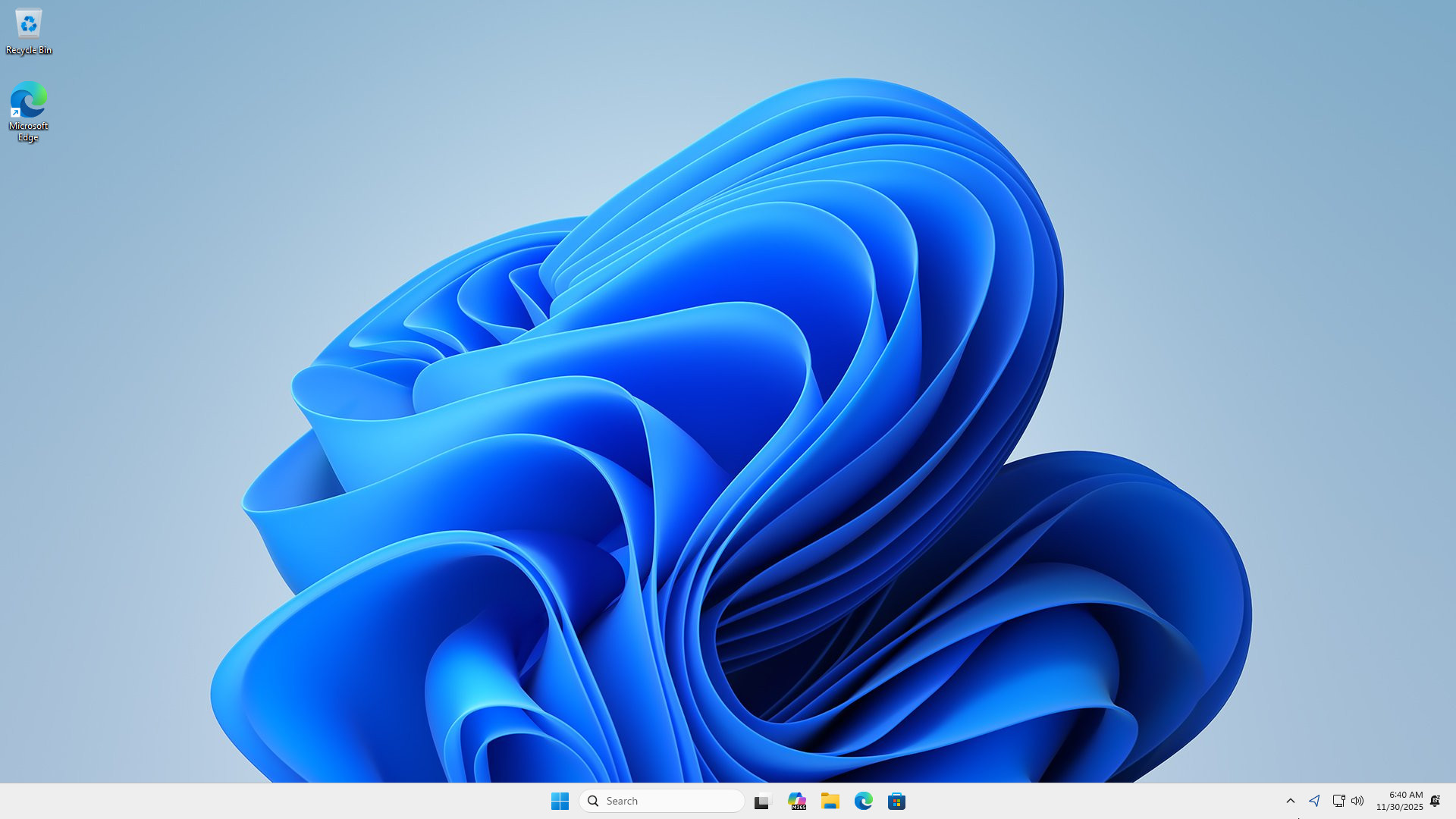
Thus, nhvboot.com has provided a detailed guide on how to install Windows 10/11 using the Setup.exe file in the WinPE environment, which is currently the most optimal method for a Clean Install, offering extreme stability and automatically bypassing hardware restrictions like TPM 2.0. We wish you success and a smooth operating system.