1. Guide to Booting from USB
By default, computers prioritize booting into the hard drive containing Windows. To access the NHV BOOT rescue environment, you need to call up the Boot Menu to temporarily change this priority. The standard technical process consists of the following 3 steps:
Step 1: Connect the Boot Device
- Connect the USB or HDD/SSD Box (already created with NHV BOOT) to the computer.
- Recommendation: Plug it into a USB 3.0/3.1 port (usually blue) to achieve the fastest WinPE loading speed.
Step 2: Access the Boot Menu Interface
- Restart the computer or press the power button to turn it on.
- As soon as the screen receives a signal (or the brand logo appears), you must press the Boot Menu hotkey continuously and decisively (Look up the exact hotkey for each brand in Part 2 below).
- Technical Note: Do not hold the key; instead, tap it repeatedly to ensure the Mainboard registers the command in time before the BIOS transfers control to Windows.
Step 3: Select Boot Device (Important)
- When the Boot Menu interface appears, use the arrow keys (up/down) to navigate to your USB/HDD Box device name.
- For UEFI Standard (Common today): The device name line usually has the prefix “UEFI” or “UEFI OS“.
For Legacy Standard (Older machines): Select the line without “UEFI” (usually just shows the USB brand name like Kingston, SanDisk…).
After selecting the correct device, press Enter for the system to start loading data from the USB.
2. Boot Menu & BIOS/UEFI Hotkeys Lookup Table
Once you understand the procedure, the most critical step is identifying the correct “key” to unlock access to the system. Since each manufacturer (Dell, HP, Asus, etc.) assigns a specific function key, memorizing them all is nearly impossible.
Below is a detailed compilation of hotkeys for the most common Laptop models and PC Mainboards available today. For your convenience, please focus on the two main function columns:
- Boot Menu: The key used to instantly select a boot device. This is the most important column you need to use to boot into NHV BOOT.
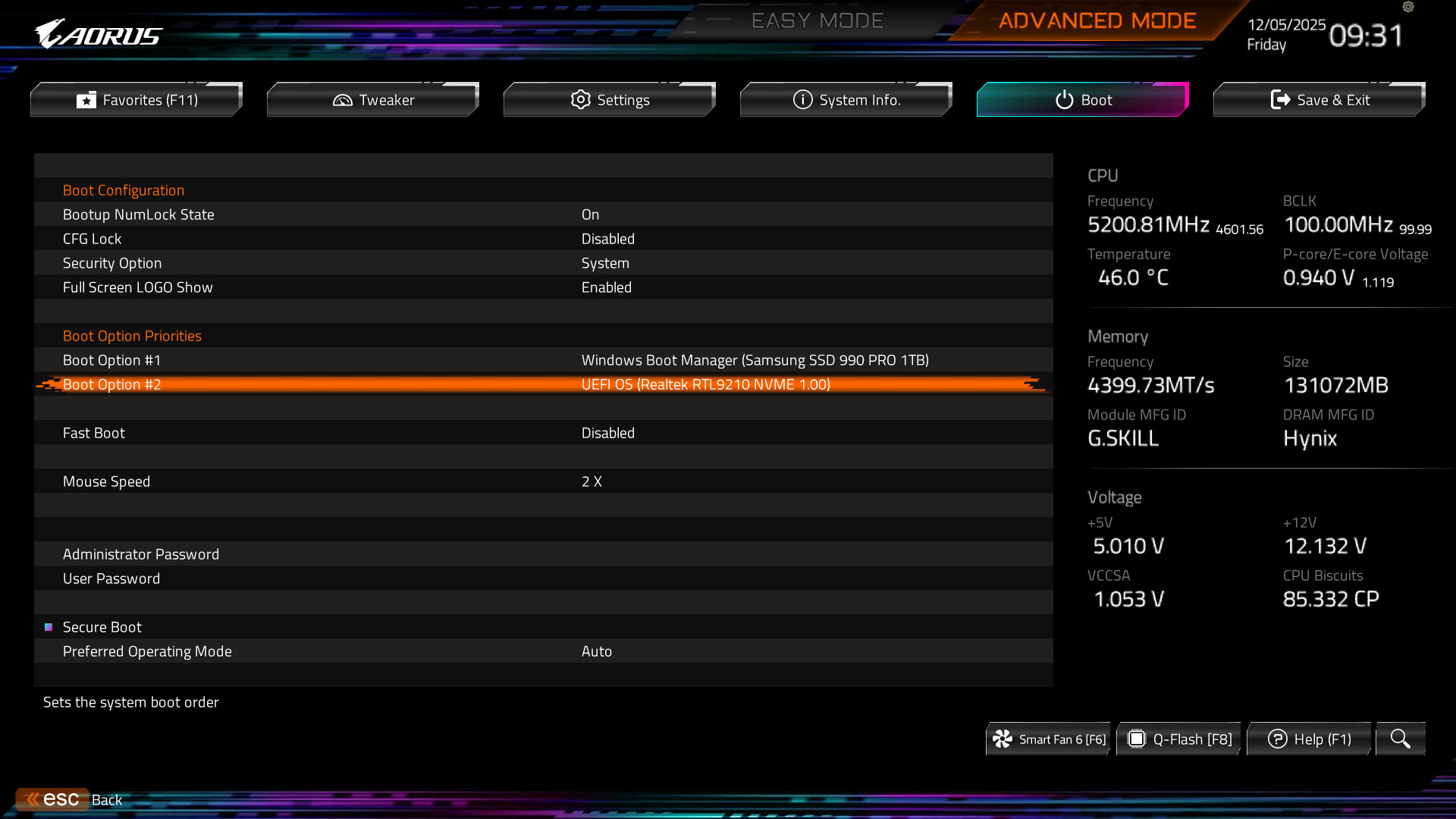
- BIOS/UEFI Settings: The key used to enter System Setup to adjust the time, disable Secure Boot, or configure a fixed boot priority.
| Manufacturer | Boot menu | BIOS/UEFI Settings |
| Dell | F12 | F2 |
| Asus | F8 (Laptop) ESC (Desktop) | F2, DELETE |
| HP | F9 | F10 |
| Lenovo | F12 | F2 |
| Acer | F12 | F2, DELETE |
| ASRock | F11 | F2, DELETE |
| GIGABYTE | F12 | F2 |
| MSI | F11 | DELETE |
| Colorful | F11 | DELETE |
| Foxconn | ESC | DELETE |
| Intel | F10 | F2 |
| Huawei | F12 | F2 |
| Fujitsu | F12 | F2 |
| Toshiba | F12 | F2, F1, ESC |
| Samsung | F2, ESC | F2, F10 |
| eMachines | F12 | TAB, DELETE |
Note: Hotkeys often appear briefly during startup, so watch the screen closely to spot them
Mastering Boot Menu hotkeys not only saves you from the time-consuming “guessing game” during Windows reinstallation or system recovery but also reflects the professionalism of a skilled technician. We hope this lookup table and the standard procedures shared by NHV BOOT will serve as a useful “handbook” to support your work effectively.
If you are looking for a powerful rescue toolkit compatible with all hardware ranges—from older Legacy systems to the latest UEFI (Gen 12, 13…) platforms—don’t forget to download the latest version of NHV BOOT. Equip yourself with this comprehensive rescue solution to be ready to resolve any computer issue quickly and efficiently.