Convert Windows Boot Mode from Legacy to UEFI
Before proceeding, you must understand the following basic principles:
- UEFI Mode: Requires the hard drive to be in GPT format with at least 2 partitions: EFI (FAT32) and Windows (NTFS)
- Legacy Mode: Requires the hard drive to be in MBR format with 1 Active Windows partition (NTFS)
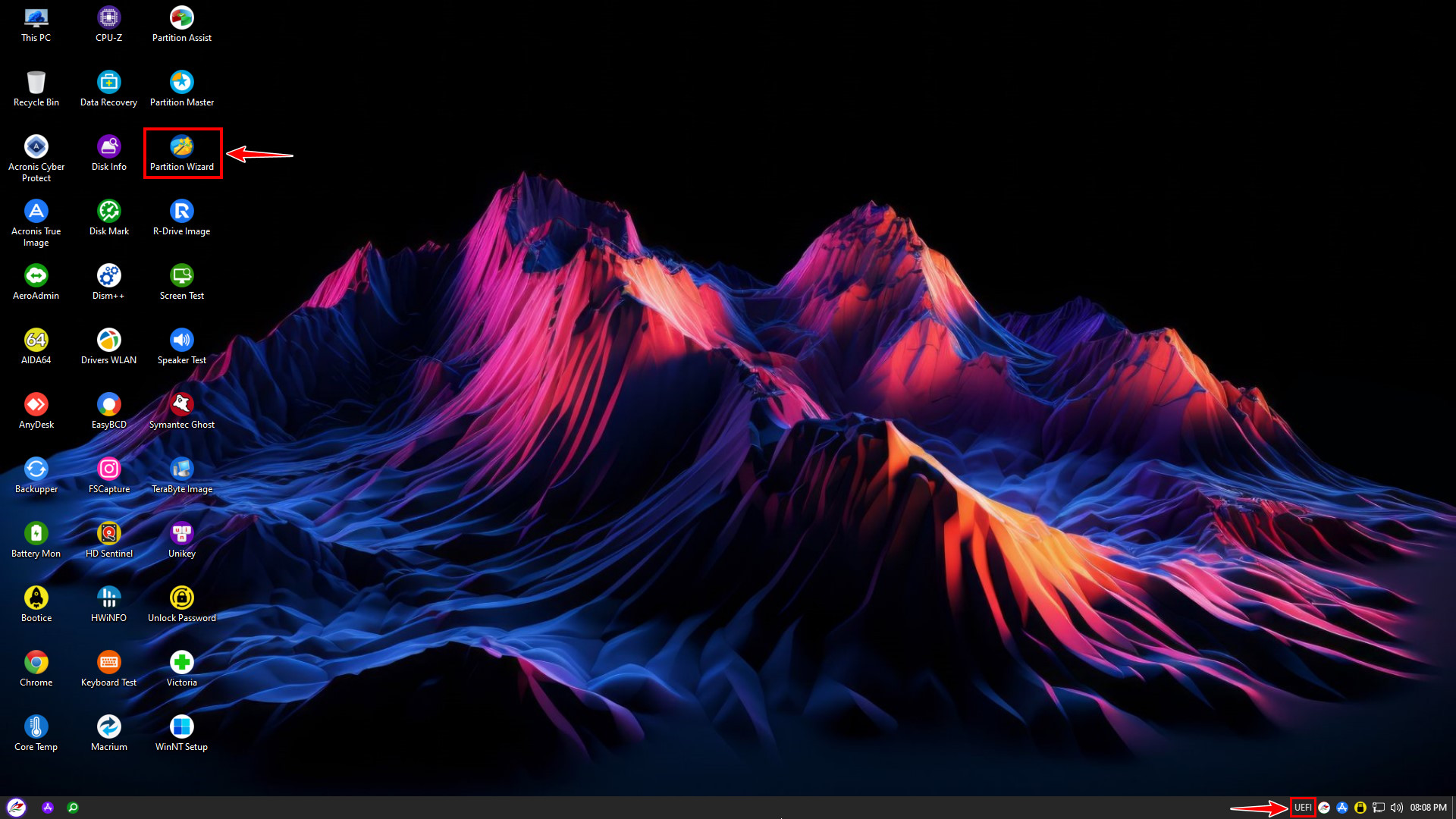
Important Note: You must boot into the NHV BOOT WinPE environment using UEFI mode. Open Partition Wizard to begin the process
Open Partition Wizard to begin the process
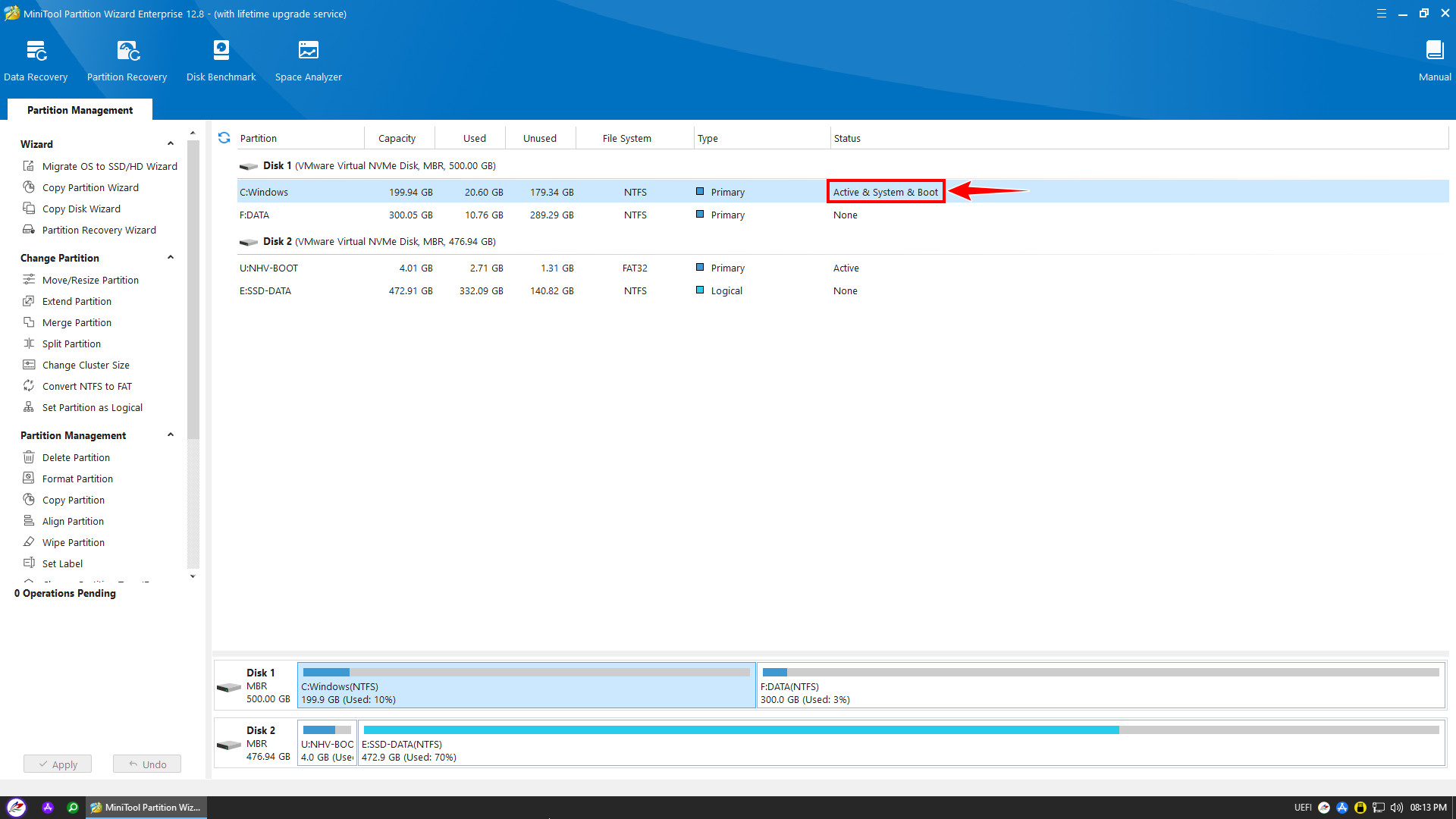
For a Windows partition that is already Set Active, Partition Wizard will automatically create a new EFI partition (FAT32) when you convert the hard drive from MBR to GPT
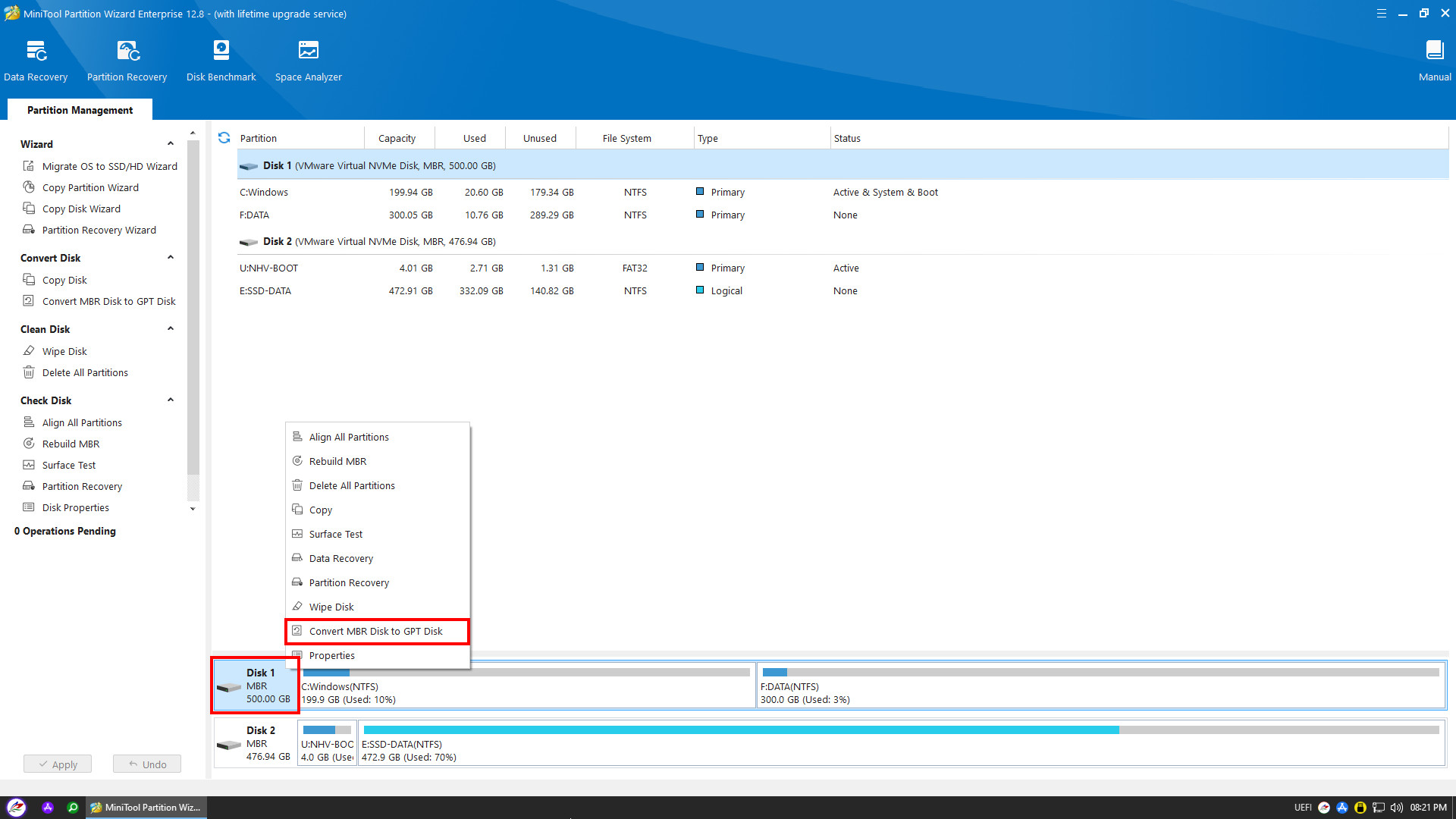
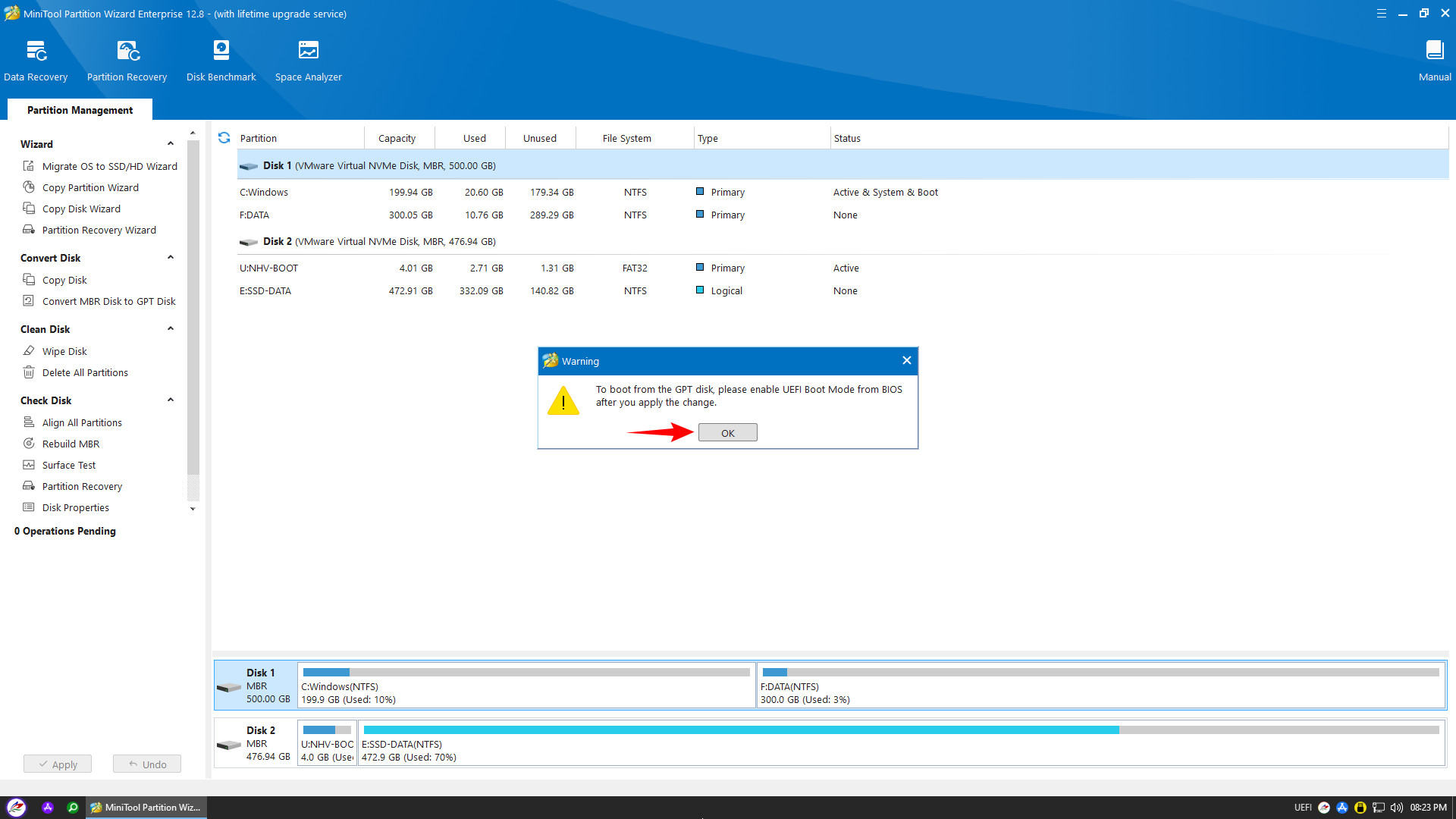
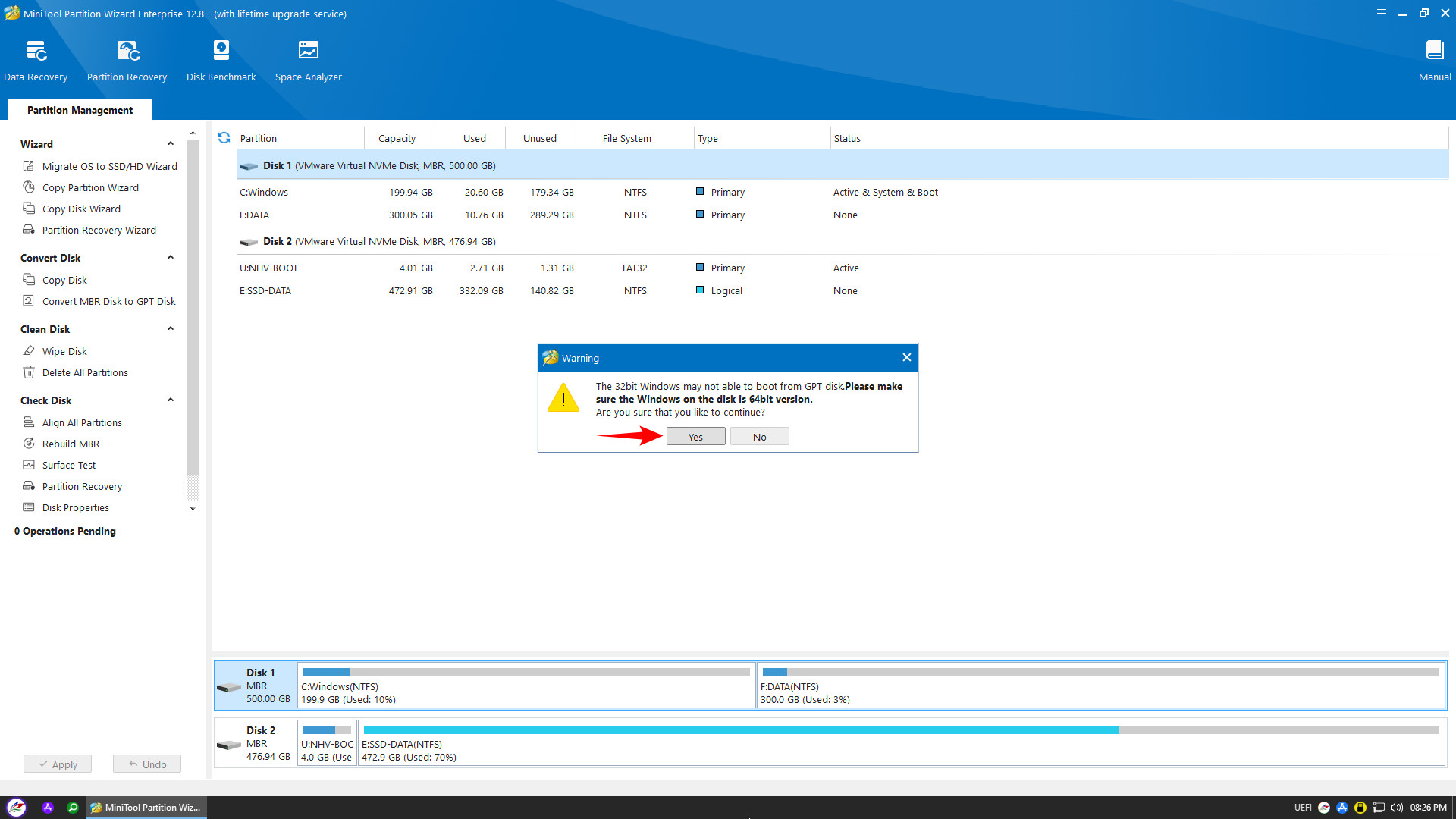
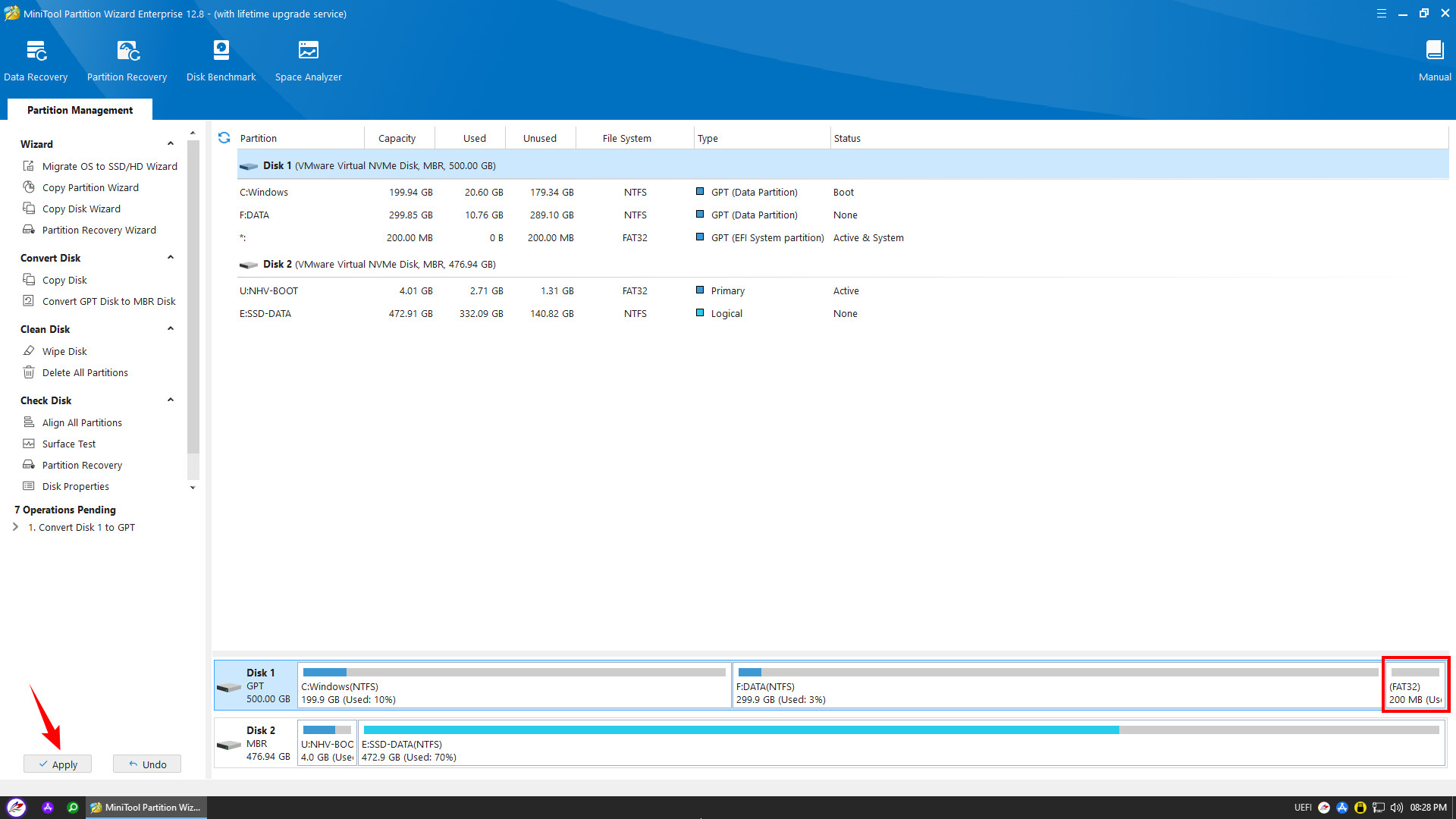
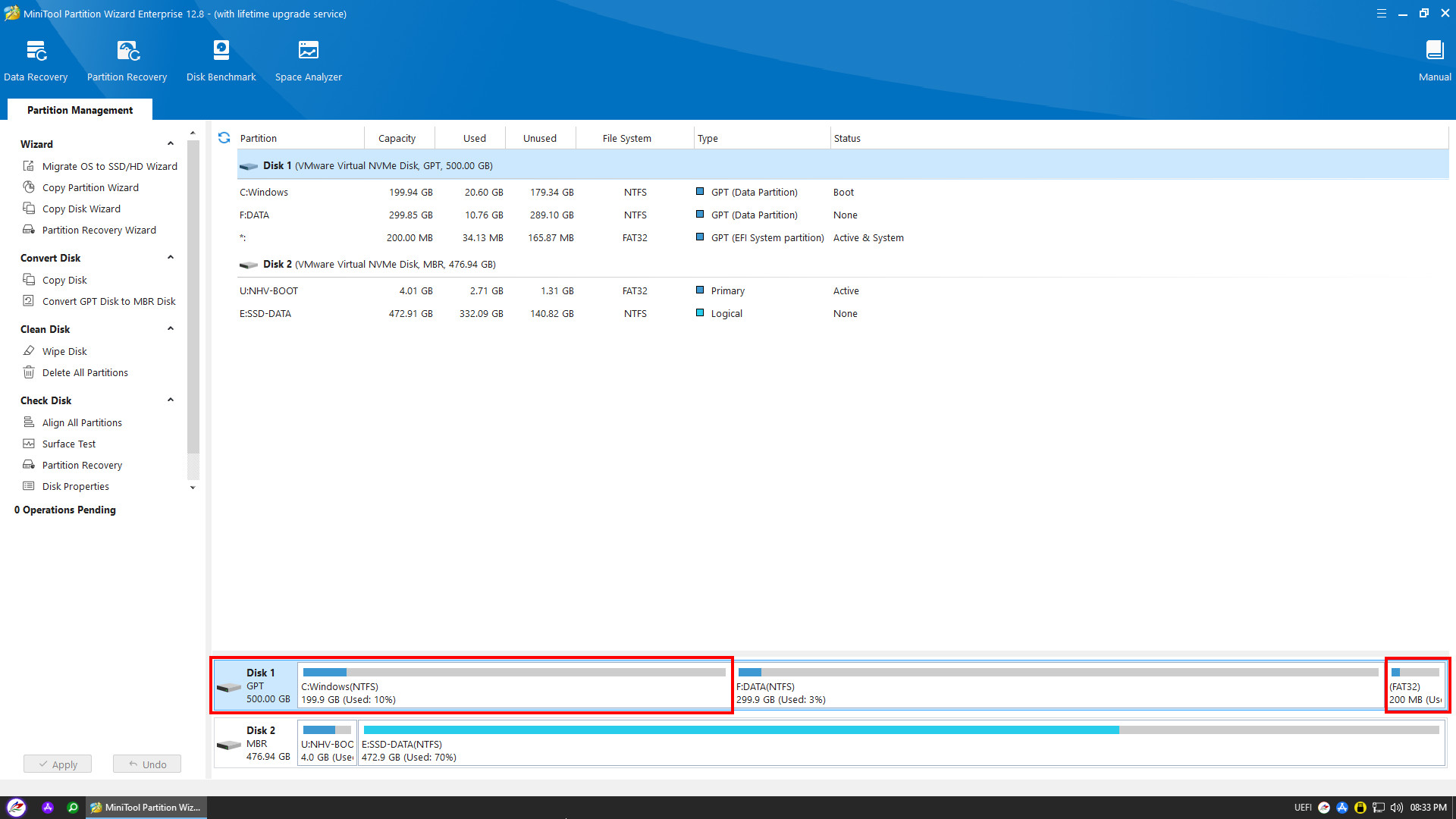
After the conversion is complete, verify that the hard drive is now in GPT format and a new EFI partition has been created. Restart your computer and enter BIOS to enable UEFI boot mode to access Windows. This concludes nhvboot.com’s guide on safely converting Windows Legacy to UEFI without data loss. Good luck!